
What GatePass is
GatePass is Jambo Freight's web system for controlling every container that enters or leaves a yard. A container may only be recorded as In Yard or Gated Out after the movement was requested, approved by a second person, and physically verified at the gate.
Paper passes
Paper gate passes get lost, copied or changed. Containers leave without authority, seals are not recorded, and nobody can say who approved what.
Request → approve → verify
Three separate people, each step time-stamped. A mismatch at the gate stops the truck and creates a HOLD that must be resolved.
A yard you can trust
A live in-yard list, searchable history, Excel/PDF reports and a tamper-proof audit trail for every container.
GatePass runs in any modern browser (Chrome, Edge, Firefox, Safari) on a computer, tablet or phone. Gate officers usually use a tablet or phone at the gate.
The workflow at a glance
Every Gate-In and every Gate-Out follows the same five steps. The status of the request changes as it moves along.
Request statuses
| Status | Meaning | What can happen next |
|---|---|---|
| Draft | Saved by the requester, not yet sent. | Edit, submit, delete or cancel. |
| Pending approval | Sent to approvers. The requester can no longer edit it. | Approved, rejected or cancelled. |
| Approved | Gate pass and QR issued; waiting for the truck. | Completed at the gate, placed on HOLD, expired or revoked. |
| HOLD | A physical check failed at the gate. | Re-authorized, revised, cancelled or closed. |
| Completed | Verified at the gate; the yard status has changed. | Nothing — this is final. |
| Rejected | The approver refused it with a reason. | Revised as a new draft, or closed. |
| Expired / Cancelled / Closed | Finished without a movement. | Nothing — create a new request if still needed. |
Who does what
Each person signs in with their own account. What you see in the menu depends on your role. The three key roles are deliberately separated so that no one can both request and approve, or approve and verify, a movement.
Operations Officer
Creates Gate-In and Gate-Out requests, attaches the booking or release order, submits them, and corrects rejected requests.
Operations Approver
Reviews requests and approves or rejects them, revokes passes, resolves HOLD cases and approves inventory adjustments.
Gate Security Officer
Scans or types the gate pass, performs the physical checklist, and records the movement — or places it on HOLD.
System Administrator
Manages users, roles, permissions, sites, gates, master data and settings. Cannot create or approve movements and cannot change the audit trail.
Yard Supervisor
Looks after yard locations, stock counts and reconciliation, and resolves HOLD cases.
Management & Auditor
Read-only access to dashboards, reports and (for auditors) the audit trail.
Administrators can also create custom roles (for example "Shift Lead") and give individual users extra or fewer permissions. See Roles & permissions.
Signing in & finding your way
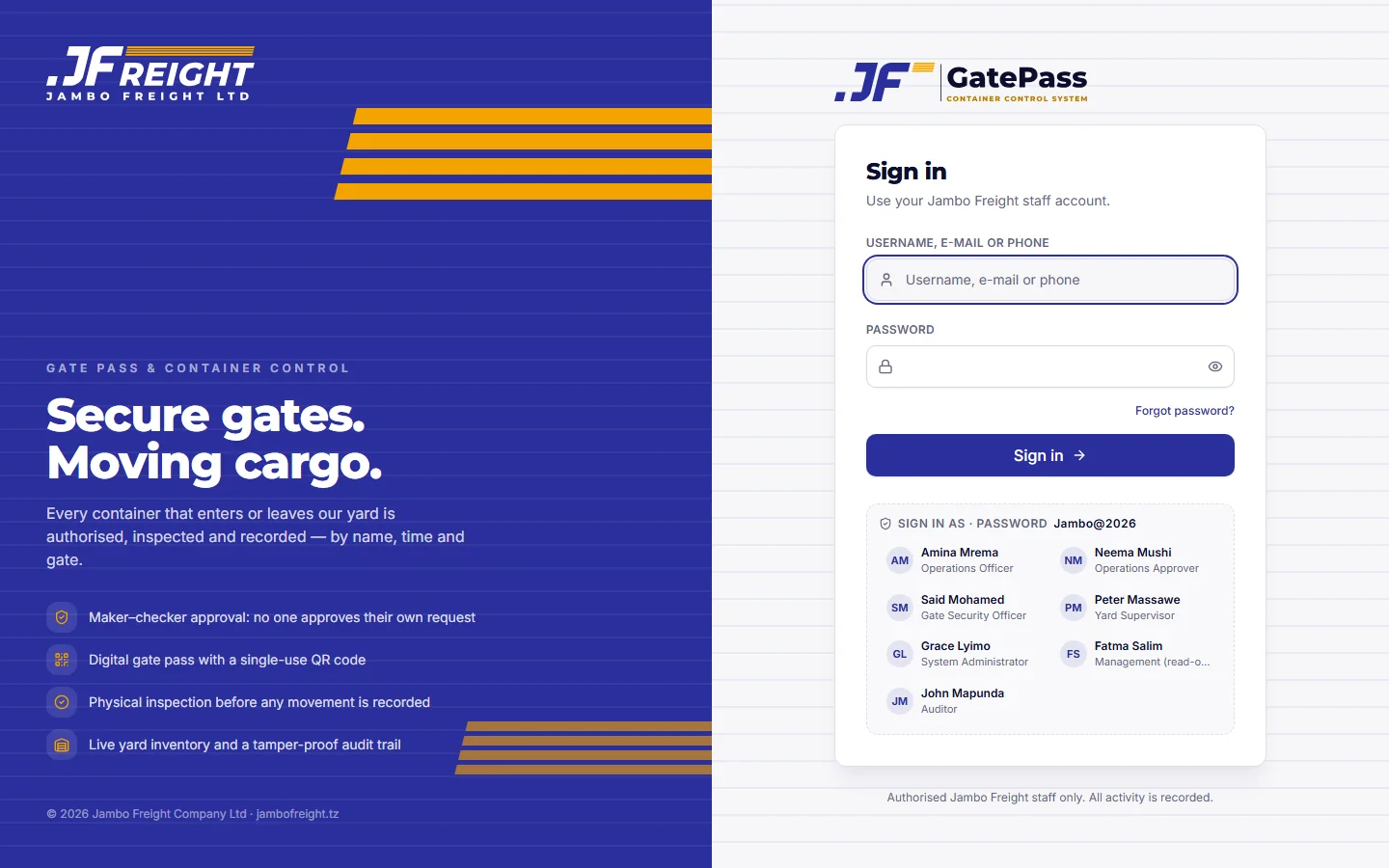
Open the GatePass address in your browser and sign in with your username, work e-mail or phone number and your password.
Sample accounts
The system comes with sample users, one for each role, so you can try every part of it. All of them use the password Jambo@2026. You can also click a name in the Sign in as box on the sign-in page.
| User | Username | Role | Opens on |
|---|---|---|---|
| AMAmina Mrema | amina | Operations Officer | Dashboard |
| NMNeema Mushi | neema | Operations Approver | Approvals |
| SMSaid Mohamed | said | Gate Security Officer (Kurasini) | Gate check |
| PMPeter Massawe | peter | Yard Supervisor | Dashboard |
| GLGrace Lyimo | grace | System Administrator | Dashboard |
| FSFatma Salim | fatma | Management (read-only) | Dashboard |
| JMJohn Mapunda | john | Auditor | Dashboard |
The screen layout
- Sidebar (left) — the menu. Click a group (for example Movements) to open its sub-menu. The arrow at the top collapses the sidebar to icons; on a phone it opens as a drawer.
- Site selector (top) — if you work at more than one site (Kurasini Yard, Ubungo Depot), choose one site or "All my sites". Every list and count follows this choice.
- HOLD button (red, top) — appears when trucks are on HOLD; click it to open the HOLD cases.
- Moon icon — switches between light and dark mode.
- Bell — your notifications; a red dot means something urgent.
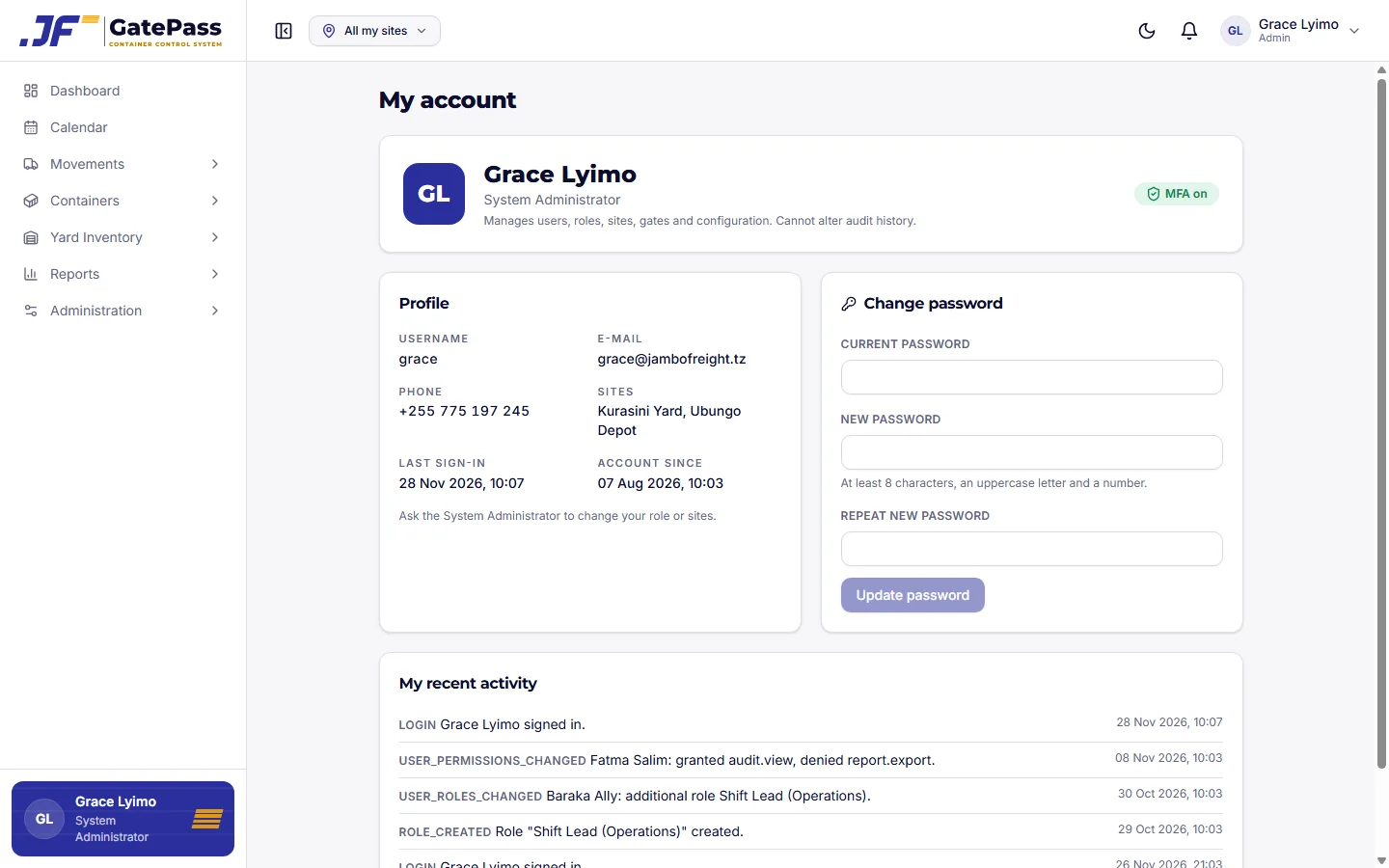
- Your name — My account, change password, sign out. Your card at the bottom of the sidebar also opens My account.
For security you are signed out automatically after 30 minutes without activity (the time can be changed in System settings).
The story of one container
We follow container MSKU 482019 5 (40' high cube, full, for Usambara Coffee Co.) as it arrives from the port, is stored in Kurasini Yard, and later leaves for the client's warehouse. On the way out, the seal does not match — so we also see a HOLD being raised and resolved. Every screenshot below was taken in the real system.
Amina
Operations Officer
Neema
Operations Approver
Said
Gate Security, Kurasini
Peter
Yard Supervisor
Create the Gate-In request
From the dashboard (or Movements → Create Gate-In) Amina opens a new Gate-In request. The form is grouped into Container, Client & booking, Truck & driver and Remarks & documents. The summary on the right updates as she types.
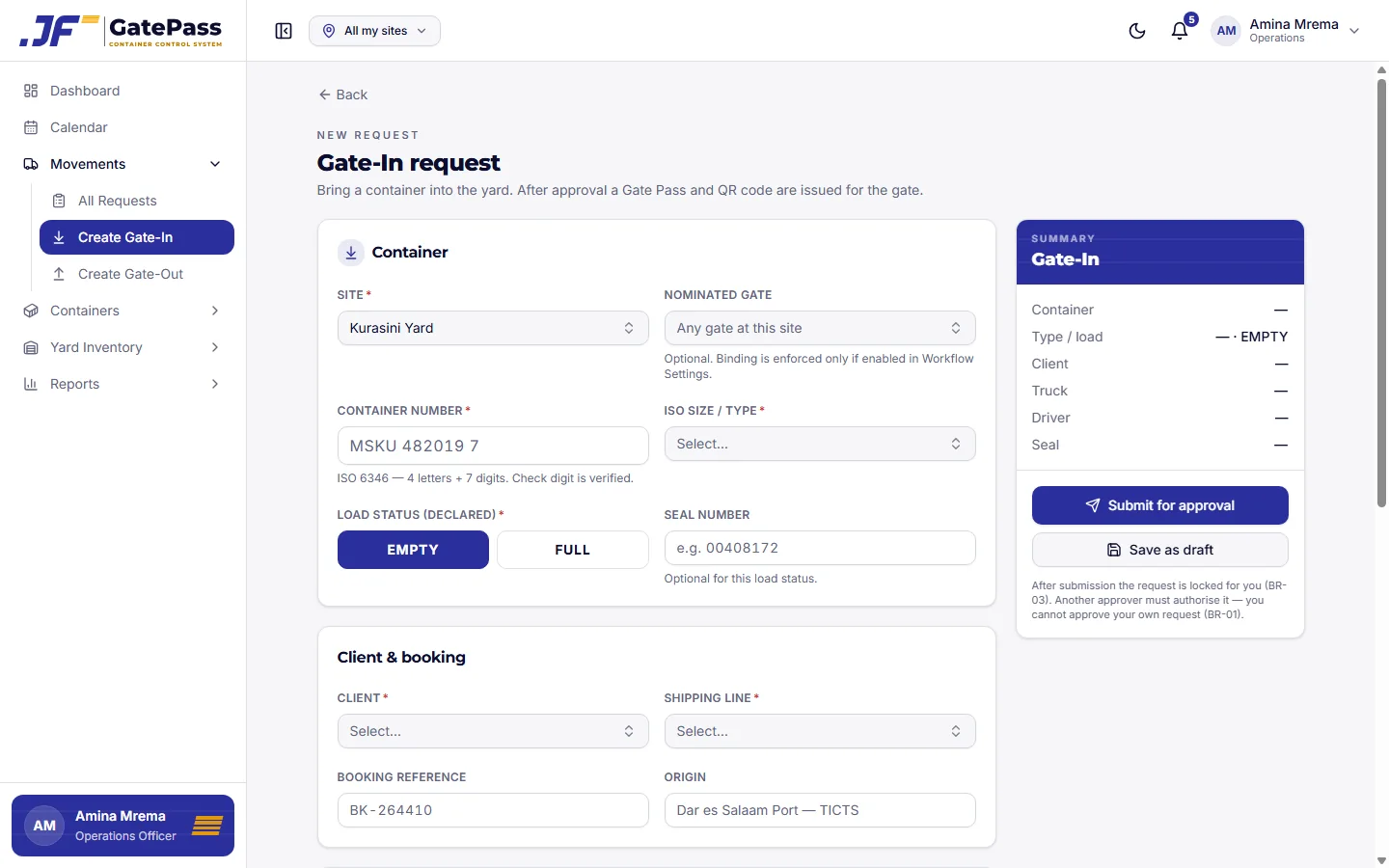
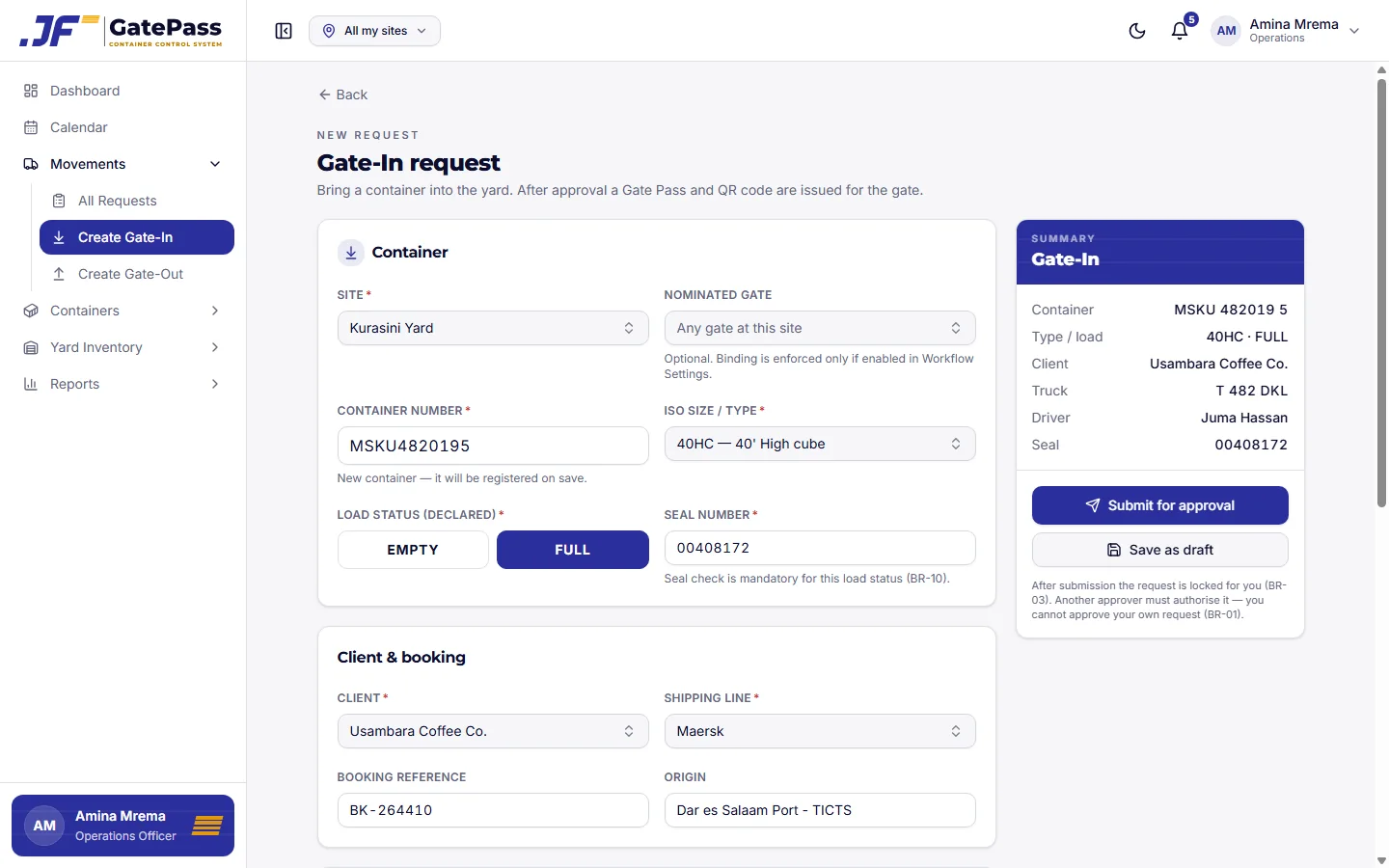
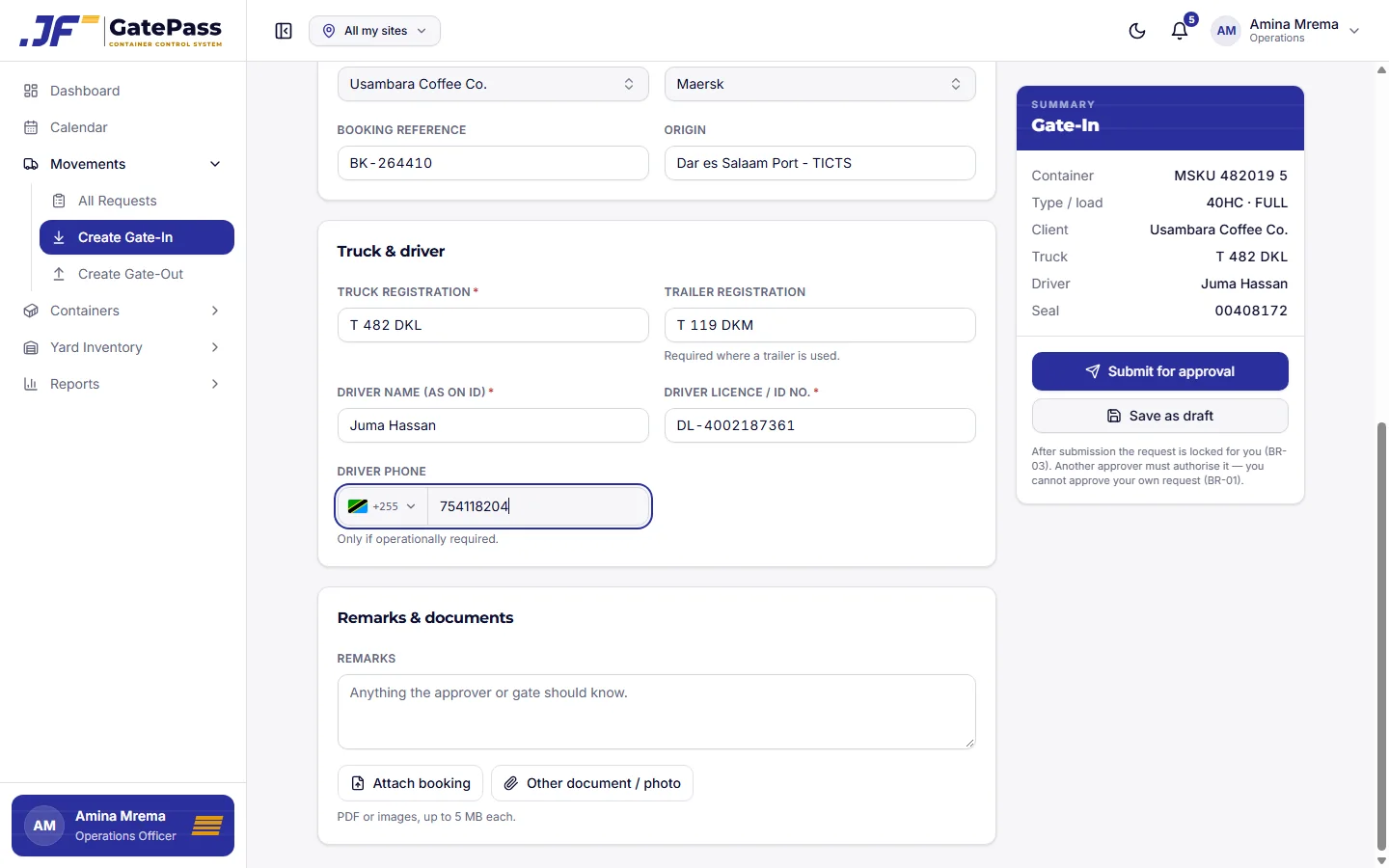
- Load status — choose EMPTY or FULL. For FULL containers a seal number is mandatory.
- Save as draft keeps the request private to Amina; Submit for approval sends it to approvers.
- The system refuses a Gate-In for a container that is already in the yard, or that already has another open request.
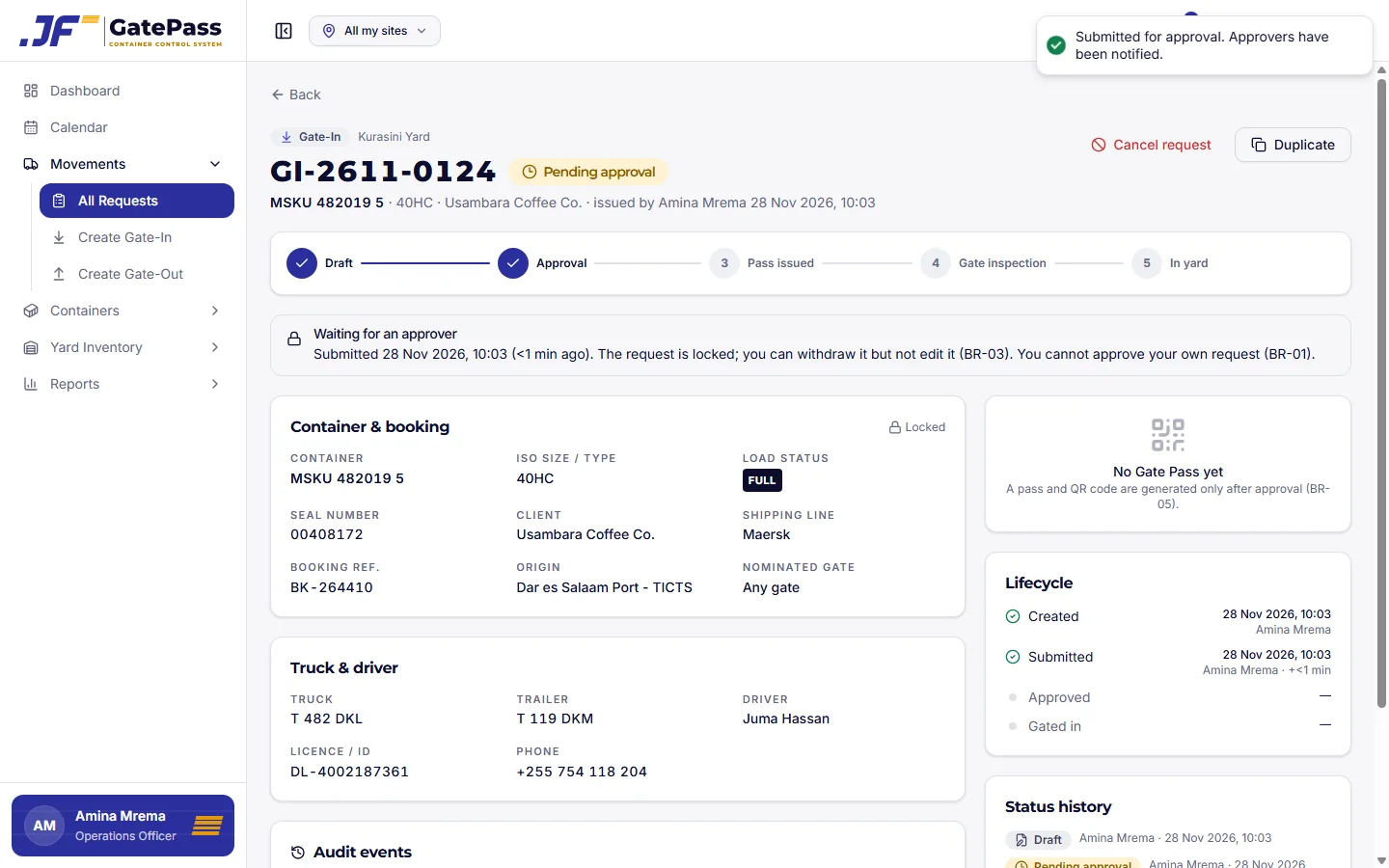
The person who creates a request can never approve it — not even an administrator. A second person must decide.
Approve & issue the gate pass
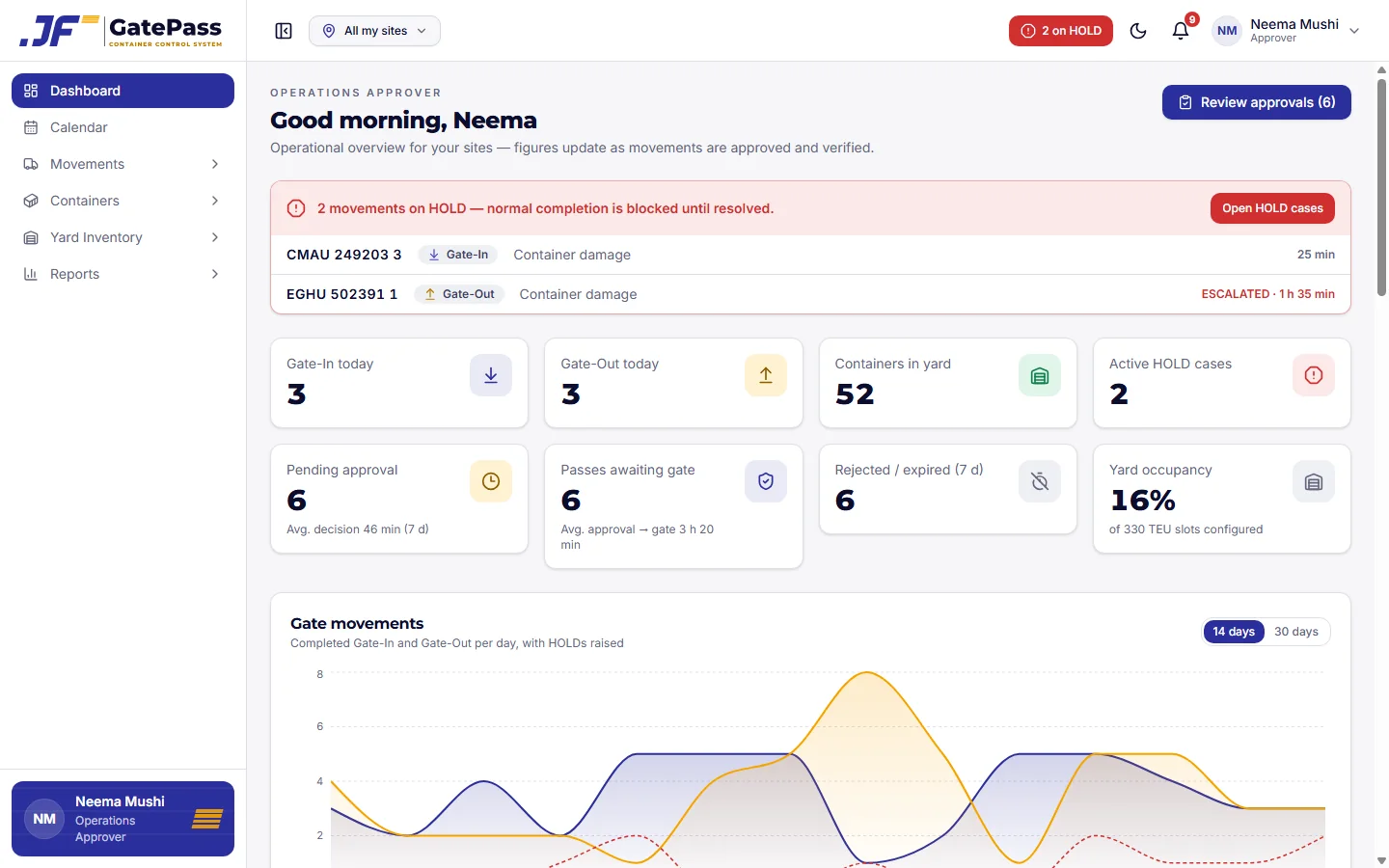
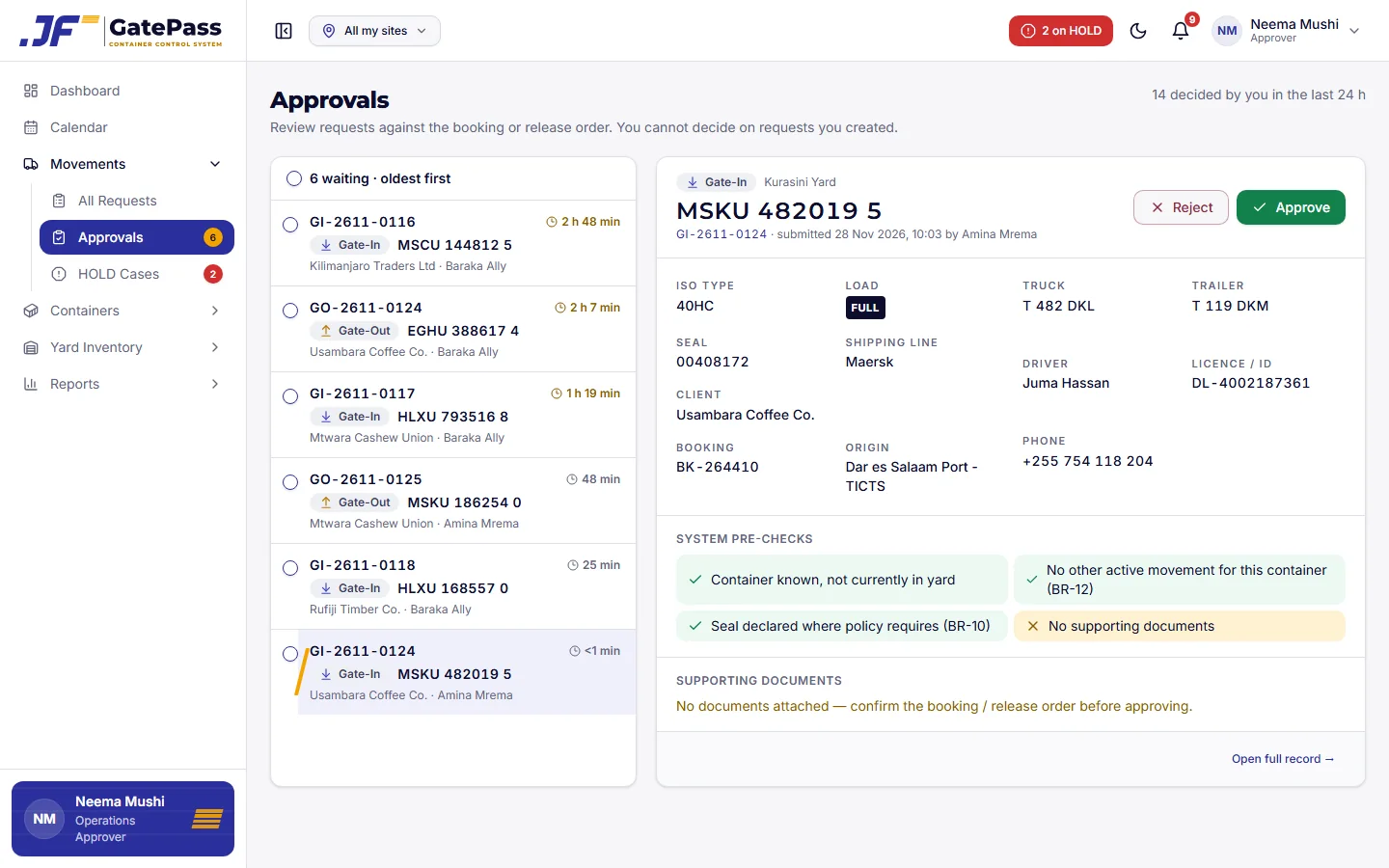
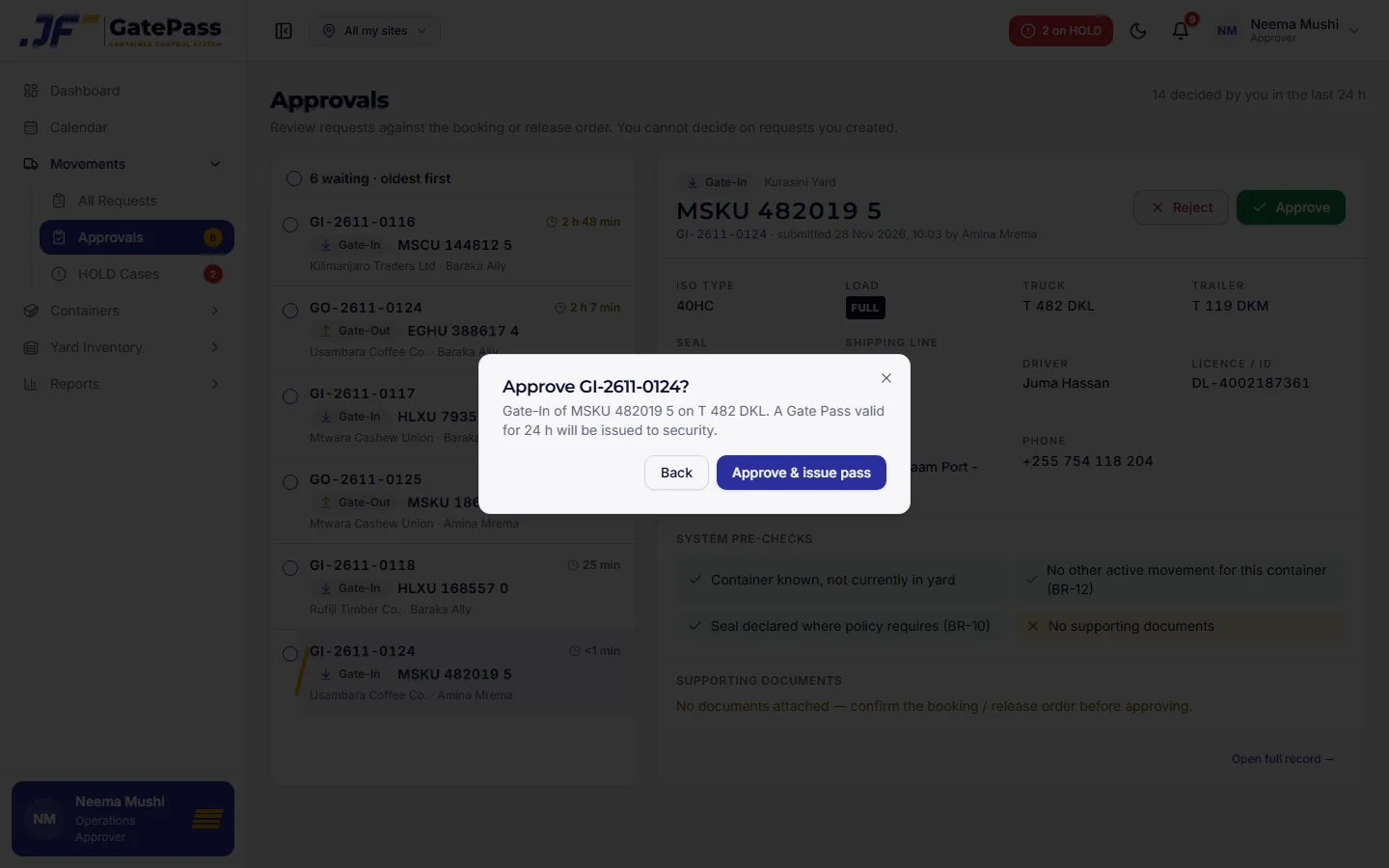
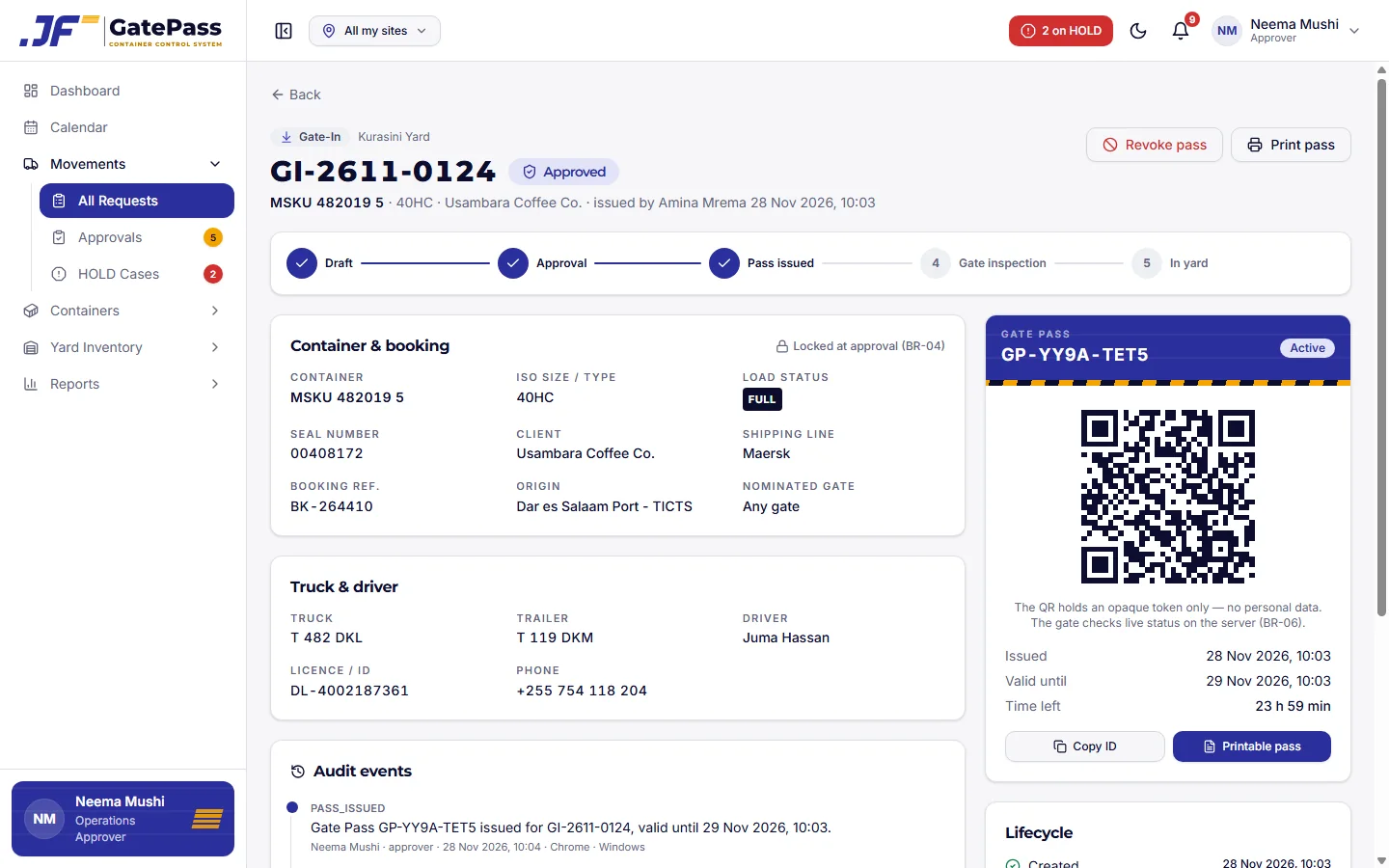
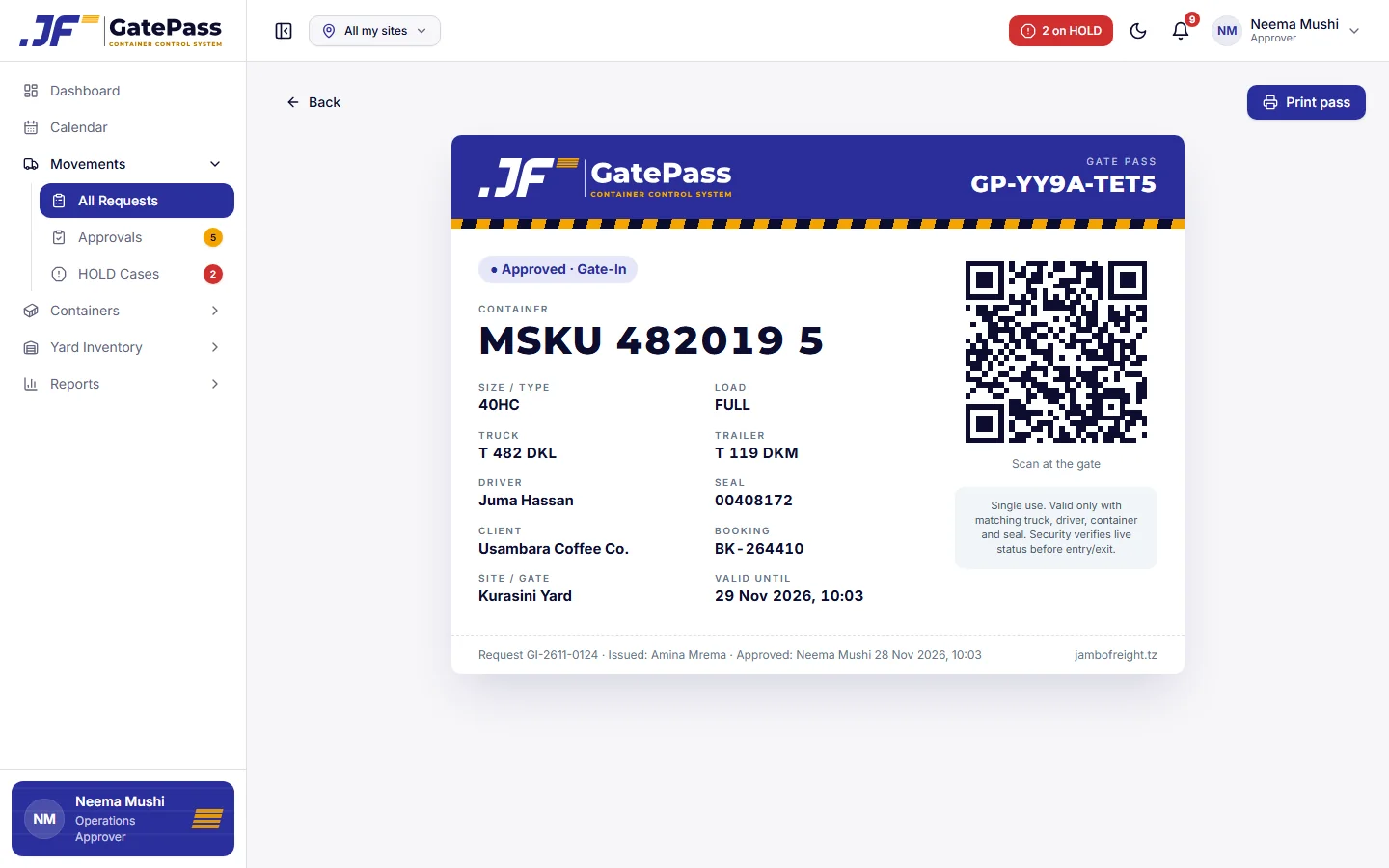
Neema receives a notification and opens Approvals. Requests are listed oldest first with their waiting time. On the right she sees every detail, the attached documents and automatic pre-checks (container in or out of yard, no other open movement, seal declared where required).
Check the pass at the gate
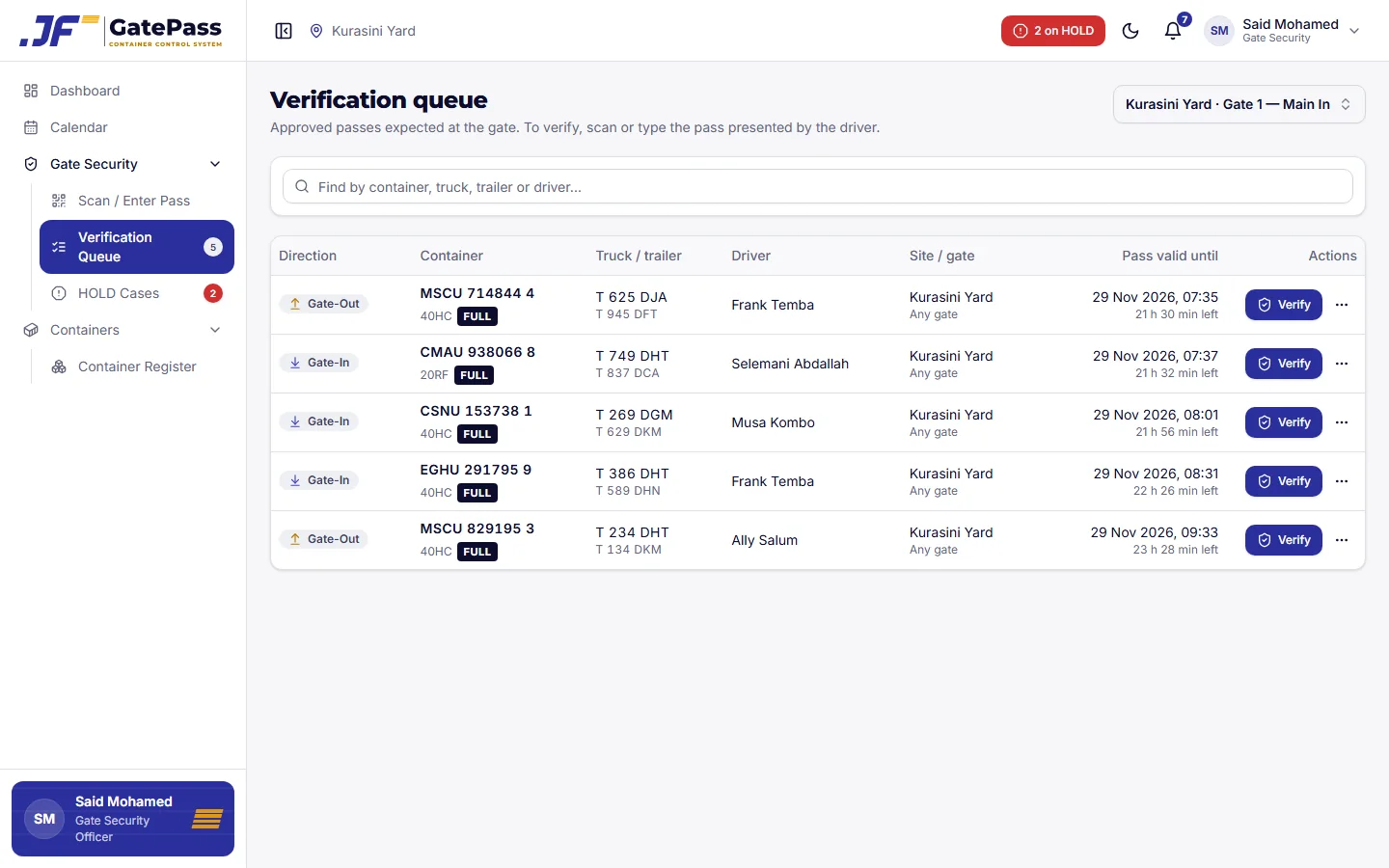
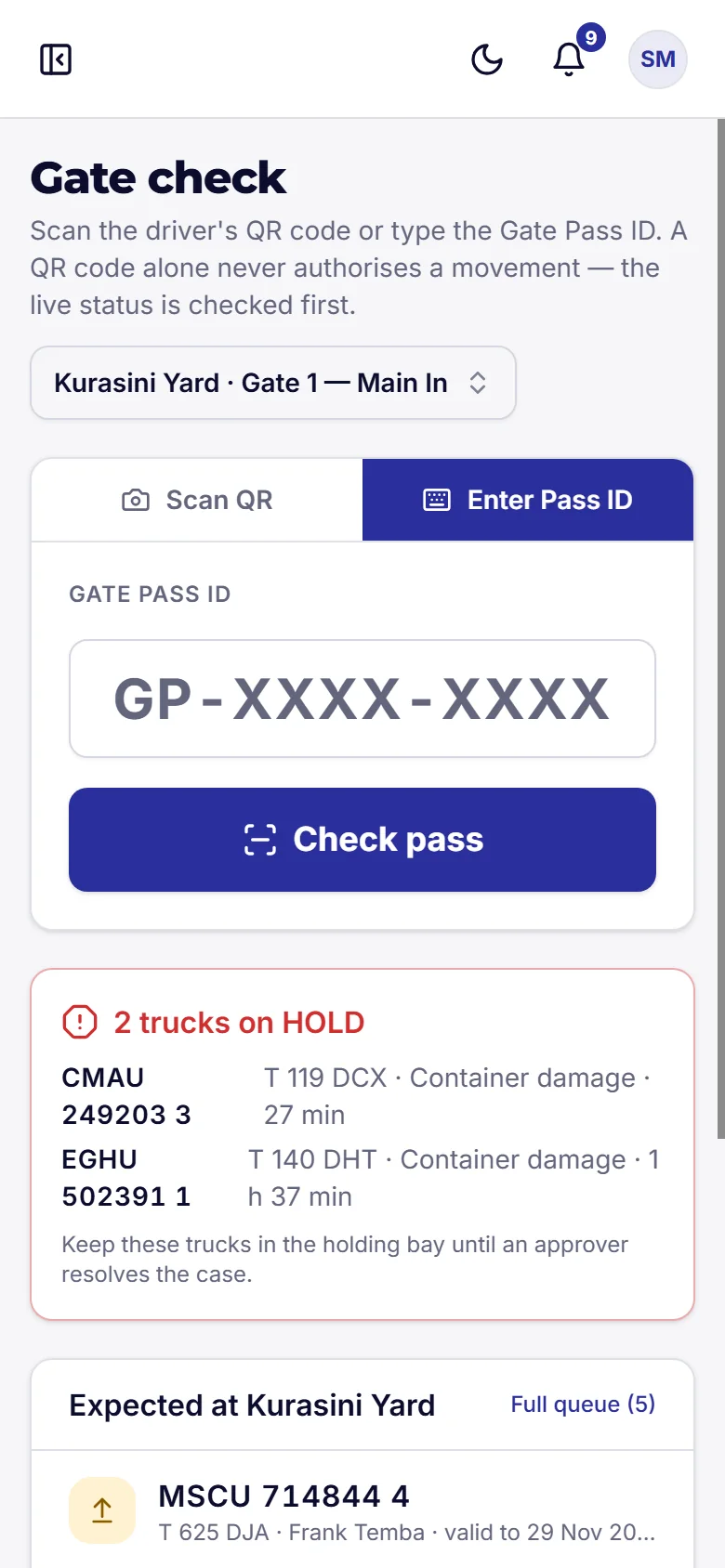
When the truck arrives, Said opens Gate Security → Scan / Enter Pass. He either scans the QR code with the device camera or types the pass ID, then presses Check pass. The system checks the pass live: it must be approved, unused, not expired, not revoked and for his site.
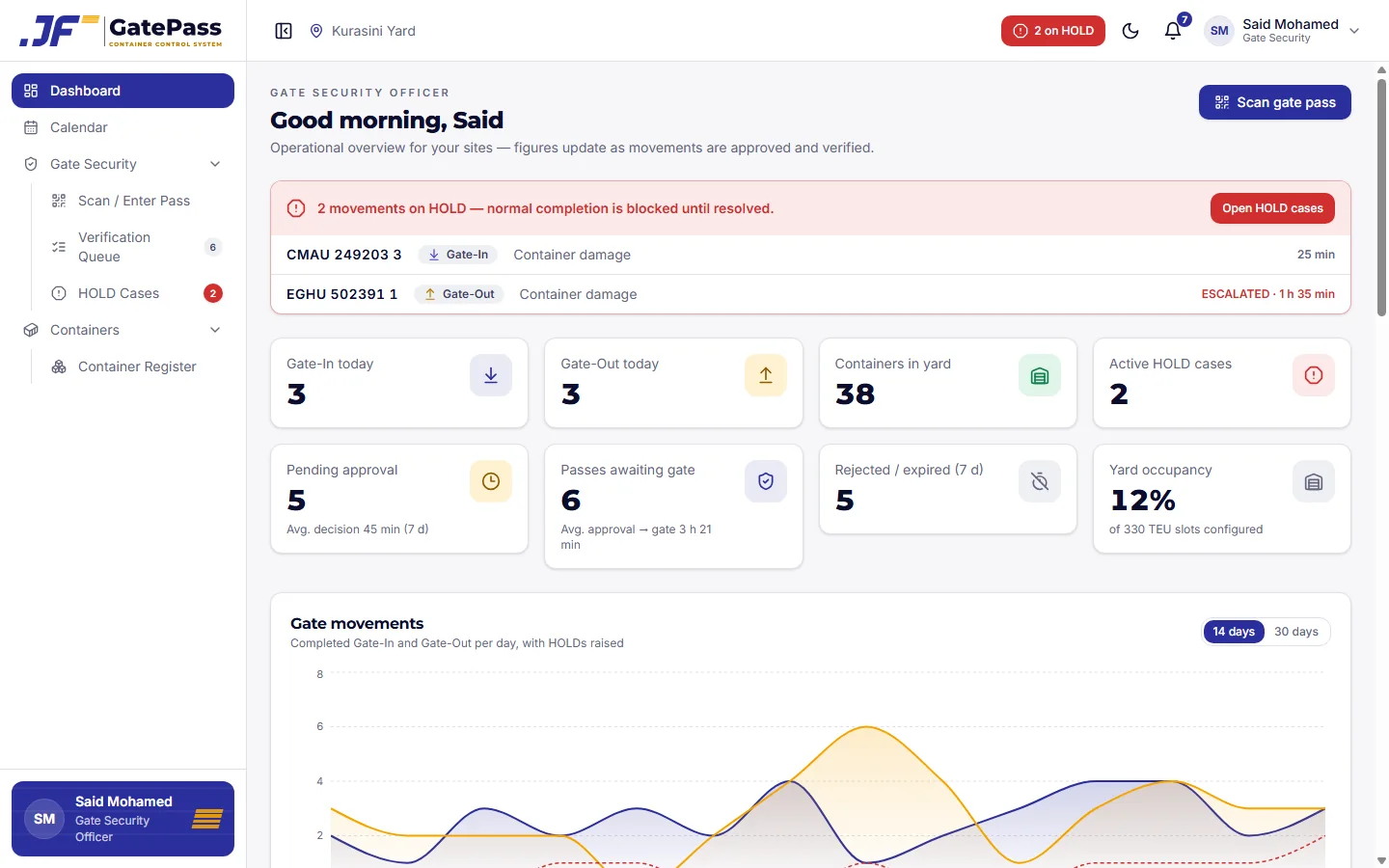
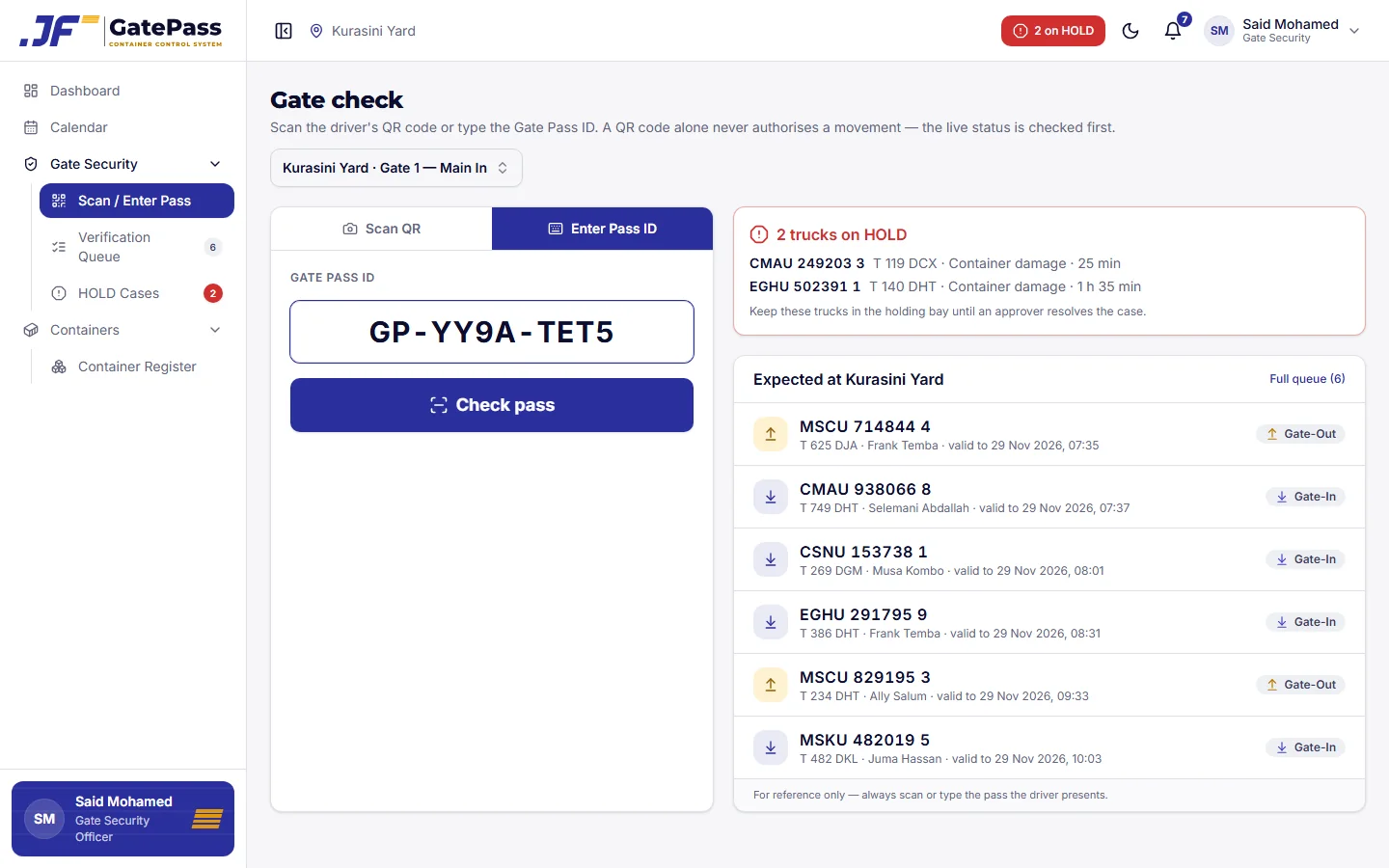
A QR code alone never authorises a movement. If the pass is expired, revoked, used already or for another site, the screen turns red with DO NOT PROCEED and the attempt is logged.
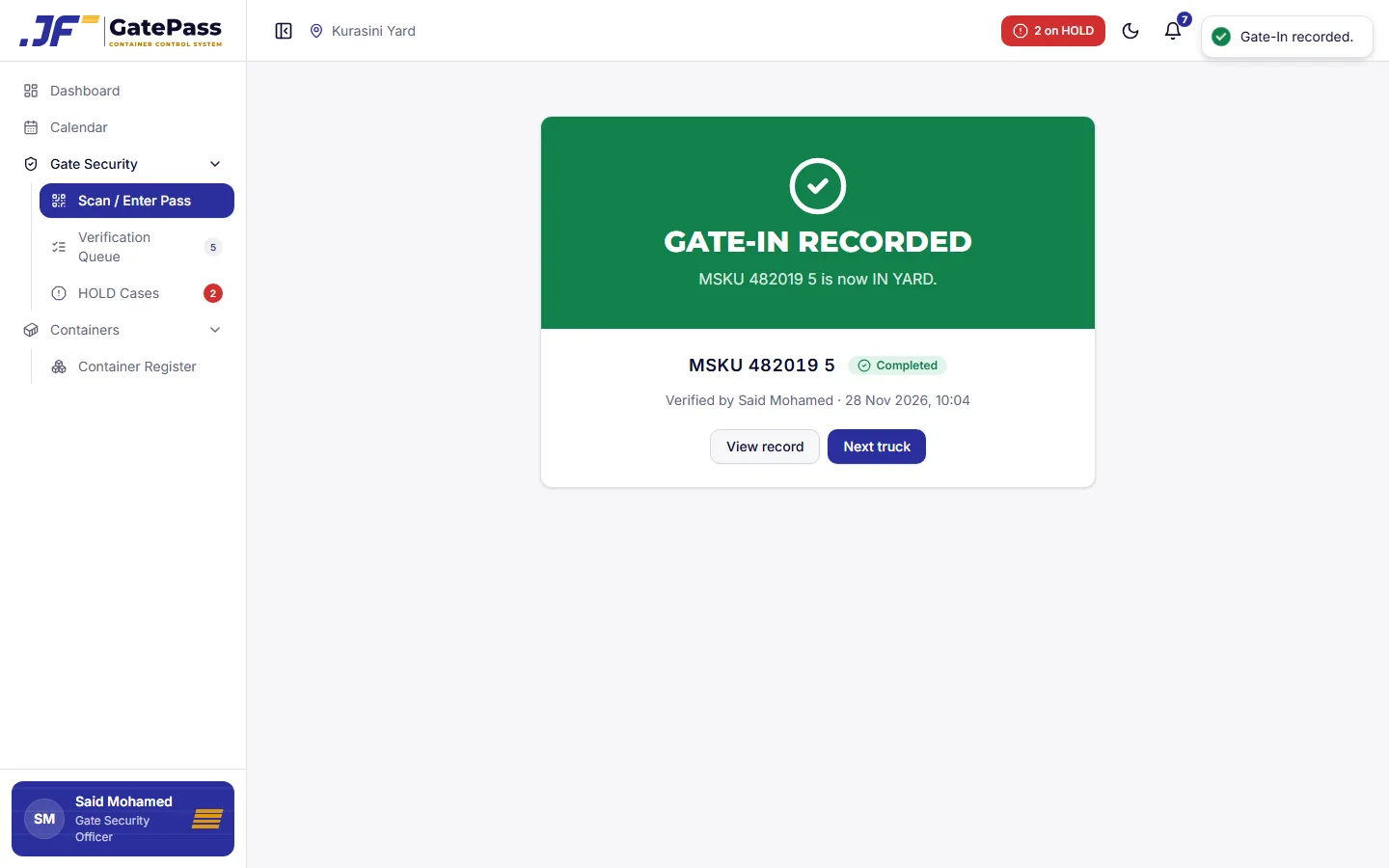
Inspect & record the Gate-In
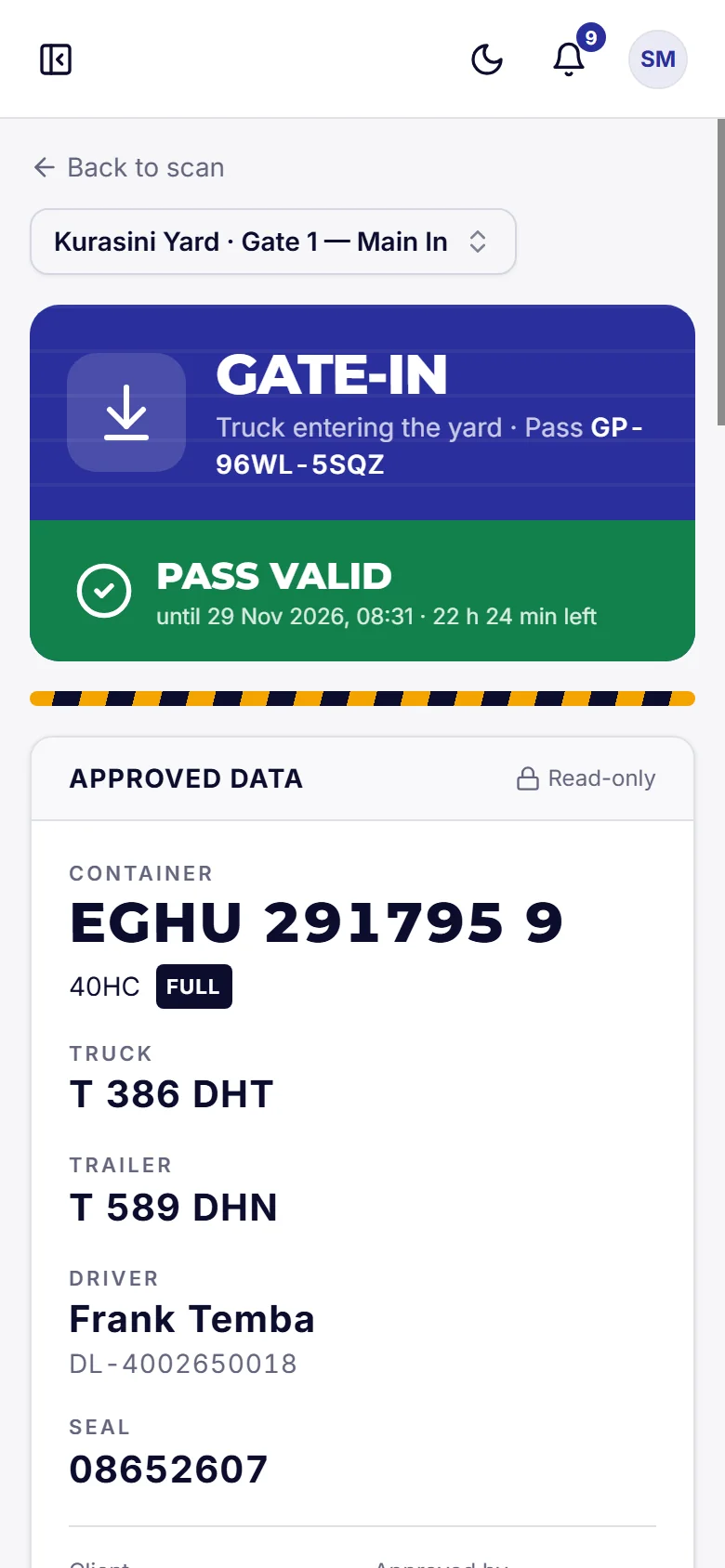
The verification screen is designed for speed and clarity: the direction (GATE-IN) and PASS VALID are shown at the top, the approved data is on the left (read-only), and the physical inspection checklist is on the right.
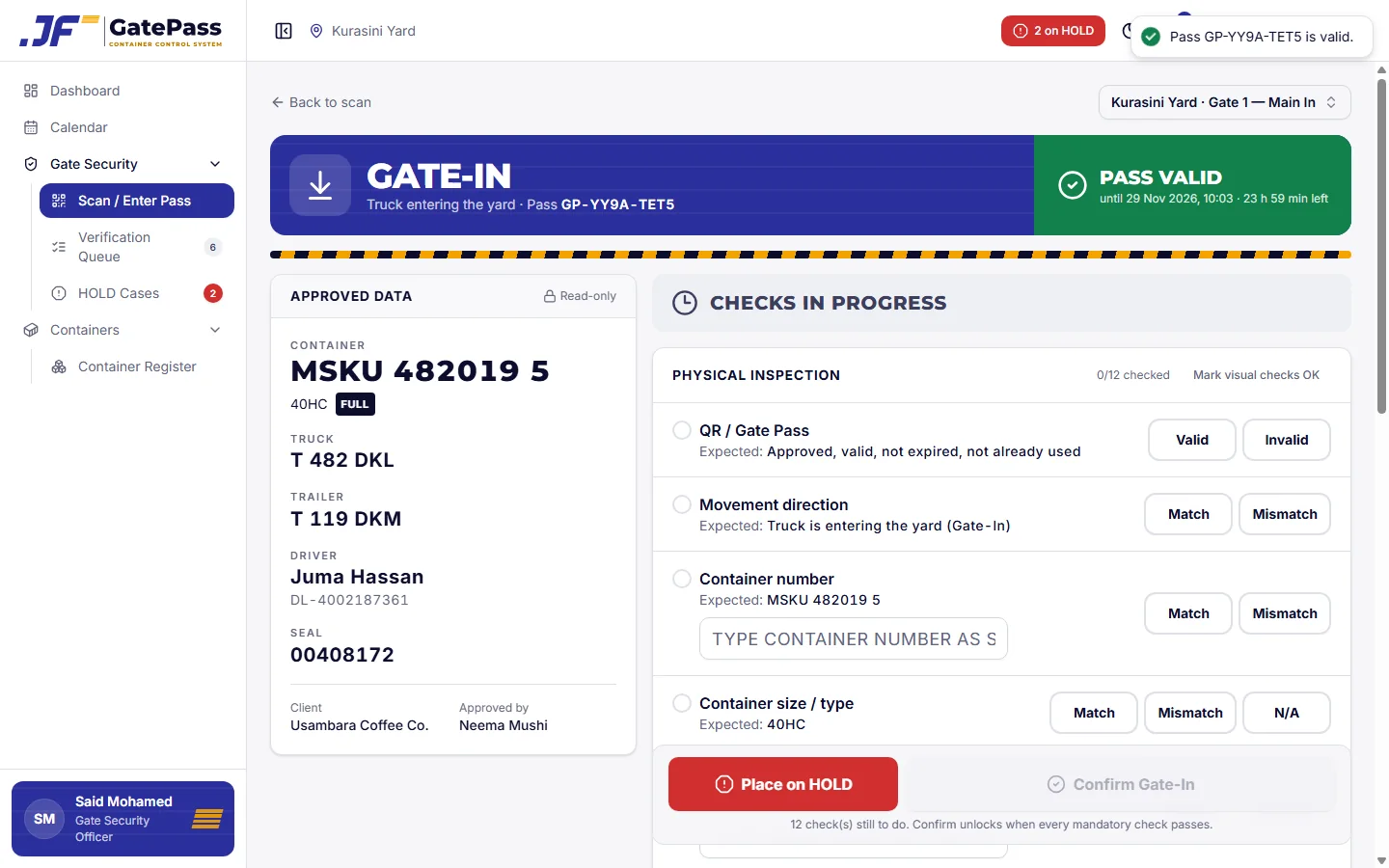
- For the container number, truck, trailer and seal, Said types what he sees; the system compares it and marks Match or Mismatch automatically.
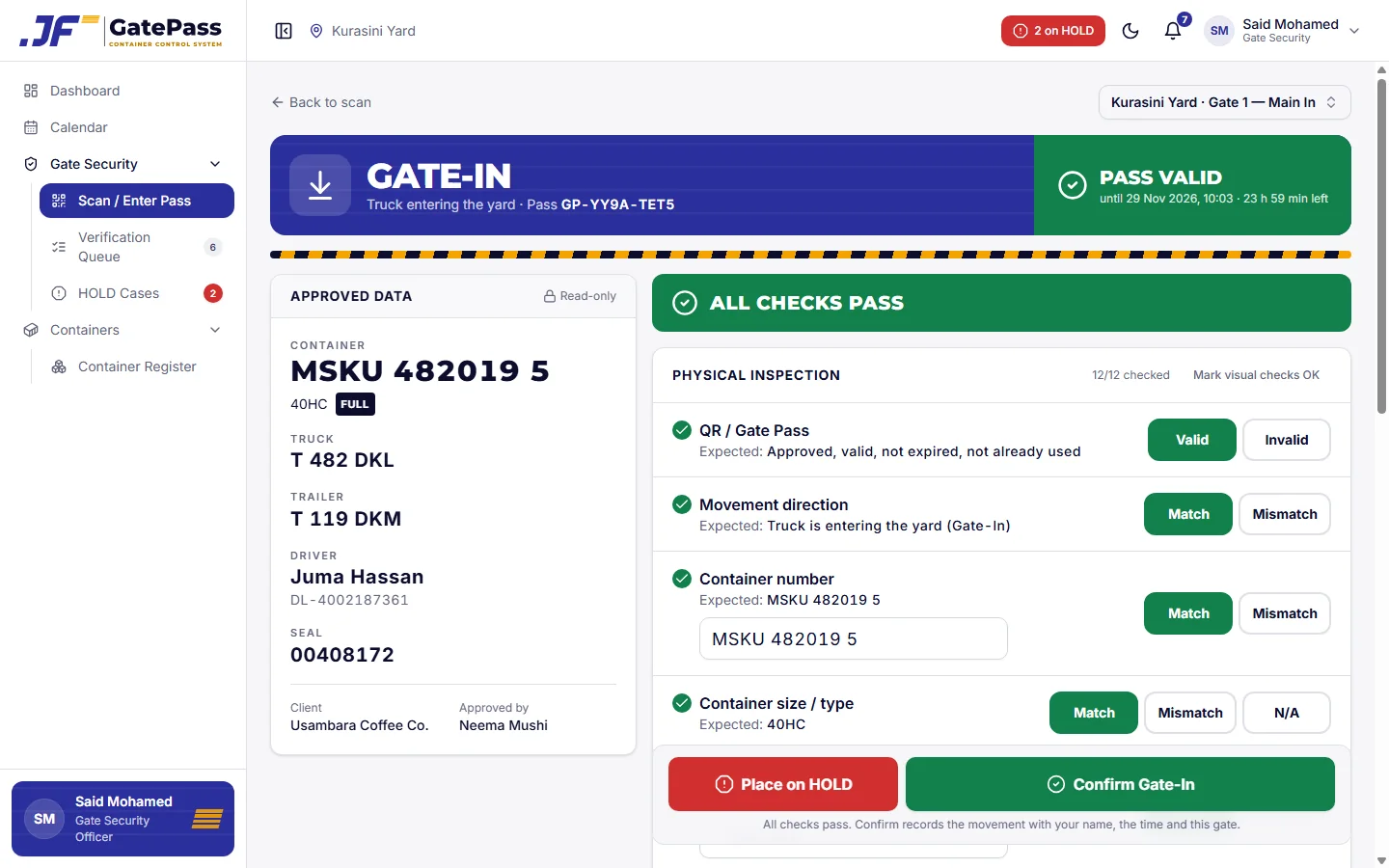
- The other checks are large buttons (Match / Mismatch, Empty / Full, Intact / Damaged …). Green means the check passes, red means it fails.
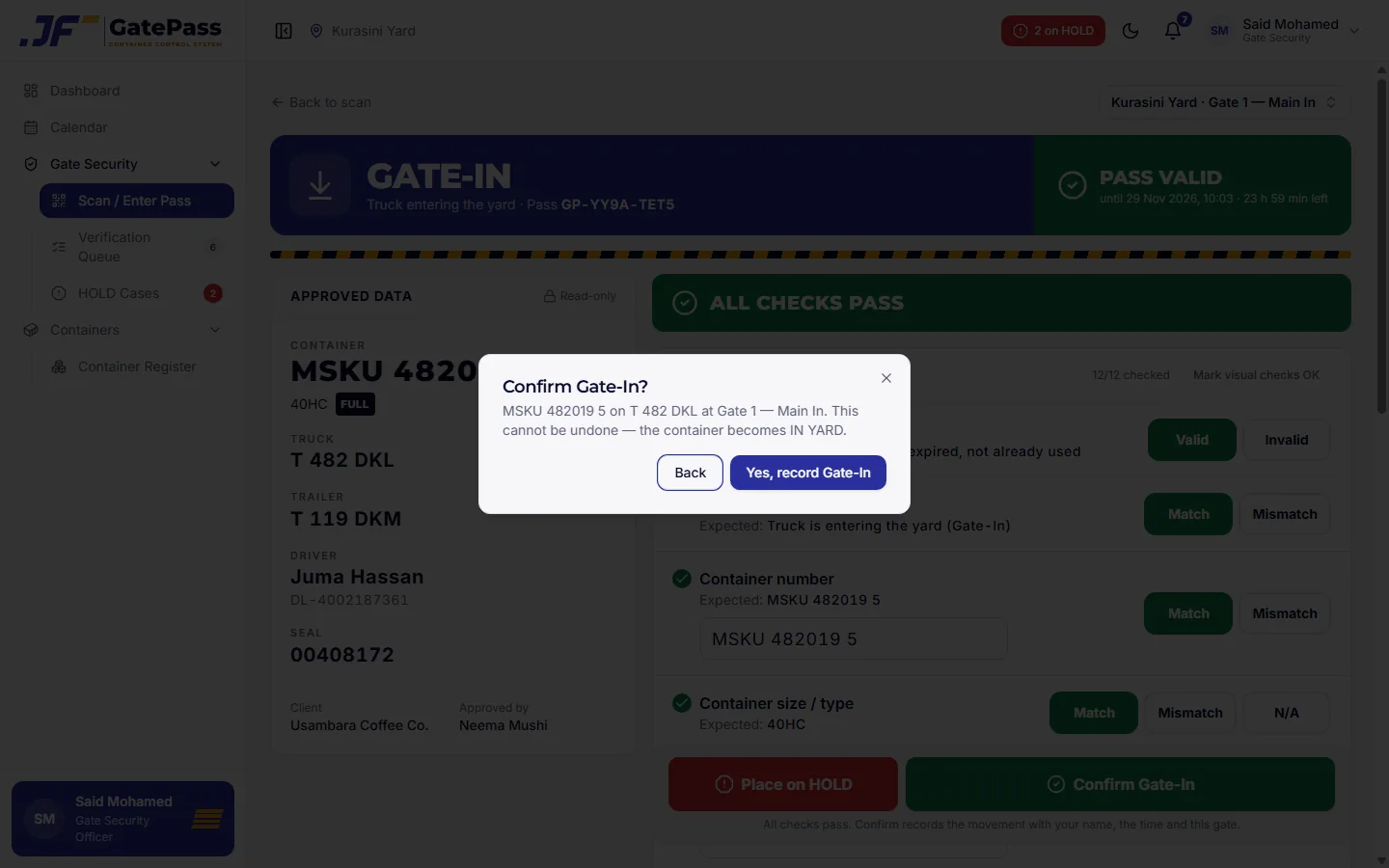
- Confirm Gate-In stays disabled until every check passes. A single failure turns the banner red: MISMATCH FOUND.
The container is in the yard
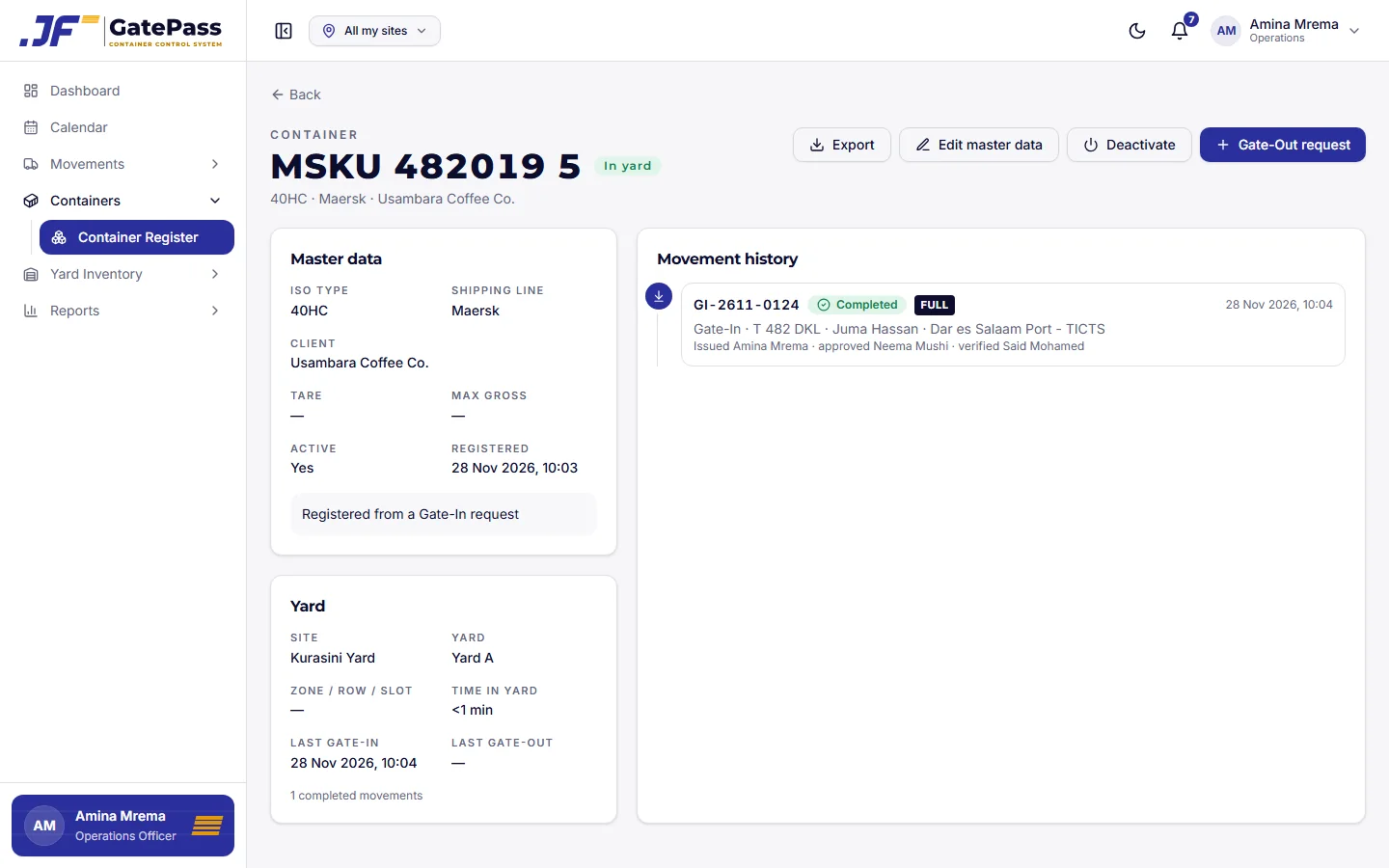
The container's page now shows In yard, its site, yard location and the full movement history. The yard status only ever changes after a verified gate movement (or an approved inventory adjustment) — never because of an approval alone.
Request the Gate-Out
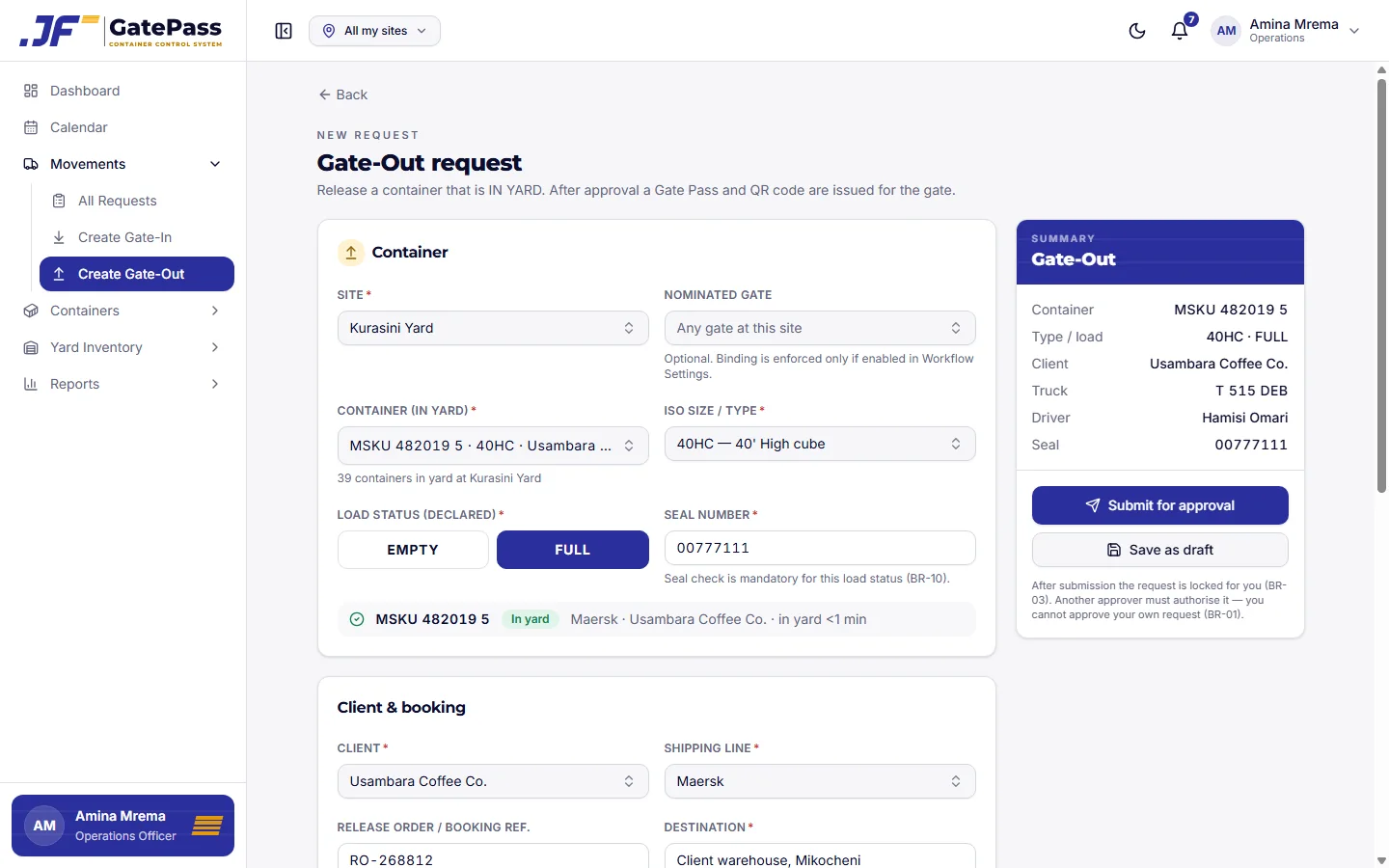
A week later the client wants the container. Amina opens Create Gate-Out. The container list only offers containers that are In Yard at her site, and their details are filled in automatically. She adds the release order, destination, truck and driver, and the new seal number, then submits. Neema approves it exactly as in step 2.
A mismatch at the gate: HOLD
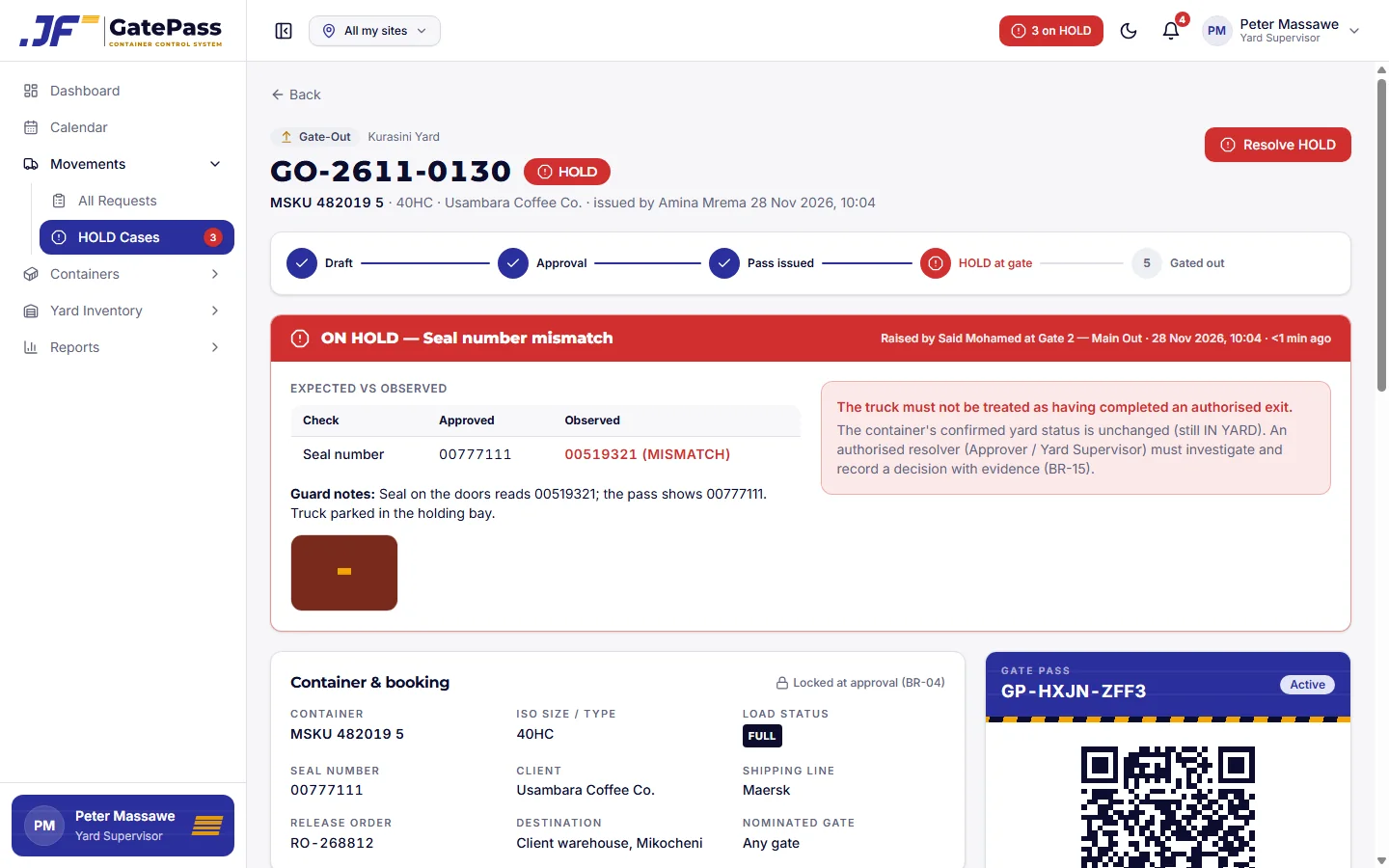
At the gate Said reads the seal on the container doors: 00519321. The pass says 00777111. The system marks the seal check as Mismatch and blocks the confirm button.
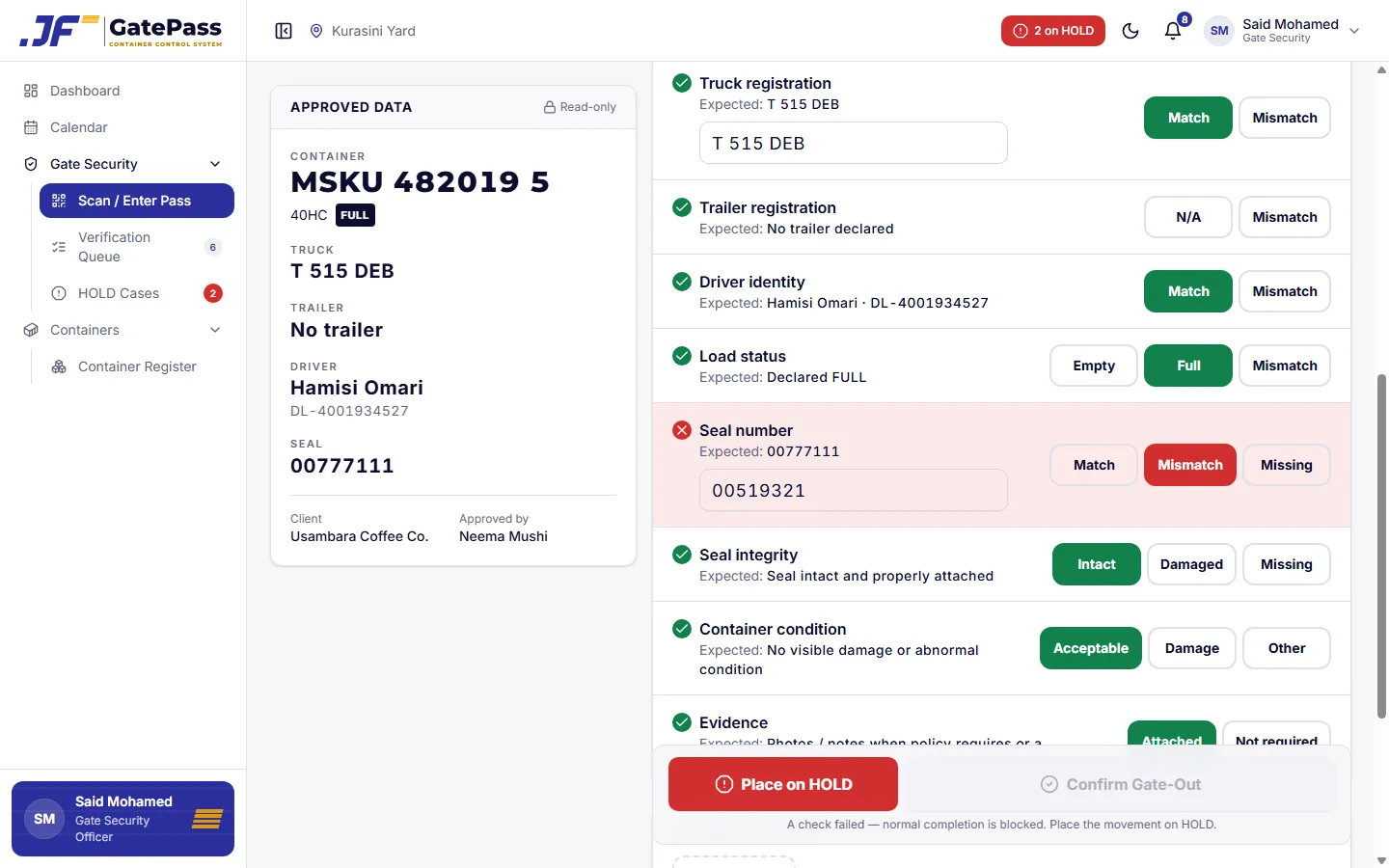
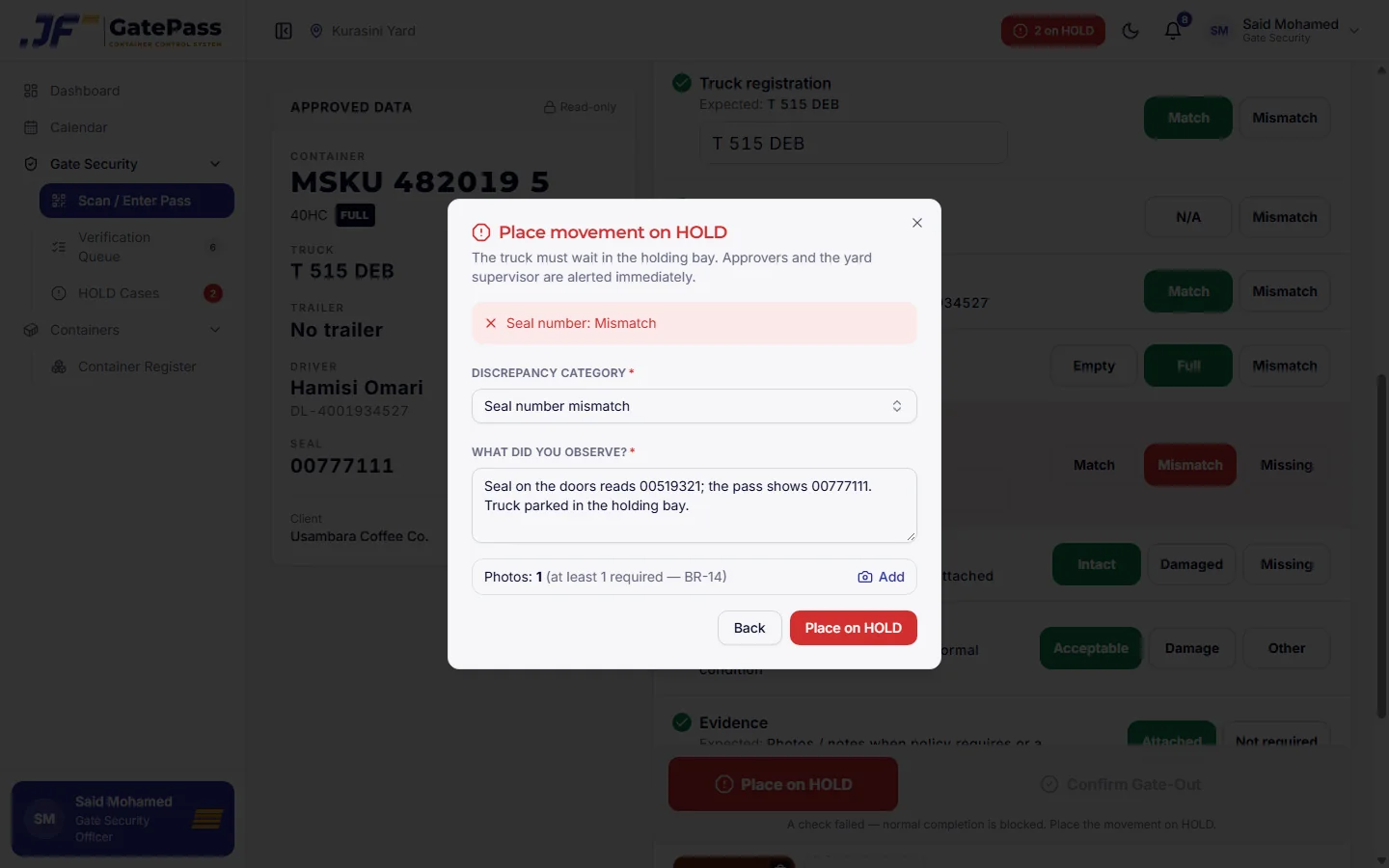
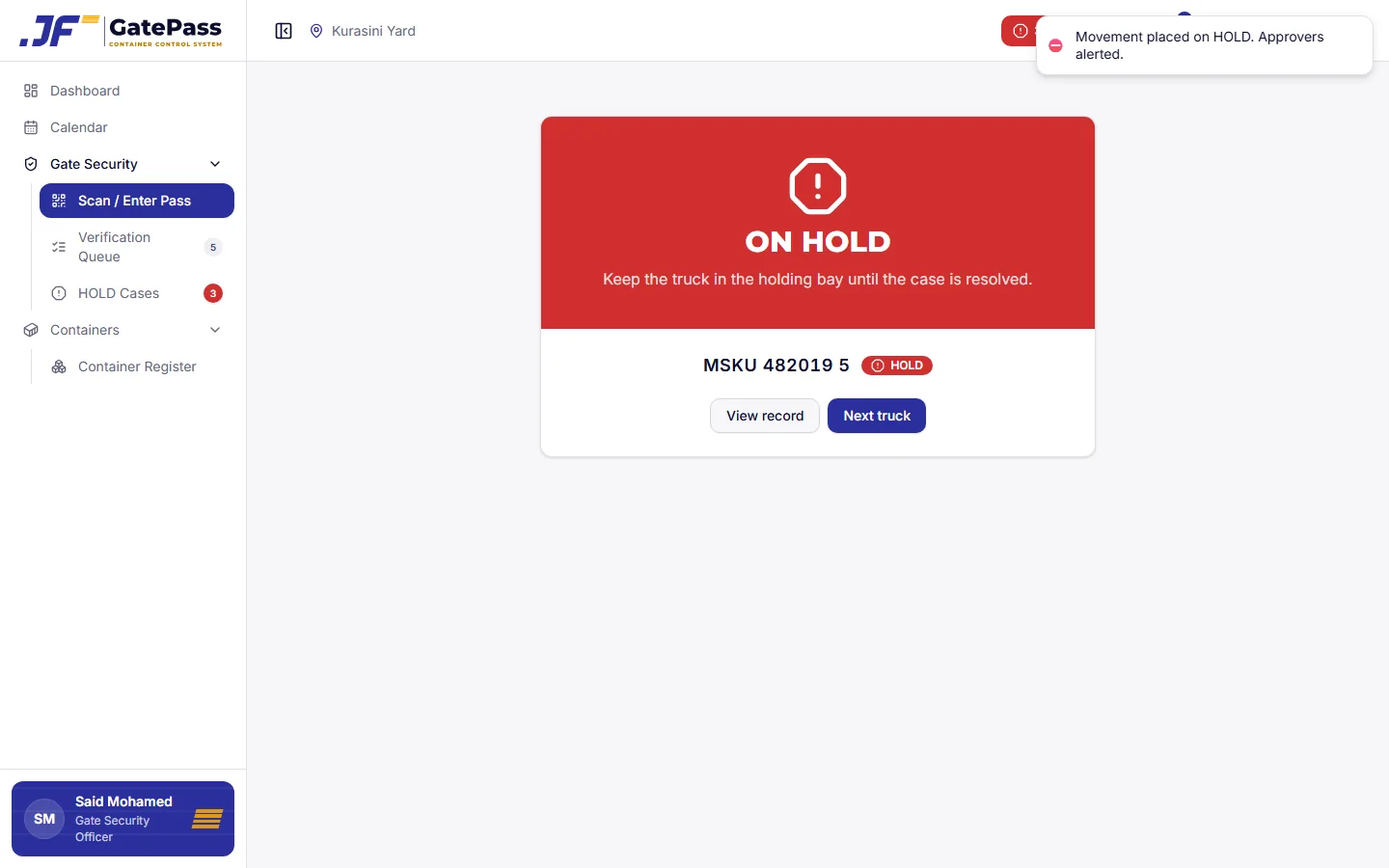
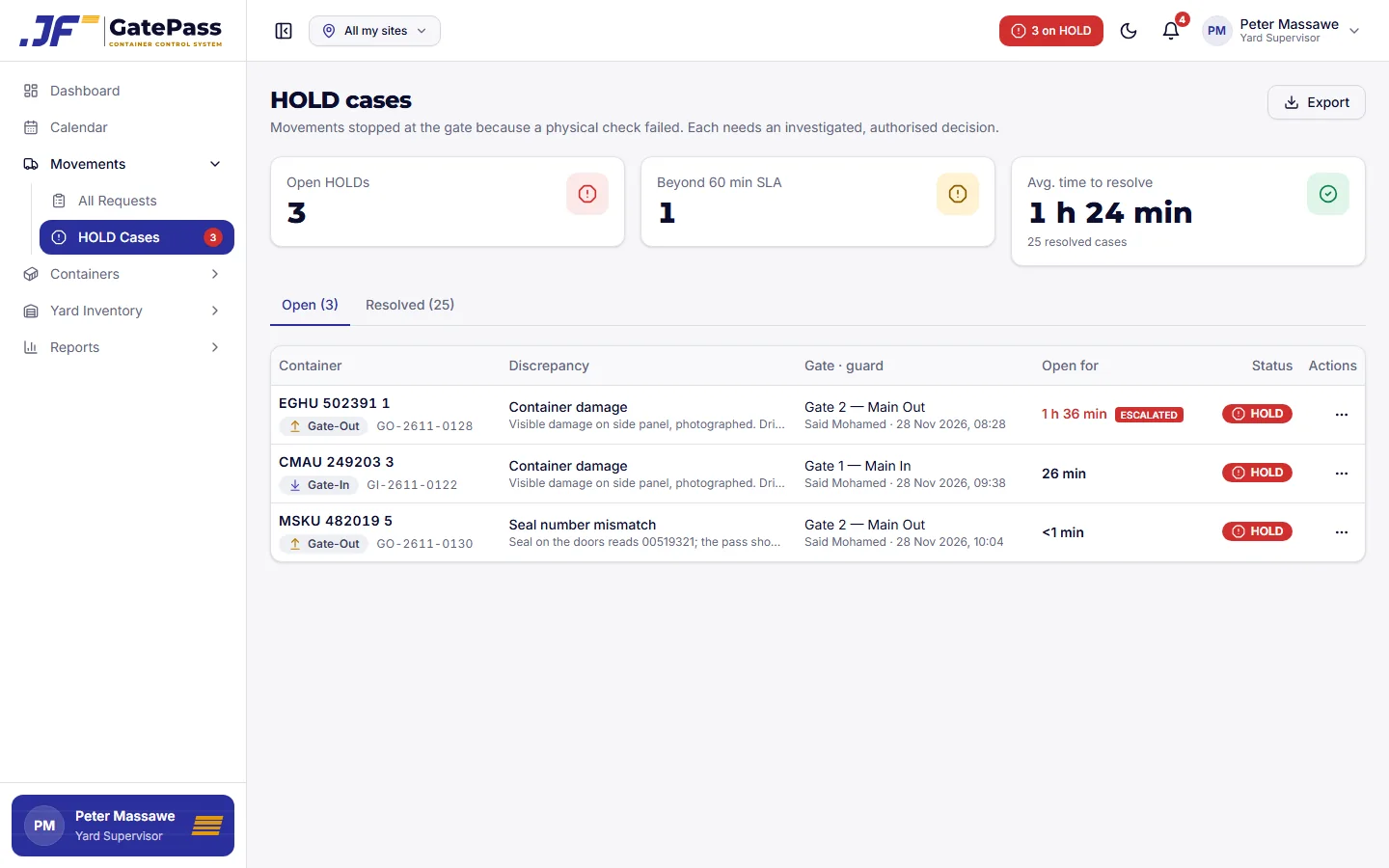
If a HOLD is not resolved within 60 minutes (configurable) it is escalated: it is marked in red and management is notified.
Resolve the HOLD
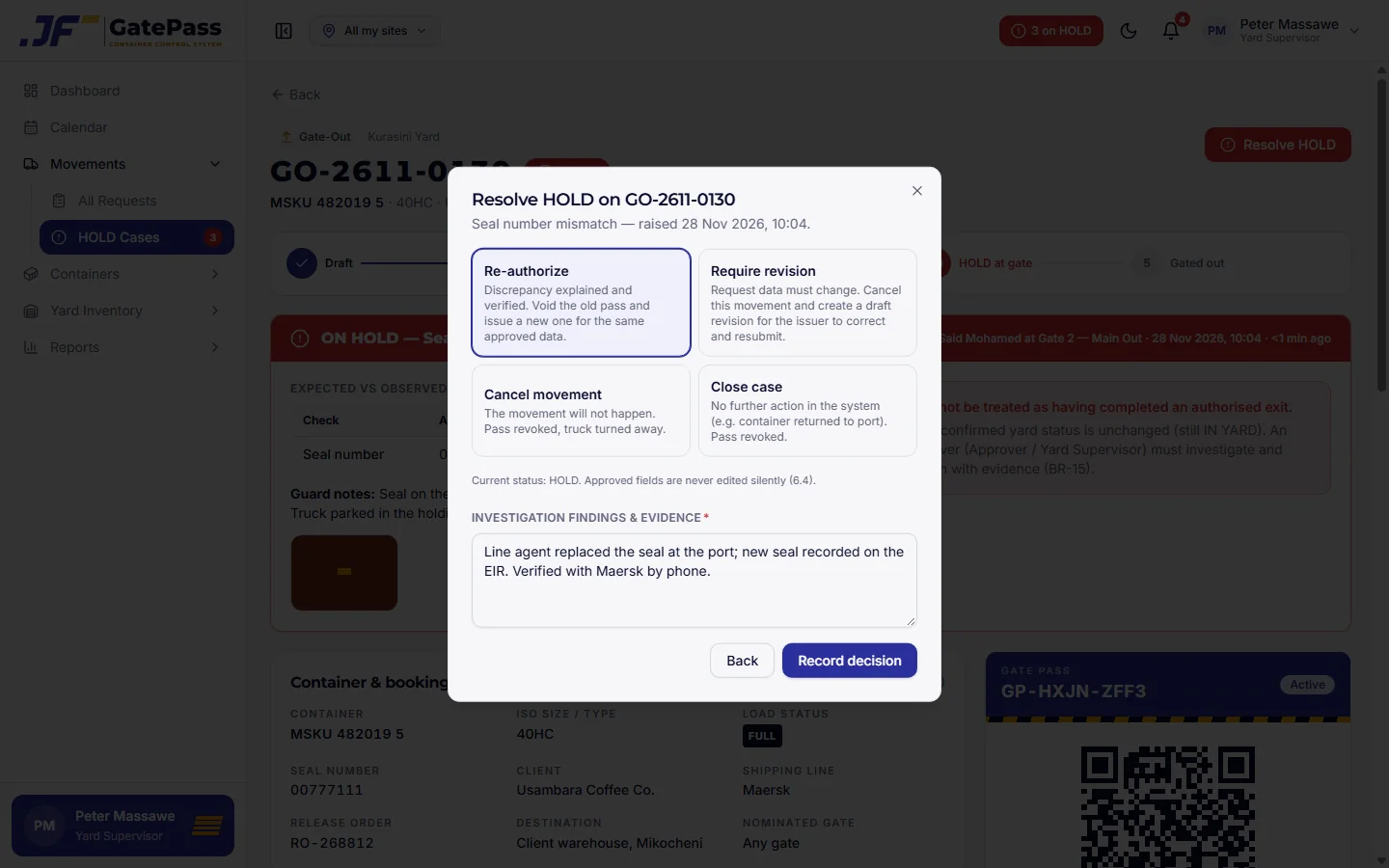
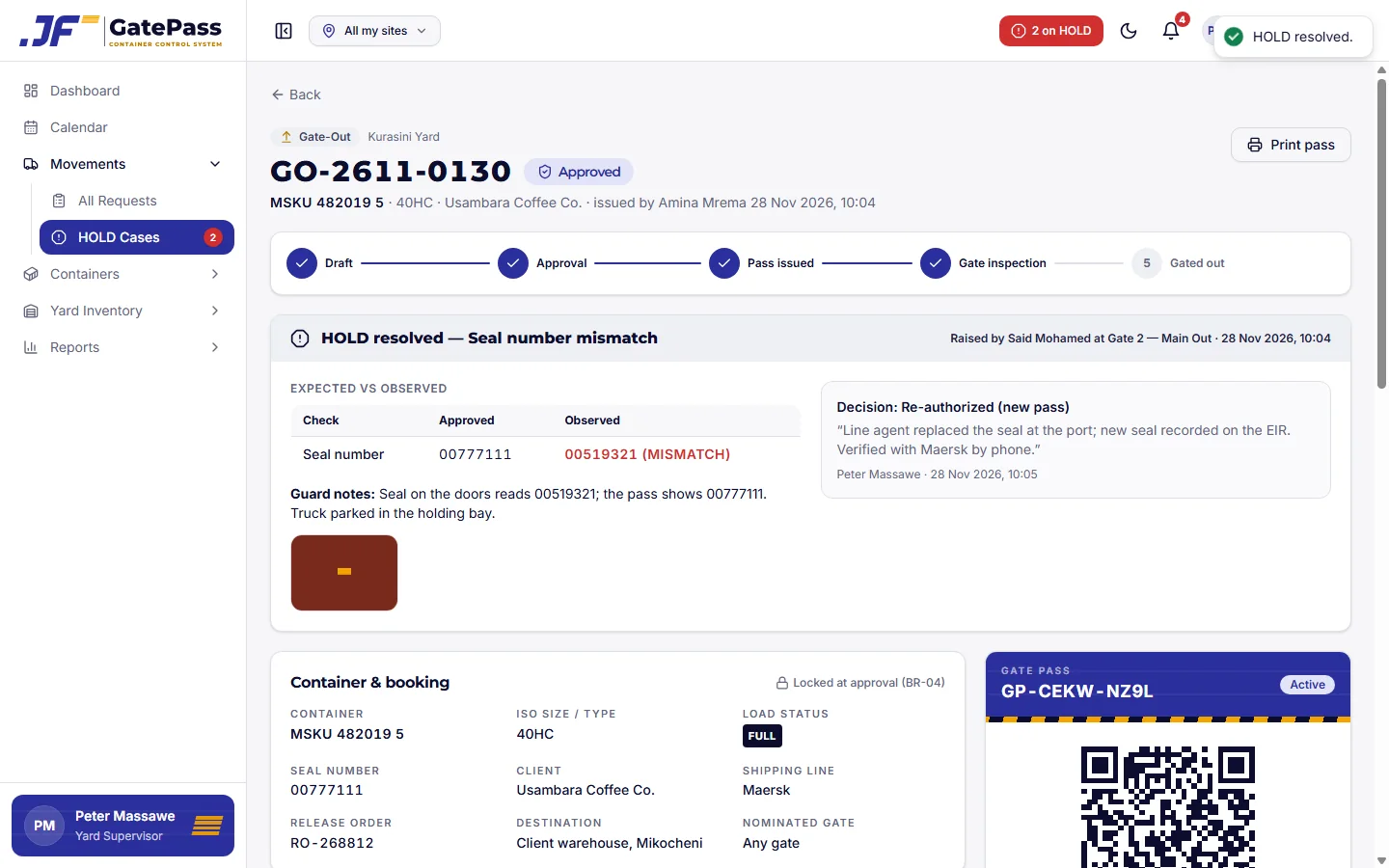
Peter opens HOLD Cases. The case shows expected vs observed values, the guard's notes and photos. After calling the shipping line he finds the seal was replaced at the port and recorded on the EIR.
| Decision | When to use it | What happens |
|---|---|---|
| Re-authorize | The difference is explained and verified. | The old pass is voided and a new pass is issued for the same data. |
| Require revision | The request data was wrong. | This movement is cancelled and a corrected draft is created for the requester. |
| Cancel movement | The movement will not happen. | Pass revoked; the truck is turned away. |
| Close case | No further action in the system. | Pass revoked; the case is closed. |
Gate-Out & the full history
With the new pass, Said repeats the inspection. Everything matches and he confirms the Gate-Out. The container is now Gated Out.
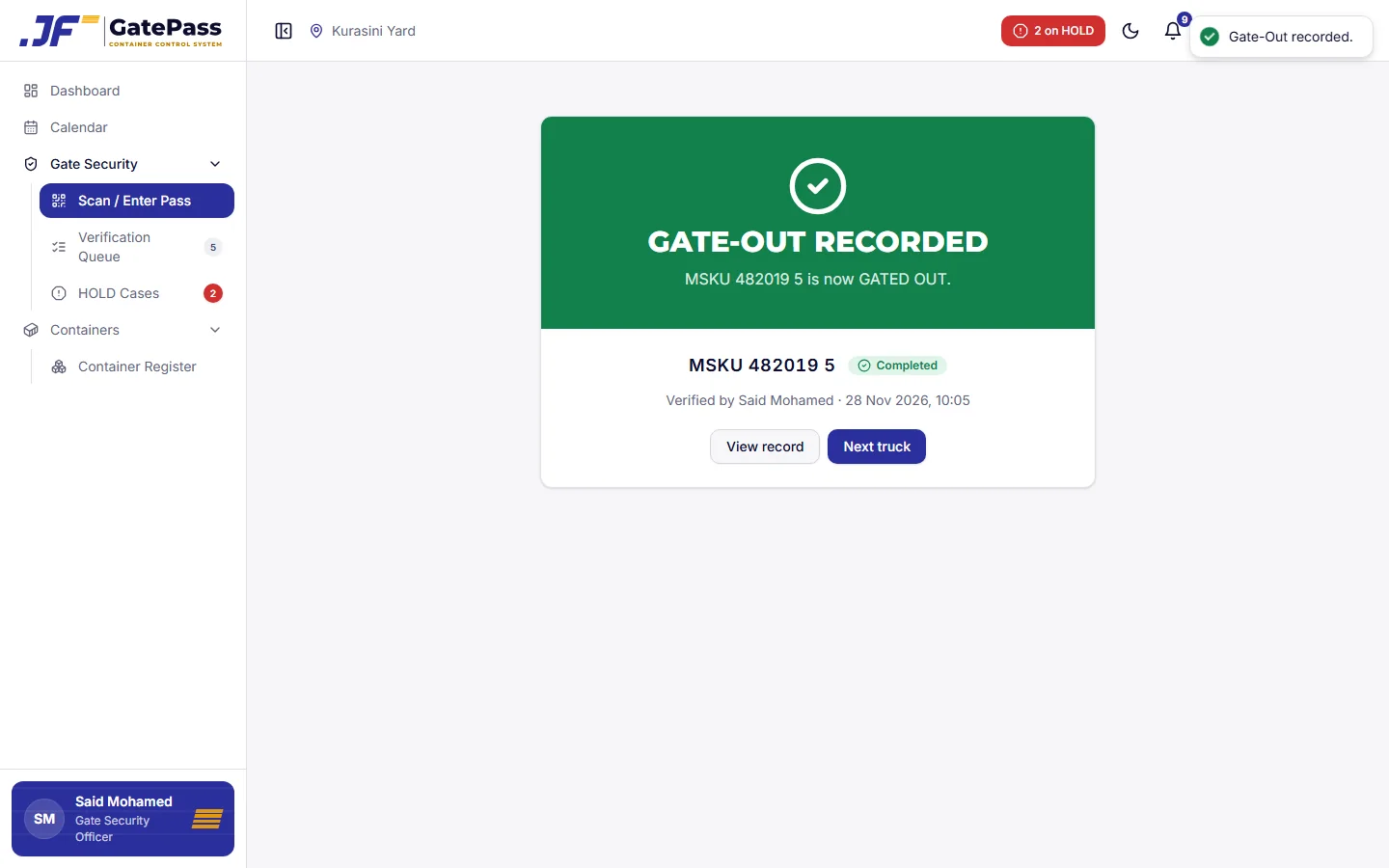
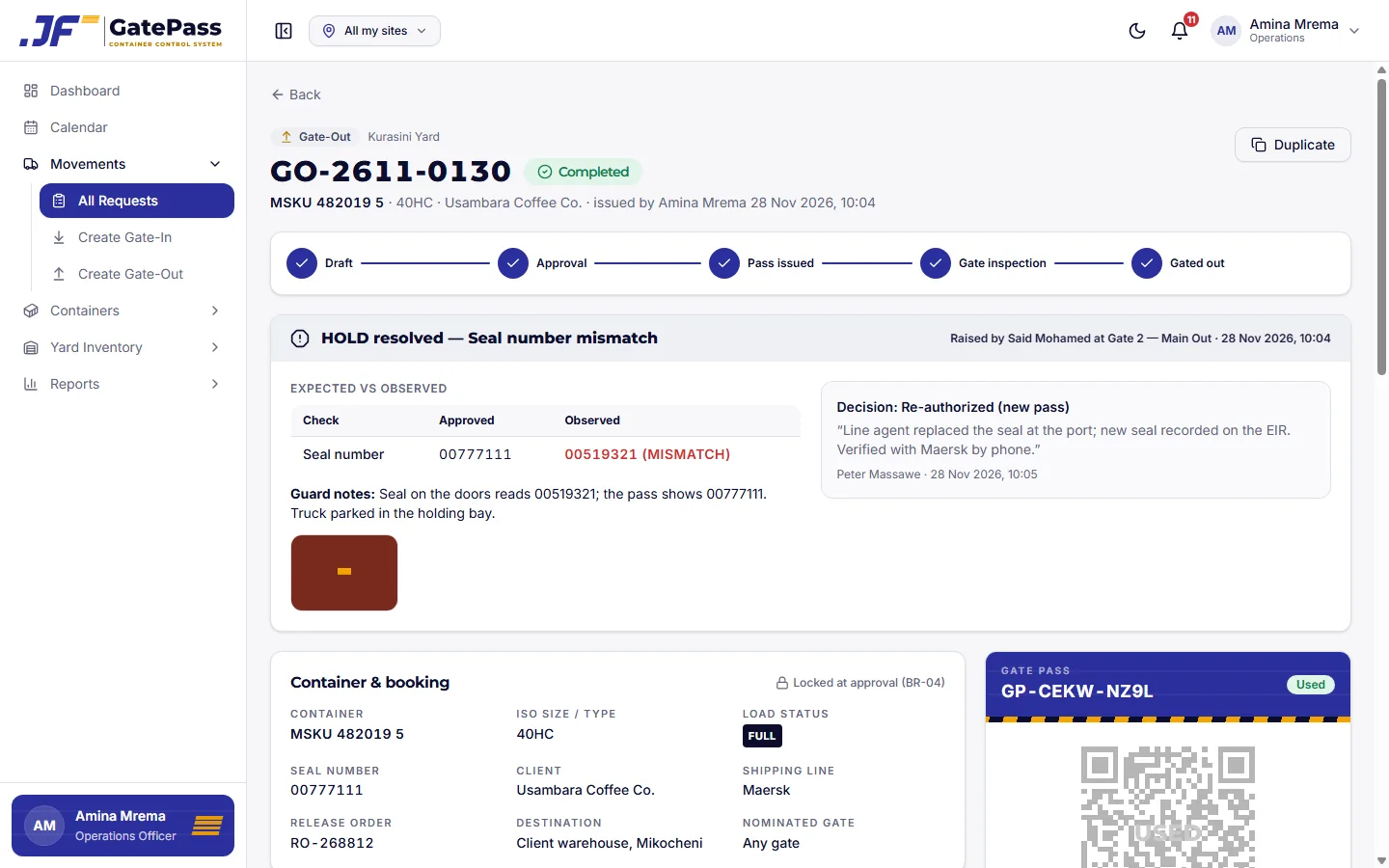
That is the full cycle: request → approval → gate pass → inspection → In Yard → Gate-Out request → HOLD → resolution → Gated Out, with every step attributable to a named person and a time.
Dashboards
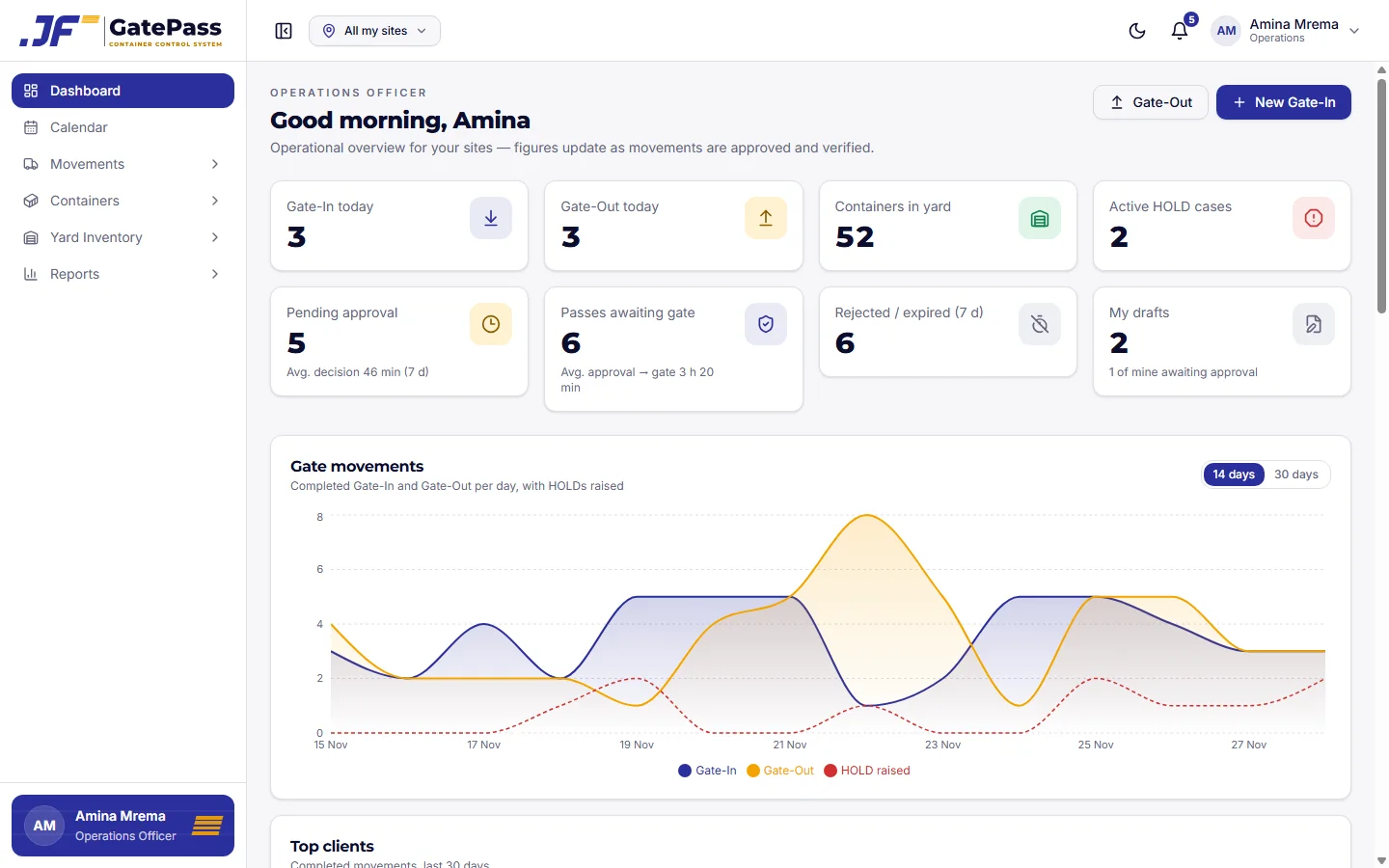
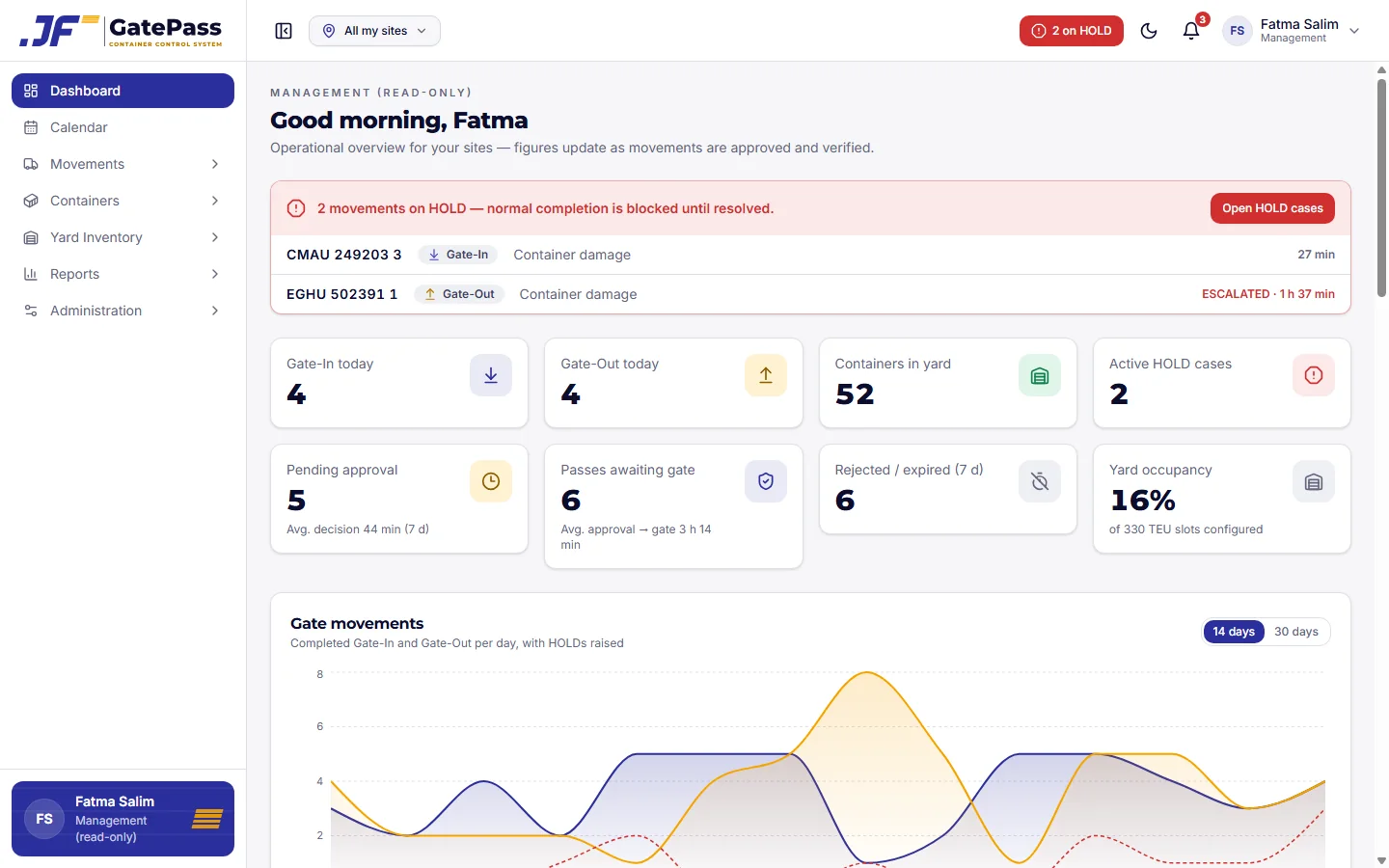
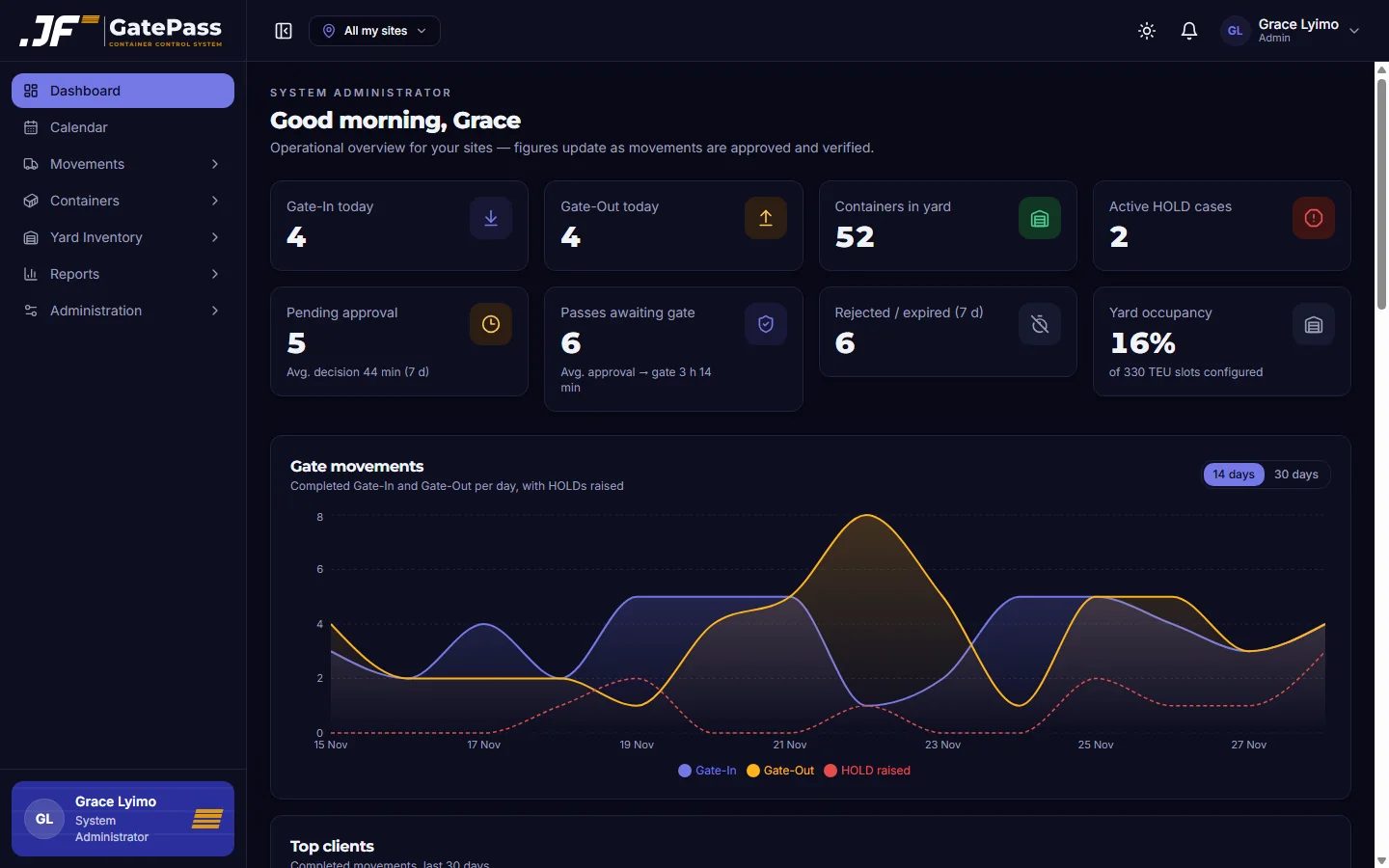
Everyone lands on a dashboard made for their role. Each tile is clickable and opens the matching list.
- Tiles: Gate-In / Gate-Out today, containers in yard, active HOLDs, pending approvals (with average decision time), passes awaiting the gate, rejected/expired in 7 days, your drafts.
- Gate movements chart for 14 or 30 days, top clients, the approval queue, recent movements, latest activity and a count per status.
- A red banner lists open HOLDs and escalations.
Movement requests
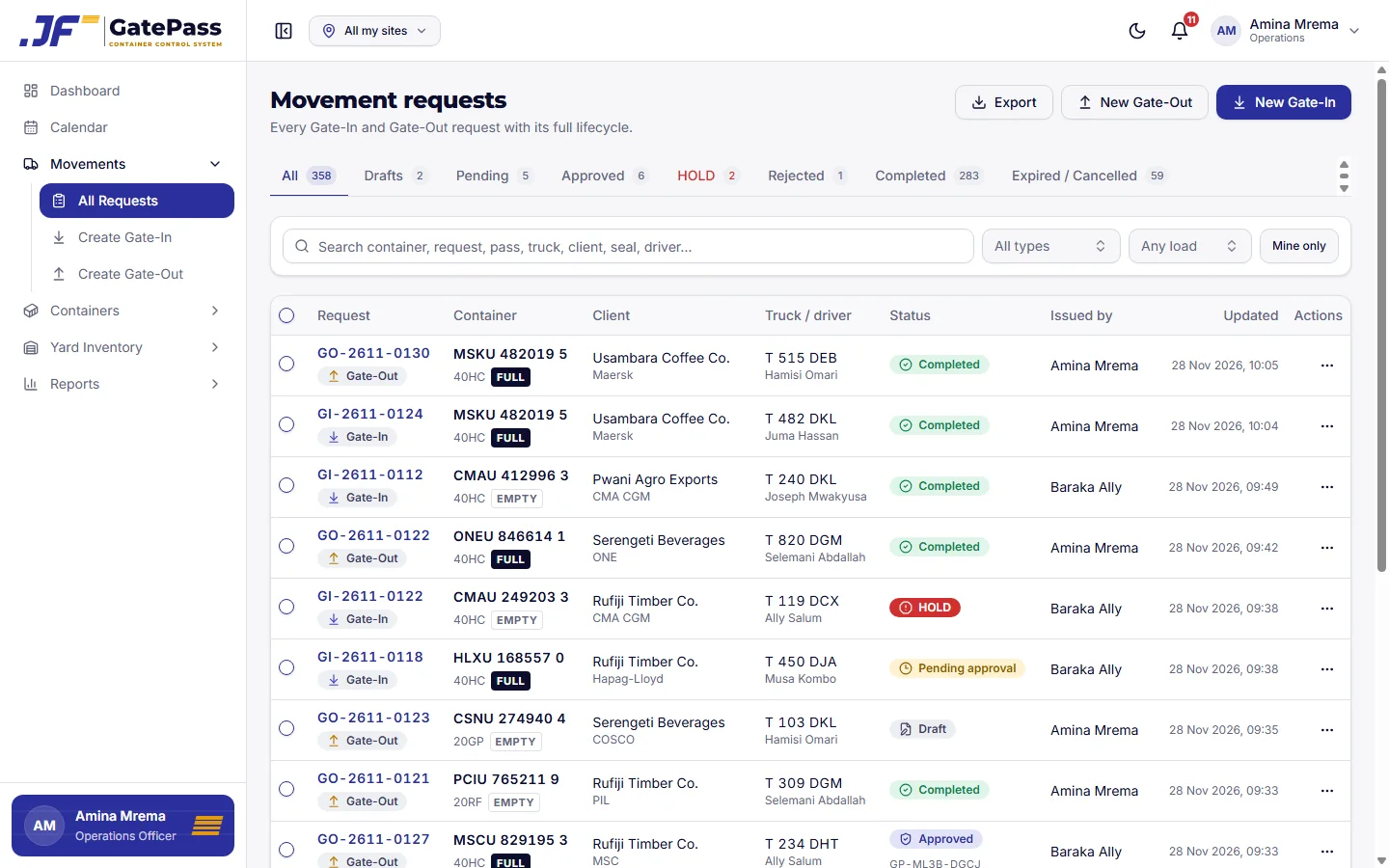
Movements → All Requests lists every request with tabs per status (Drafts, Pending, Approved, HOLD, Rejected, Completed, Expired/Cancelled), a search box (container, request, pass, truck, client, seal, driver) and filters.
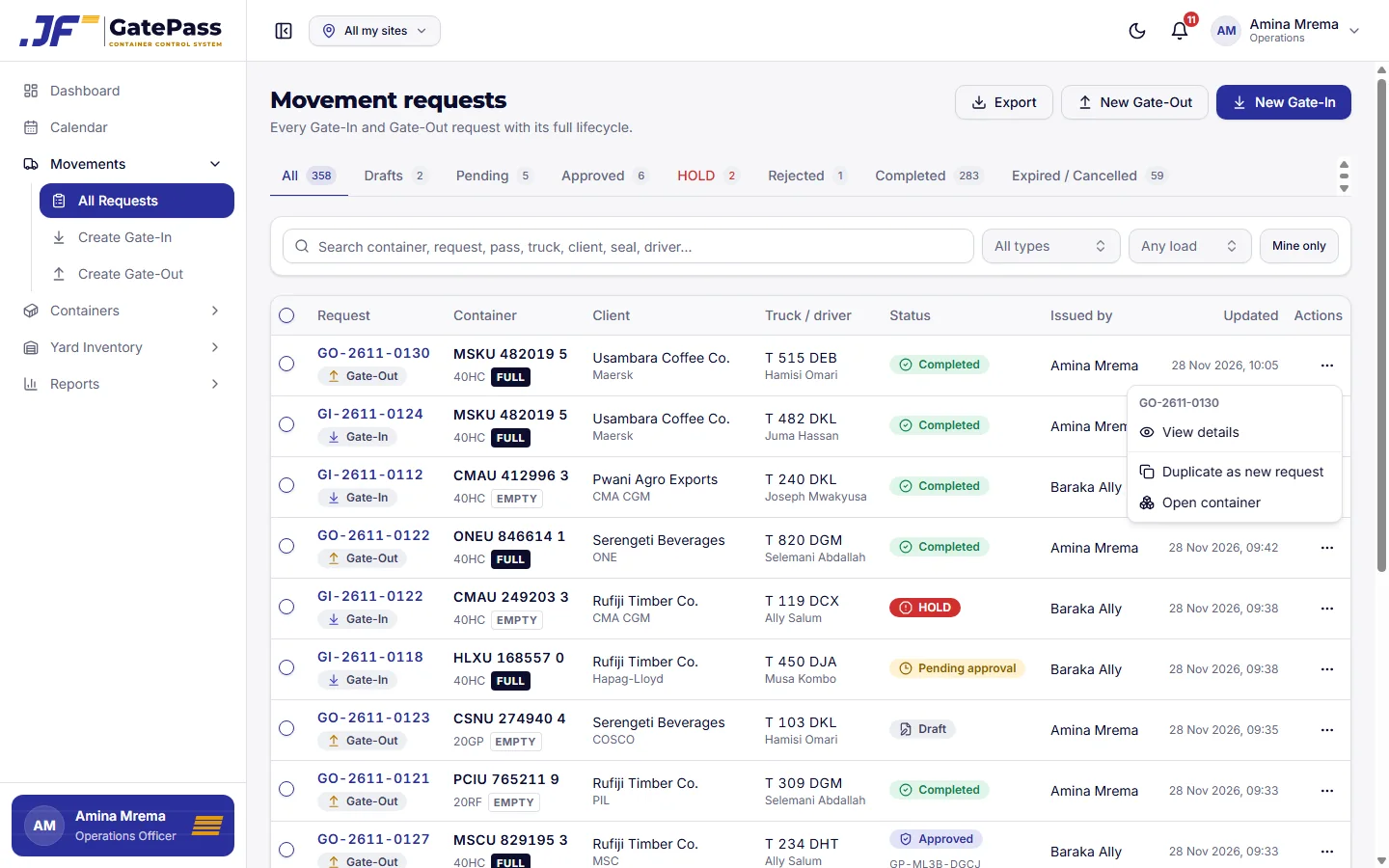
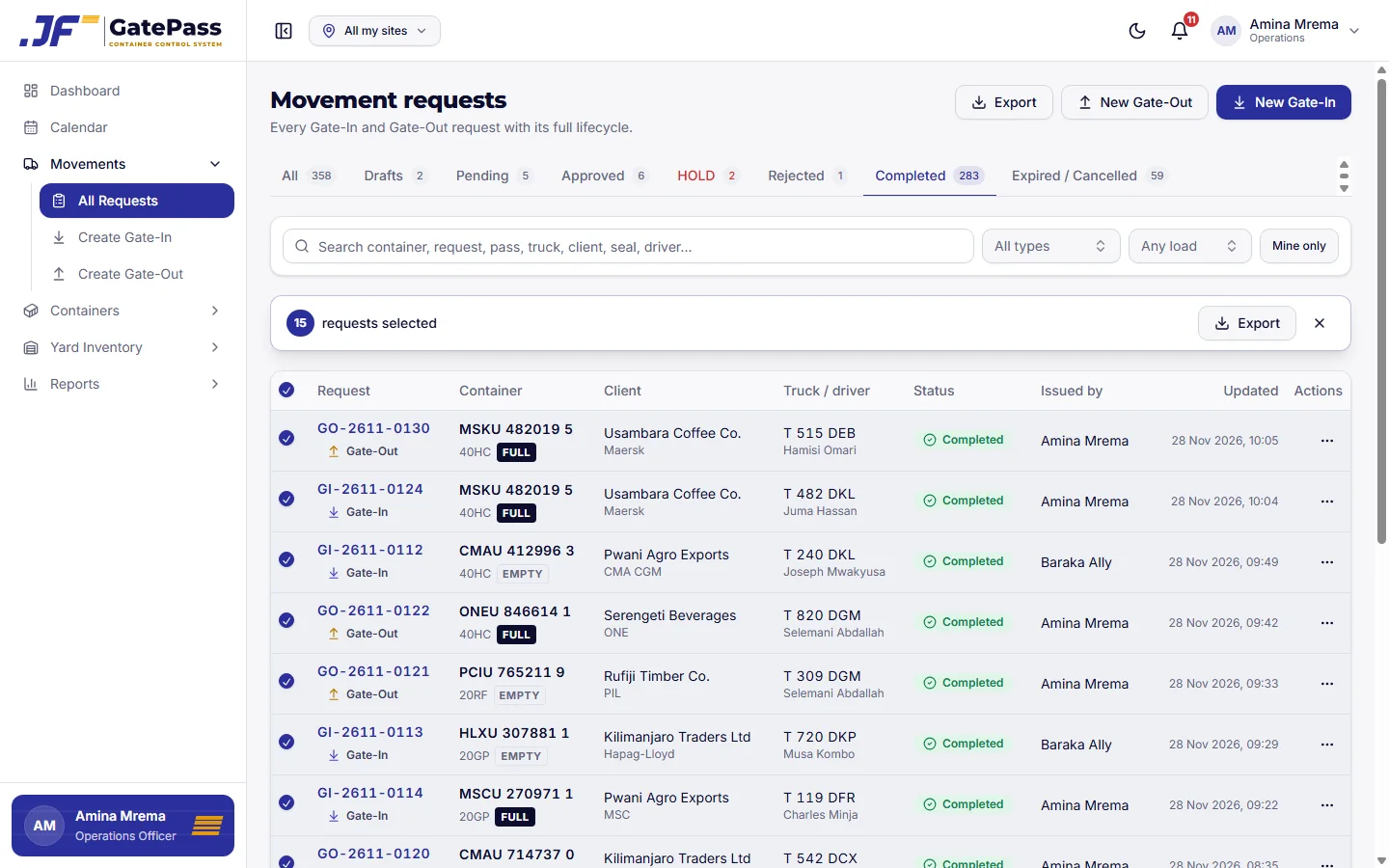
Duplicate as new request copies a past request into a new form — handy for regular clients and drivers. Only drafts can be deleted; anything submitted stays in the history and is cancelled instead.
Container register
The master list of every known container: number, ISO type, shipping line, client, status (In yard / Gated out / Not in yard), location and last movement.
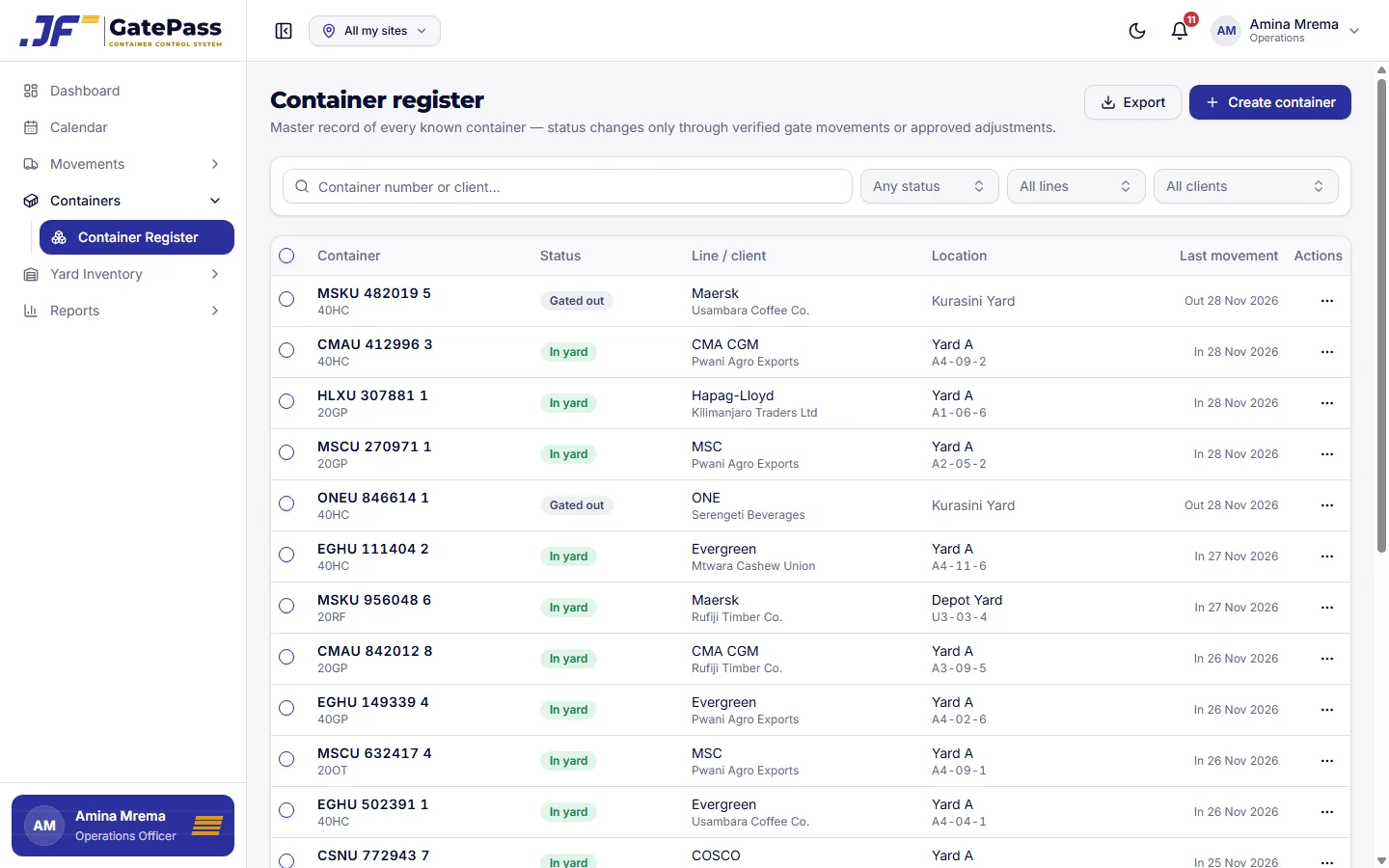
- New containers are also registered automatically when a Gate-In is requested for an unknown number (configurable).
- A container with movement history cannot be deleted — deactivate it instead.
- Status cannot be edited by hand: it changes only through verified movements or approved adjustments.
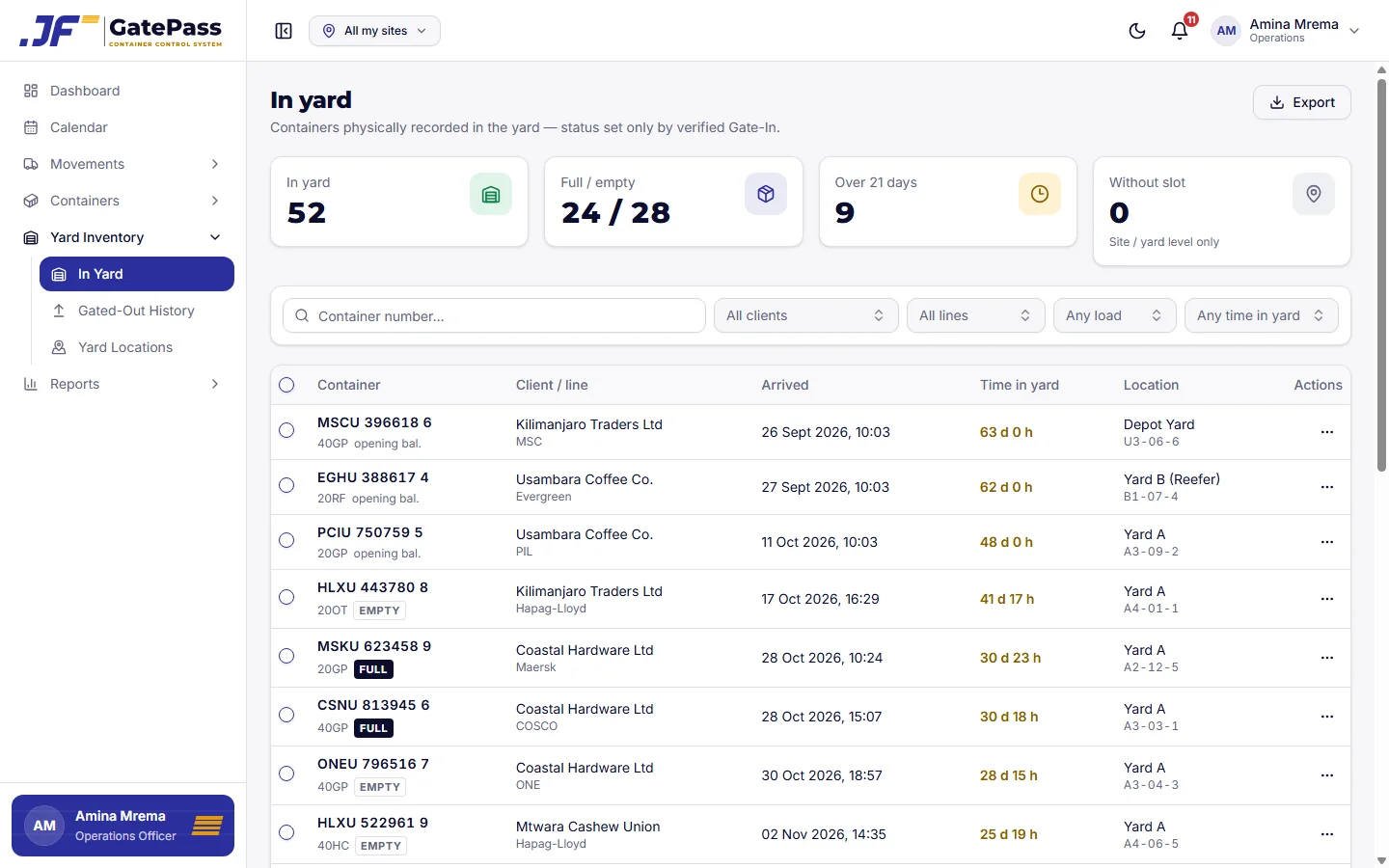
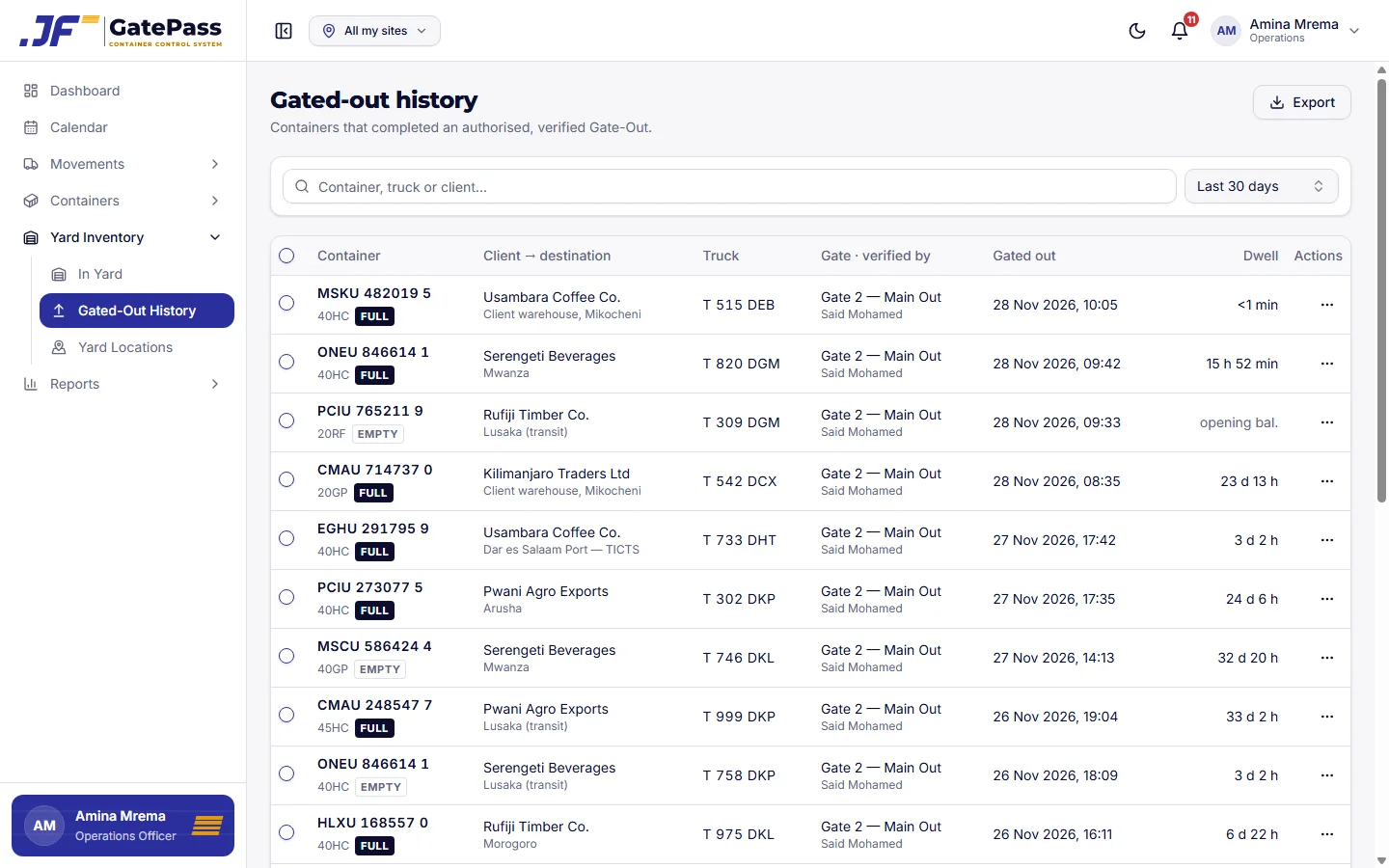
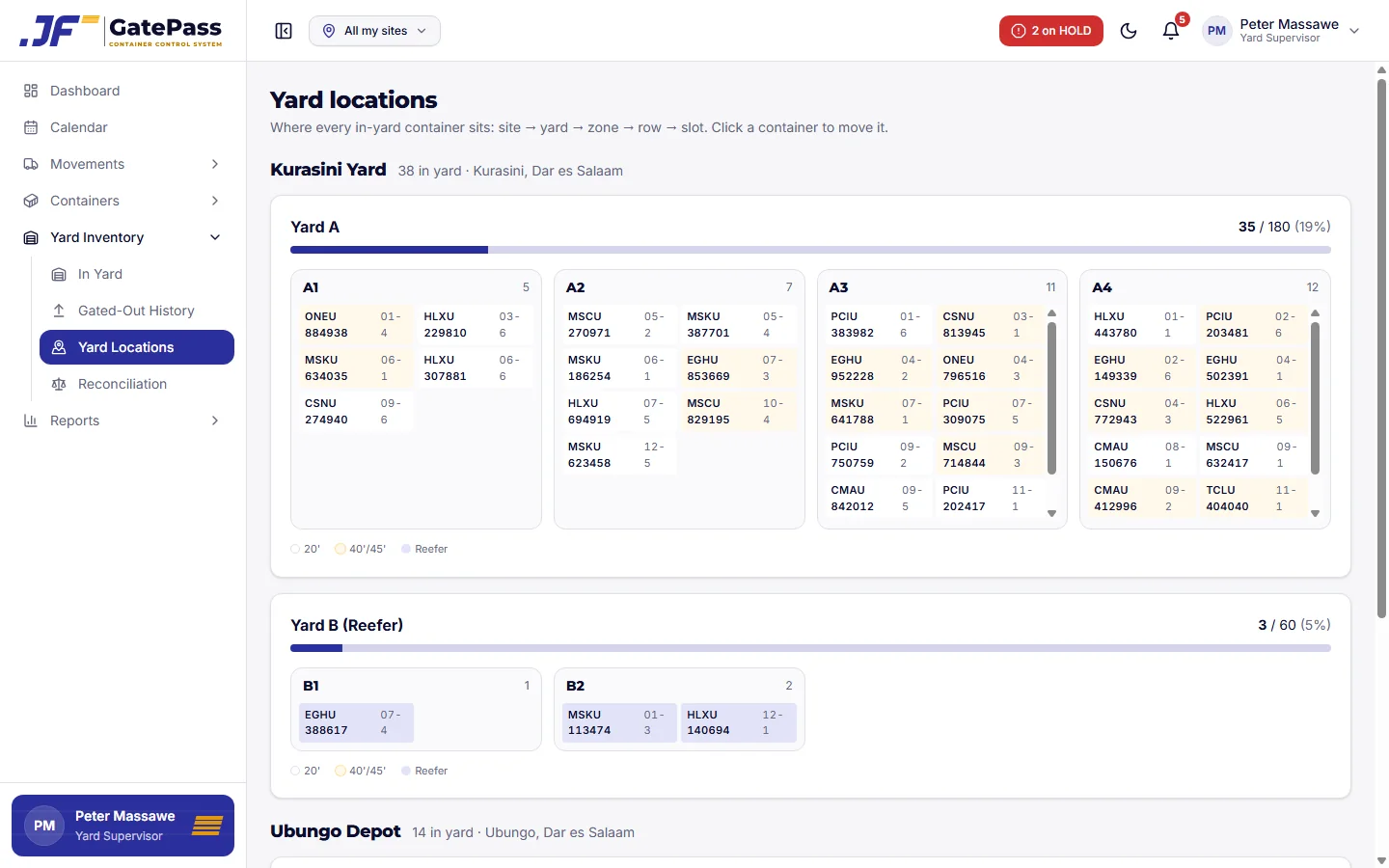
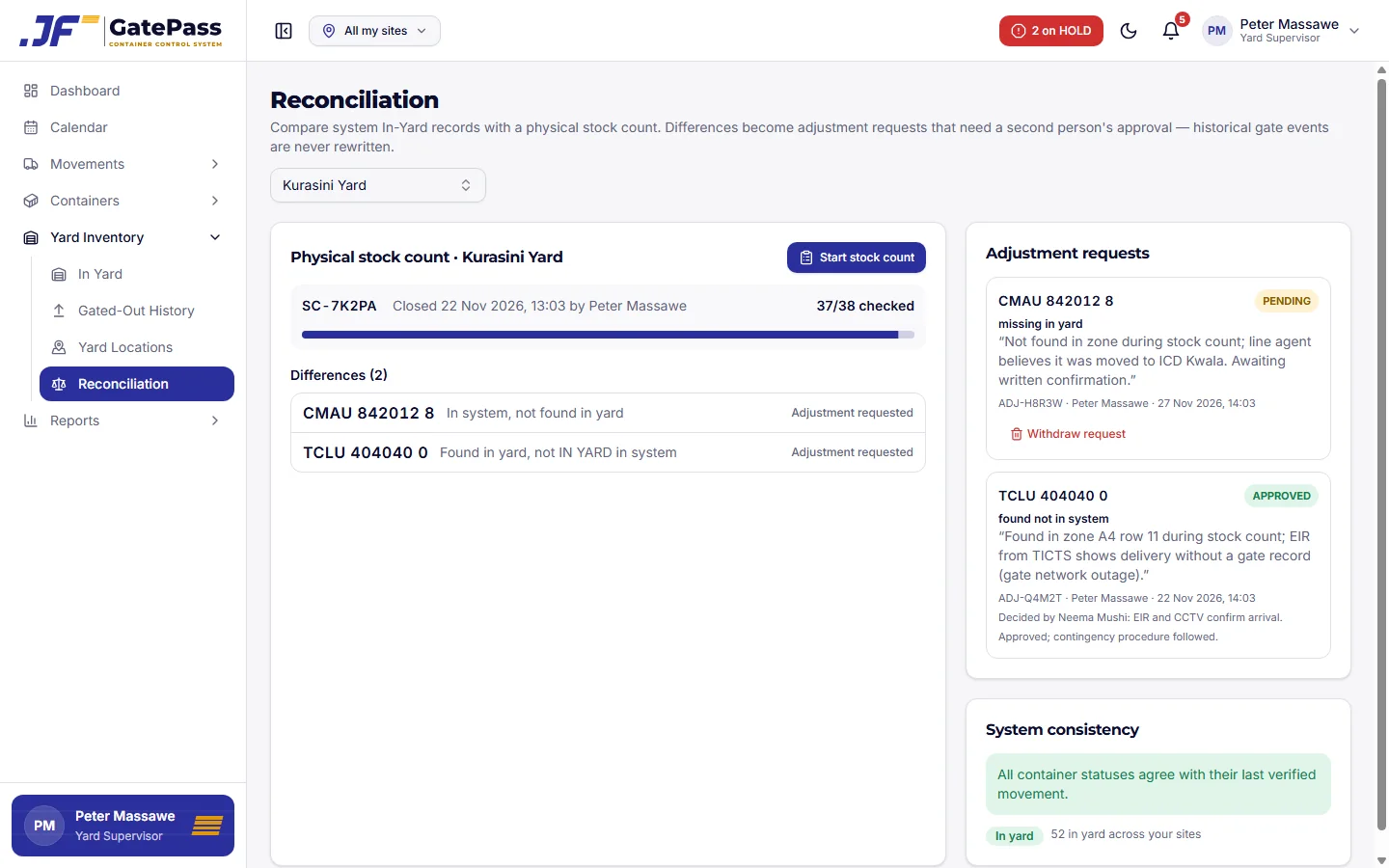
Yard inventory
Four views under Yard Inventory show what is physically in the yard and keep it reconciled.
Calendar
One calendar for gate activity and planned yard events: completed Gate-Ins and Gate-Outs, passes awaiting the gate, pending approvals, HOLDs, and events you add — stock counts, vessel arrivals, maintenance, gate closures, meetings and inspections.
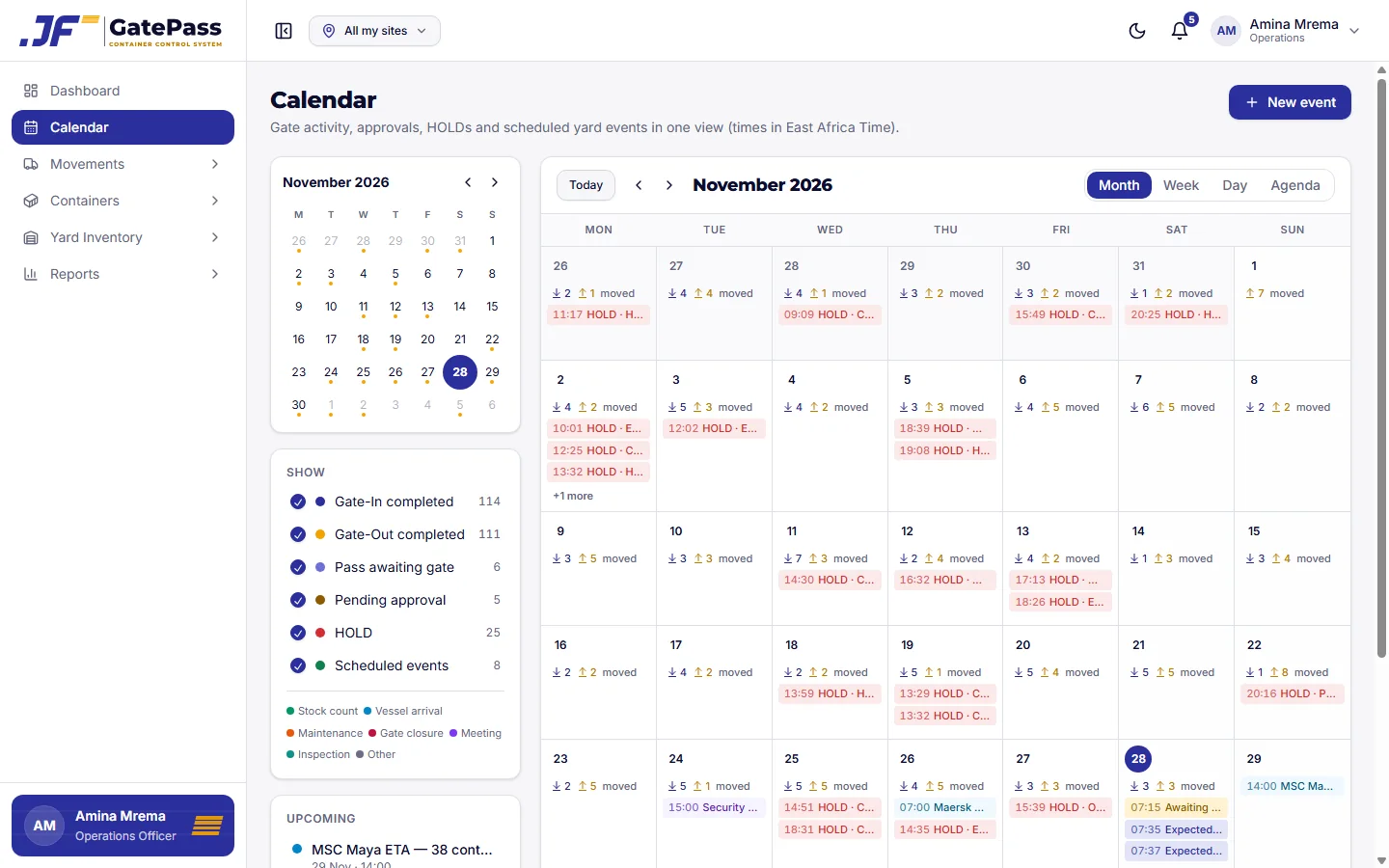
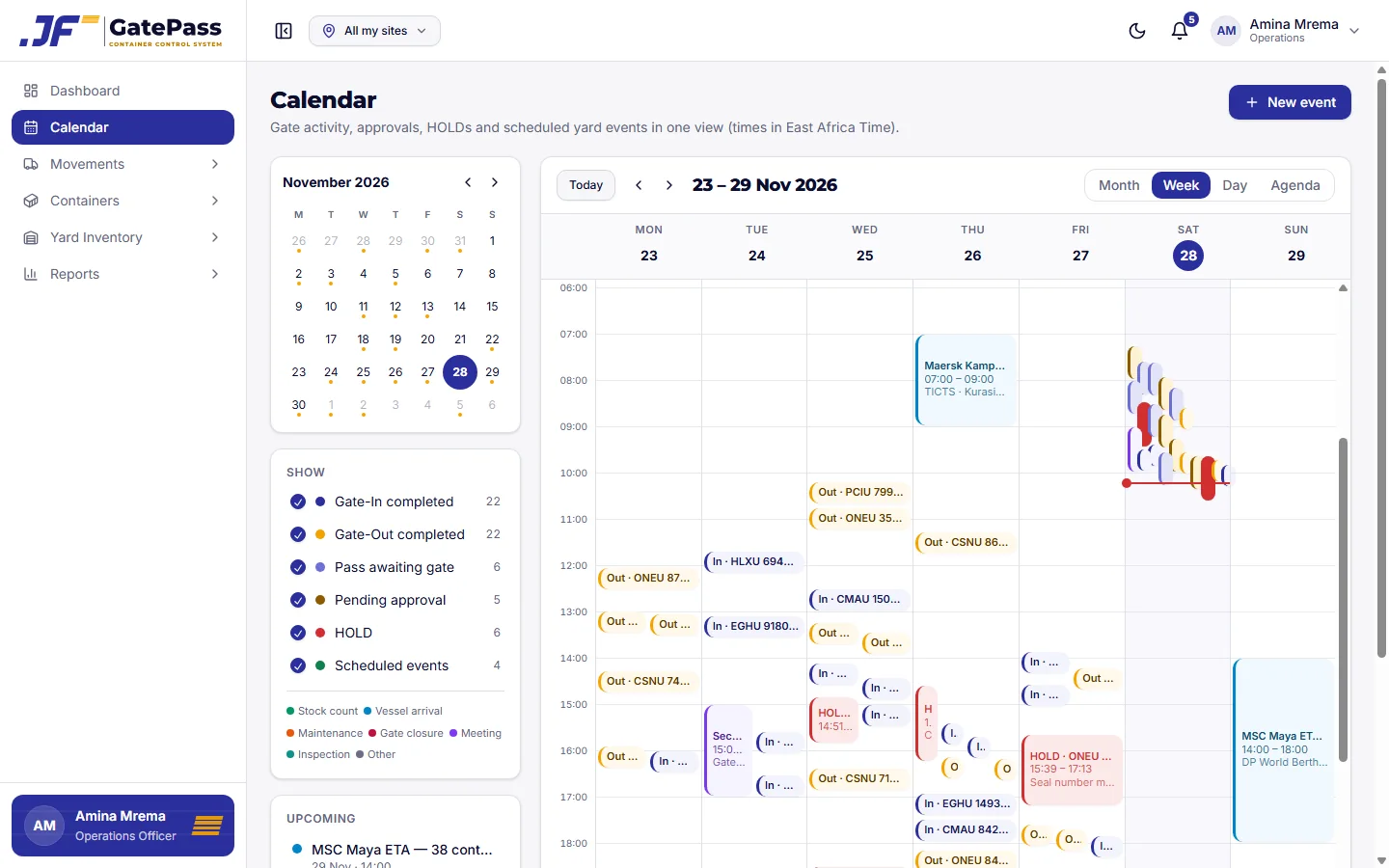
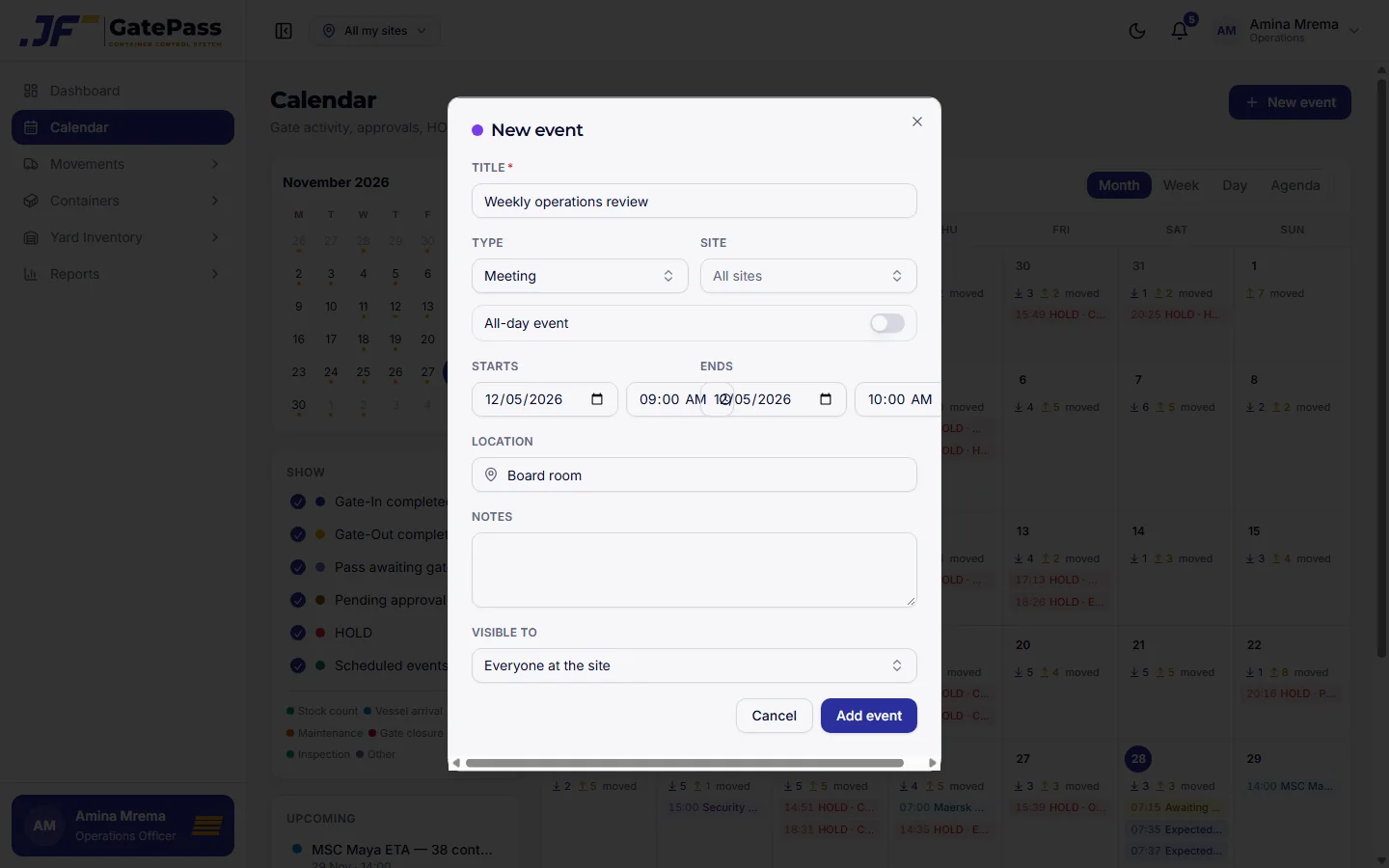
Keyboard: T jumps to today, ← → move back and forward.
Reports & exports
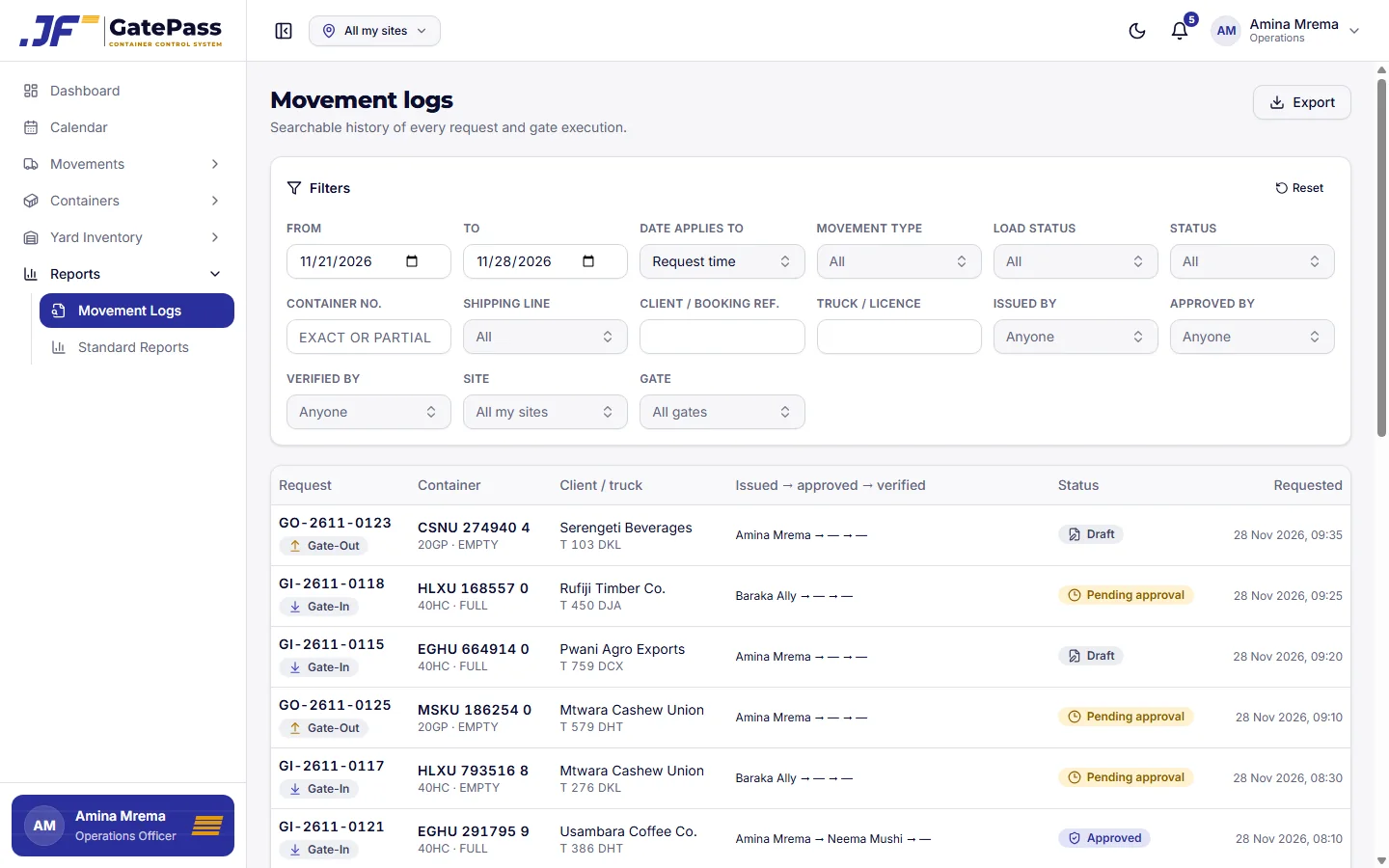
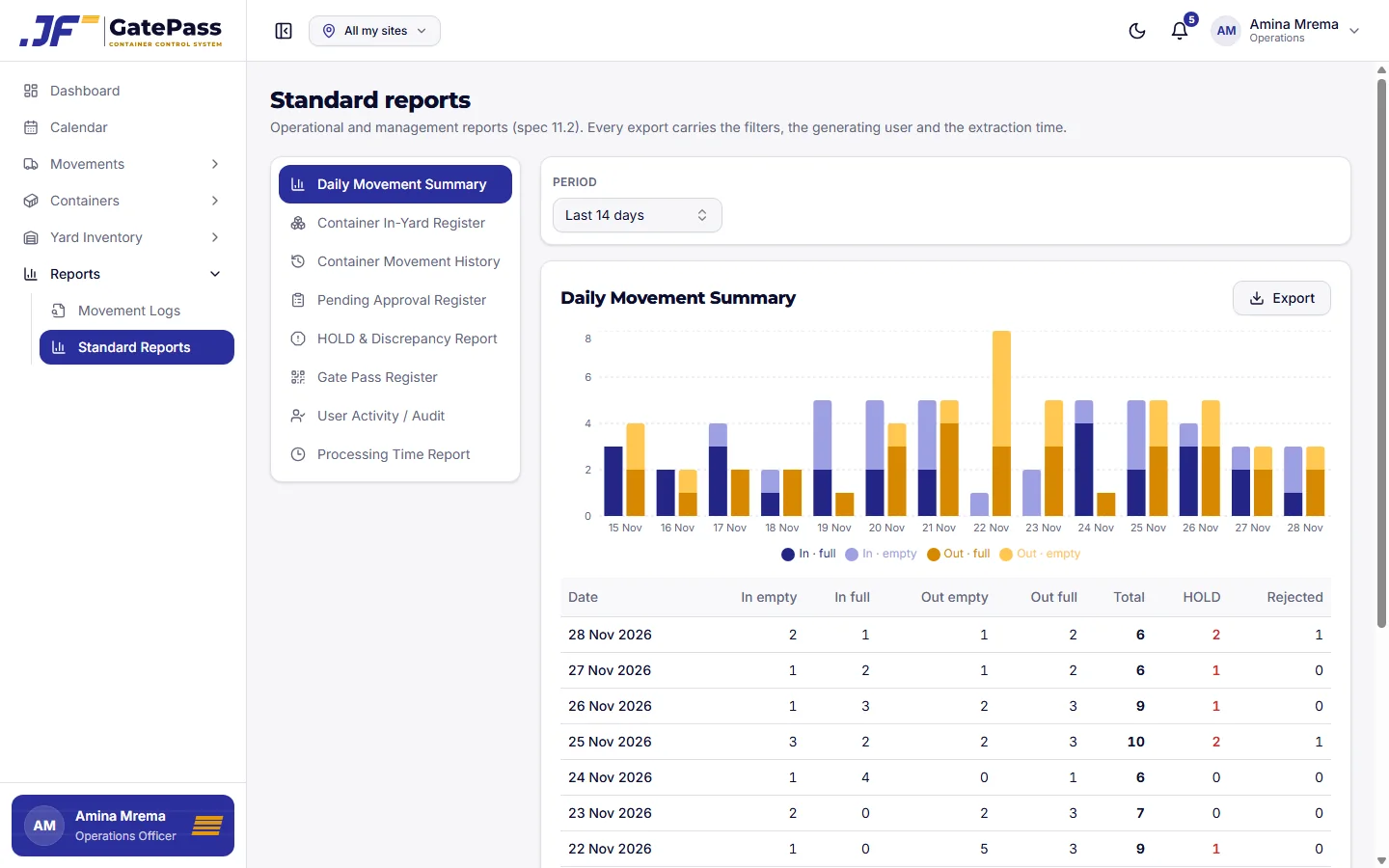
Every list has an Export button for Excel (.xlsx), PDF or print. Exports include the filters used, who generated them and when, and every export is written to the audit trail.
Notifications
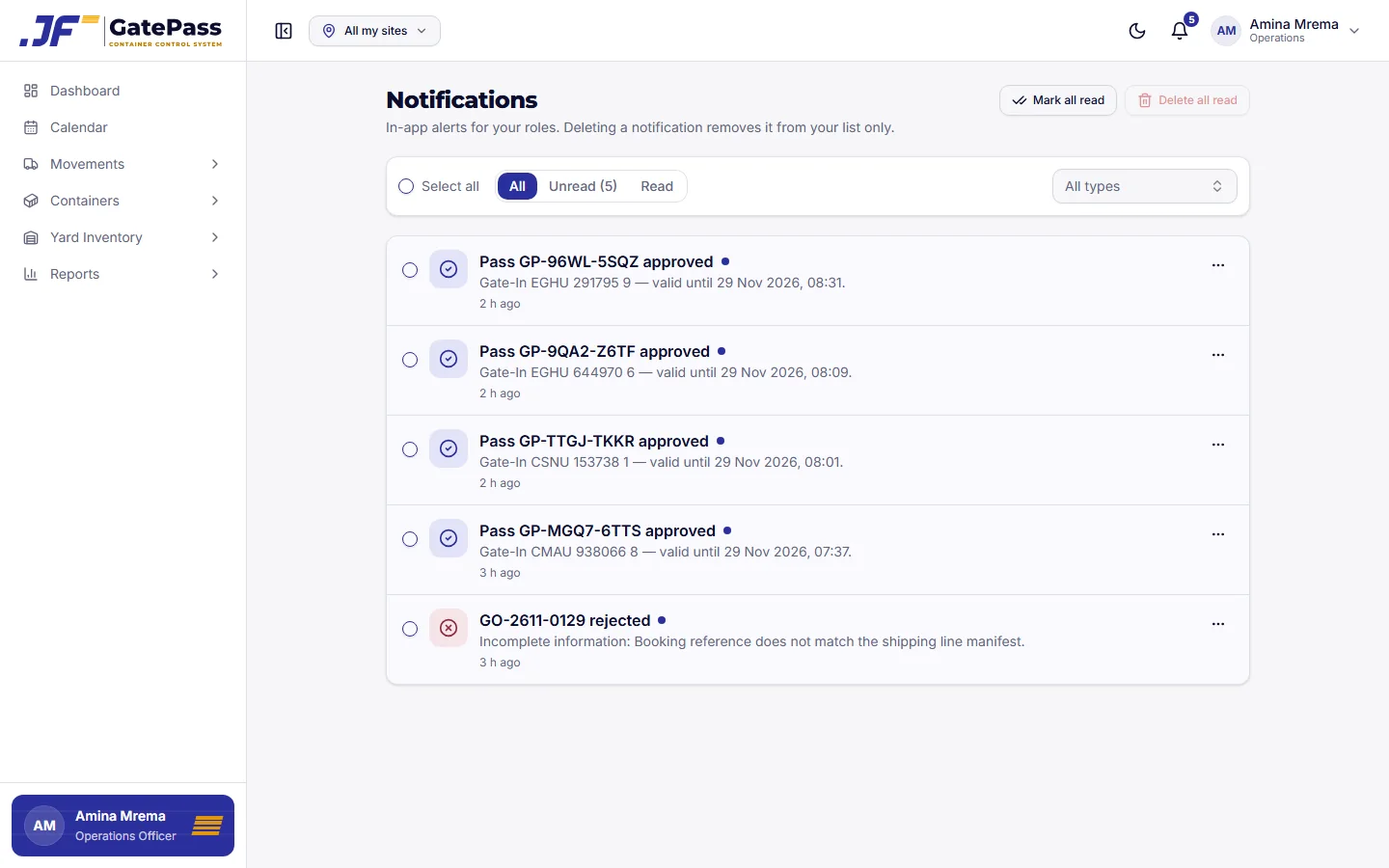
The bell shows alerts for your role: new requests to approve, approvals and rejections of your requests, HOLDs and escalations, completed movements and passes about to expire.
Search, phone numbers & forms
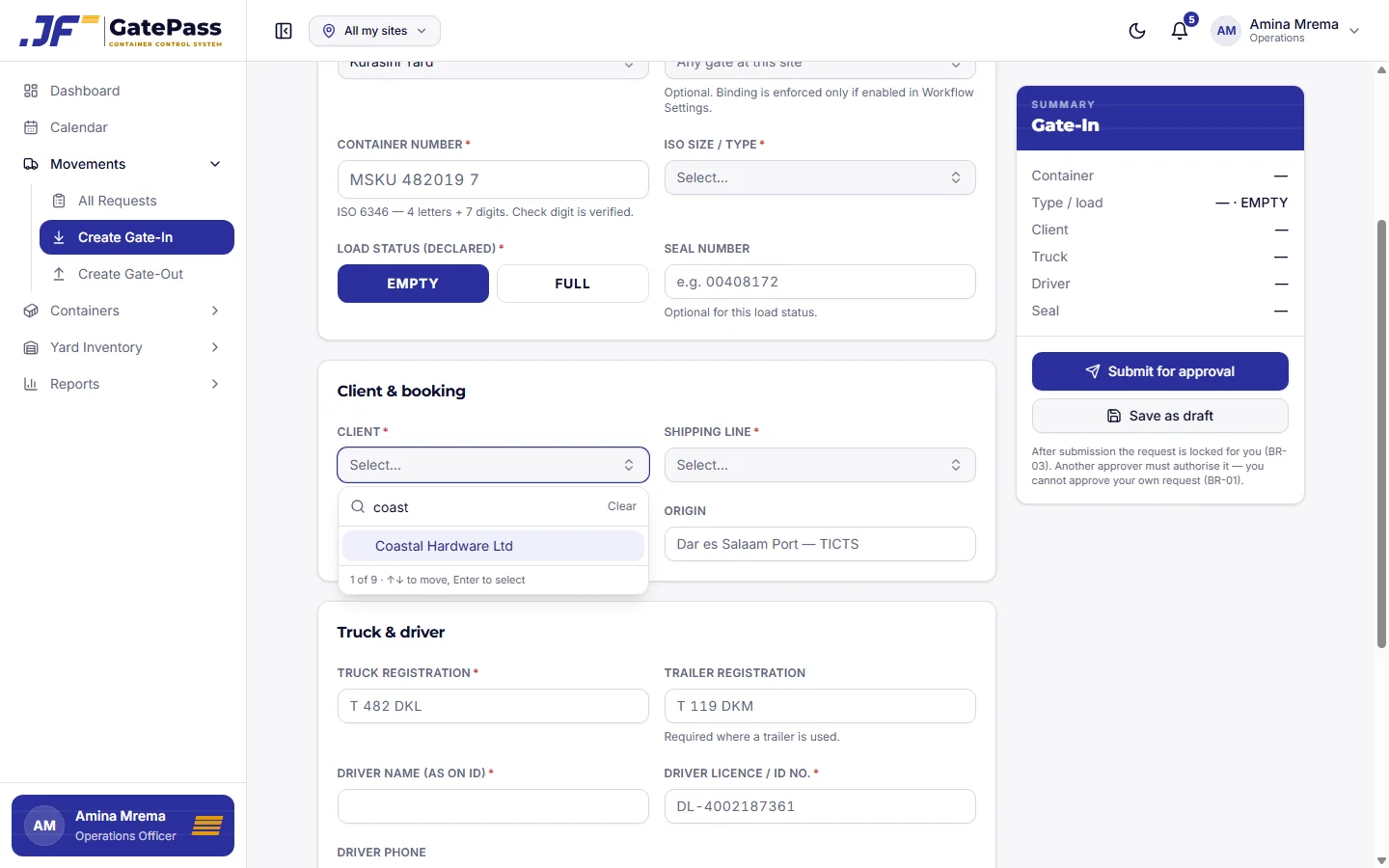
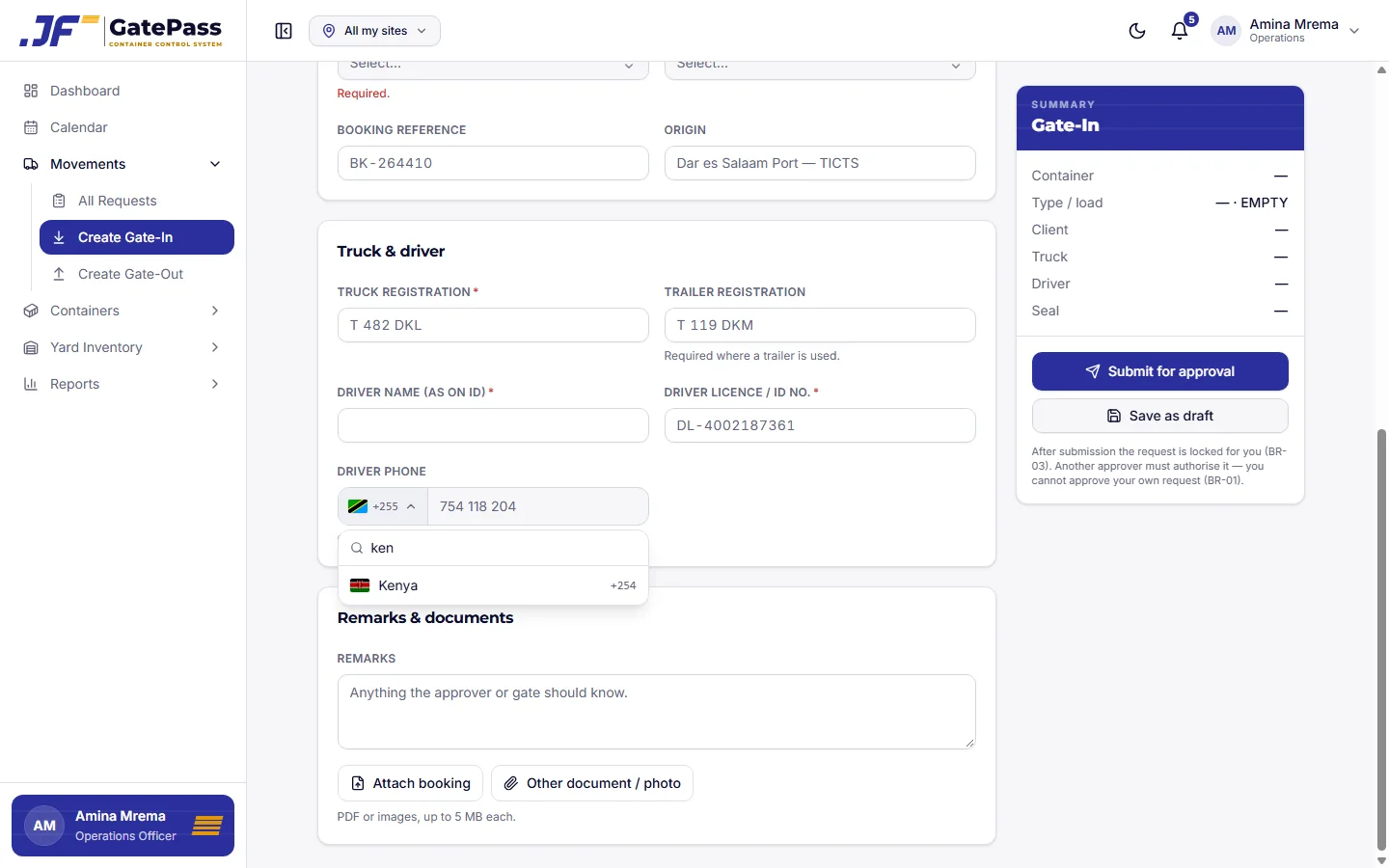
- Required fields are marked with *; mistakes are shown in red under the field.
- Container numbers are checked with the ISO 6346 check digit; truck plates in an unusual format show a warning.
- Buttons you are not allowed to use are shown greyed out — hover over them to see why.
Users
Administration → Users (System Administrator). Everyone needs their own account — shared logins break accountability.
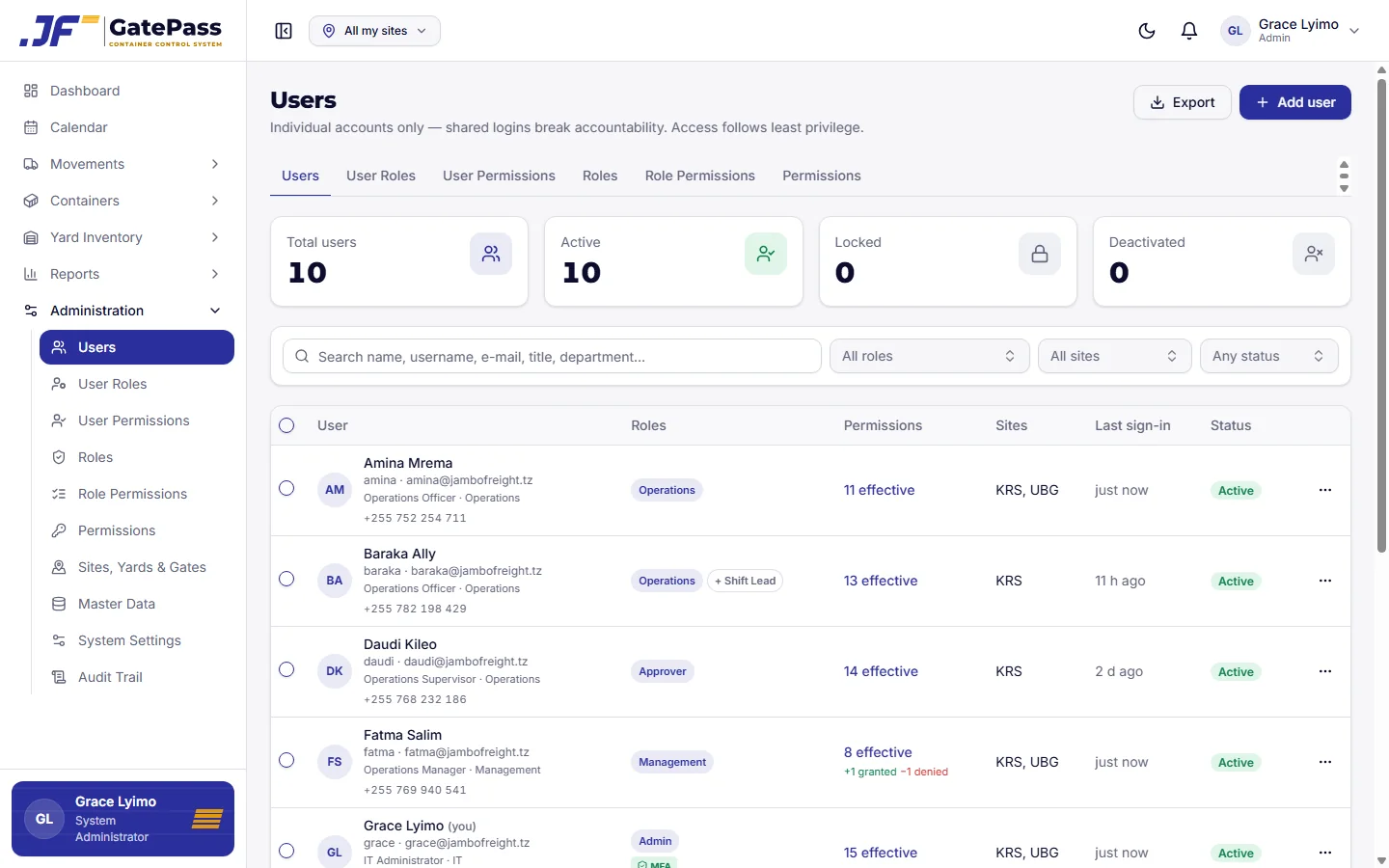
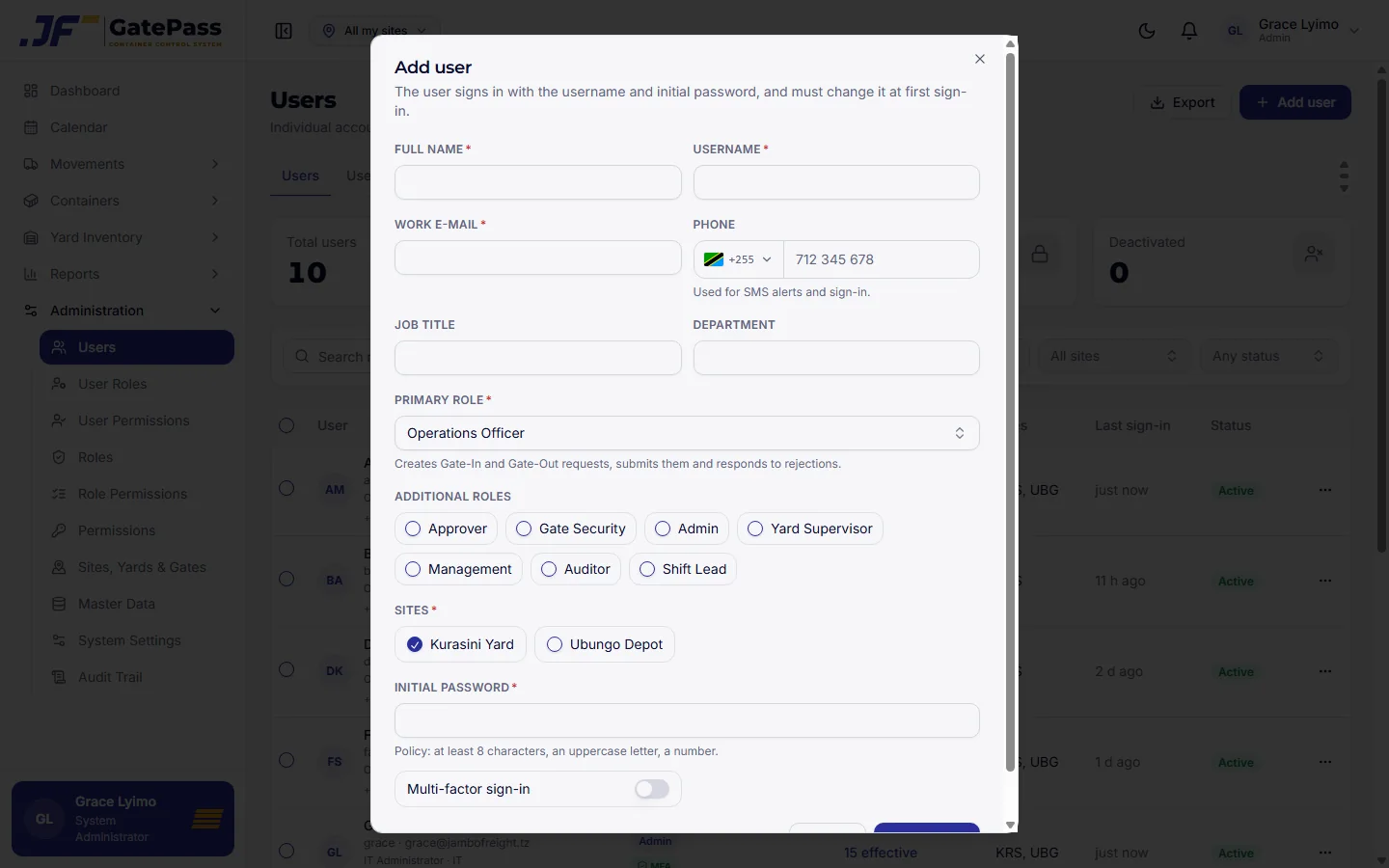
A user who has done anything in the system (created, approved, verified…) cannot be deleted — deactivate them so the history stays complete. New users must change their password at first sign-in.
Roles & permissions
A user's access = the permissions of their primary role + any additional roles + permissions granted to them personally − permissions denied to them personally.
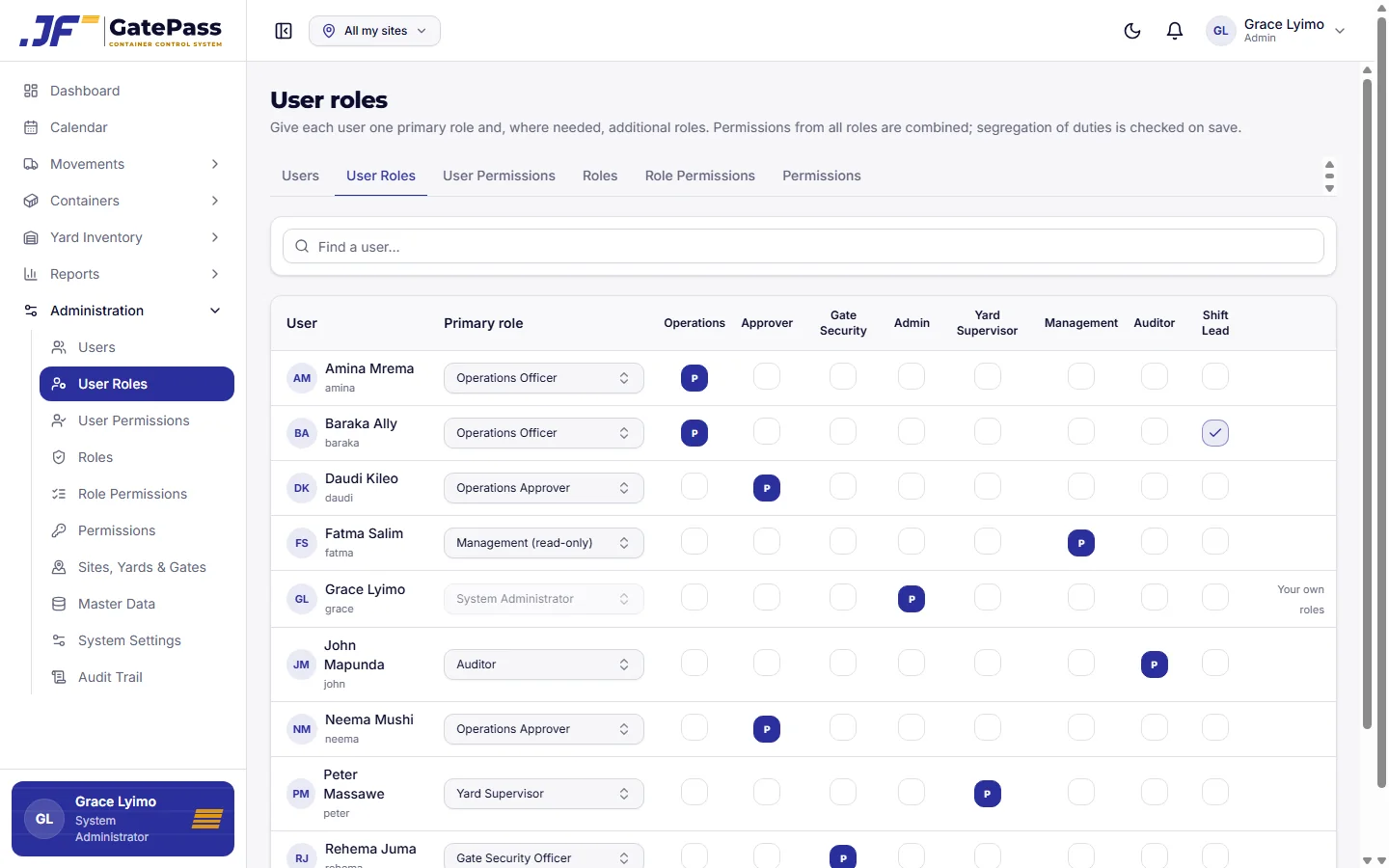
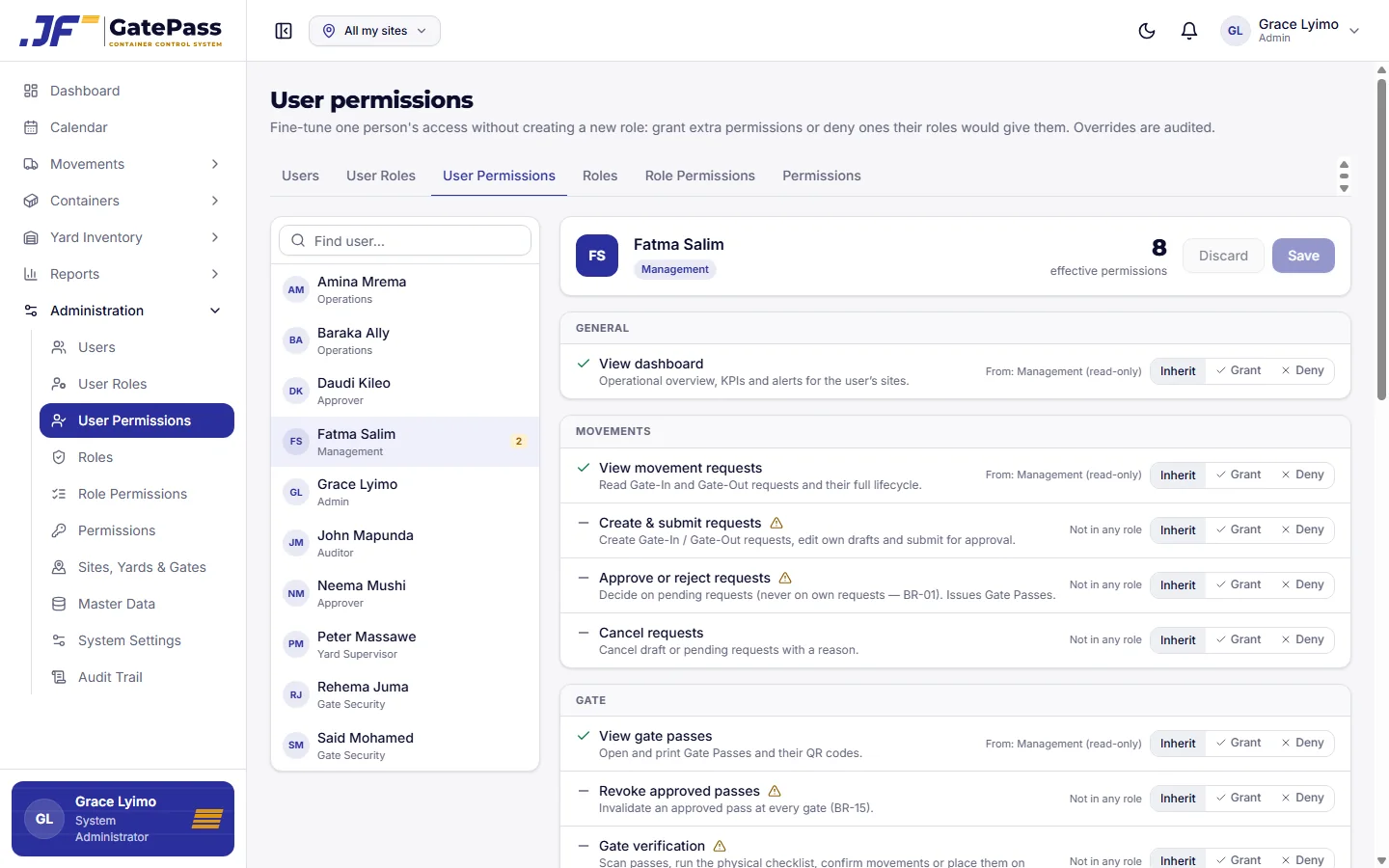
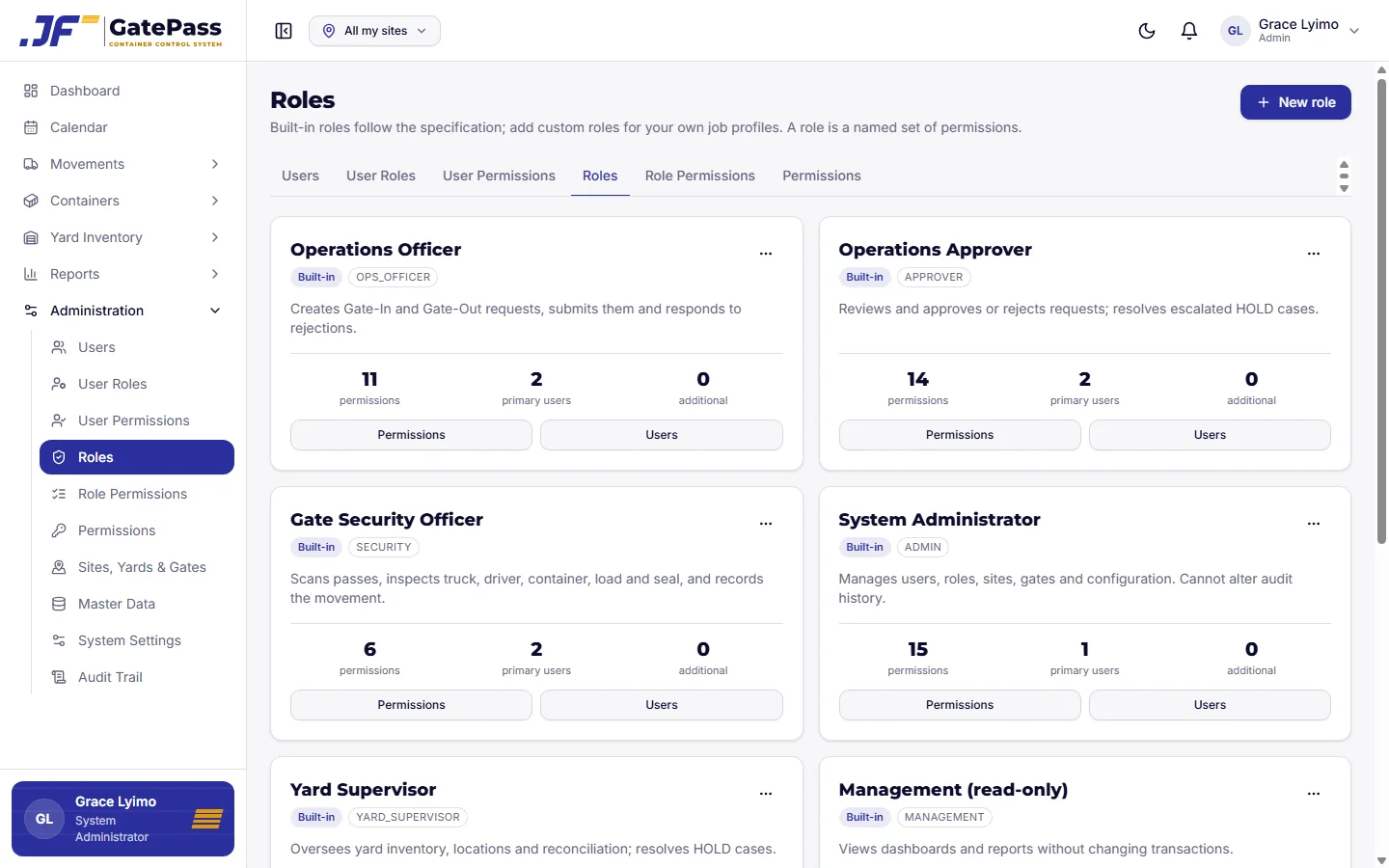
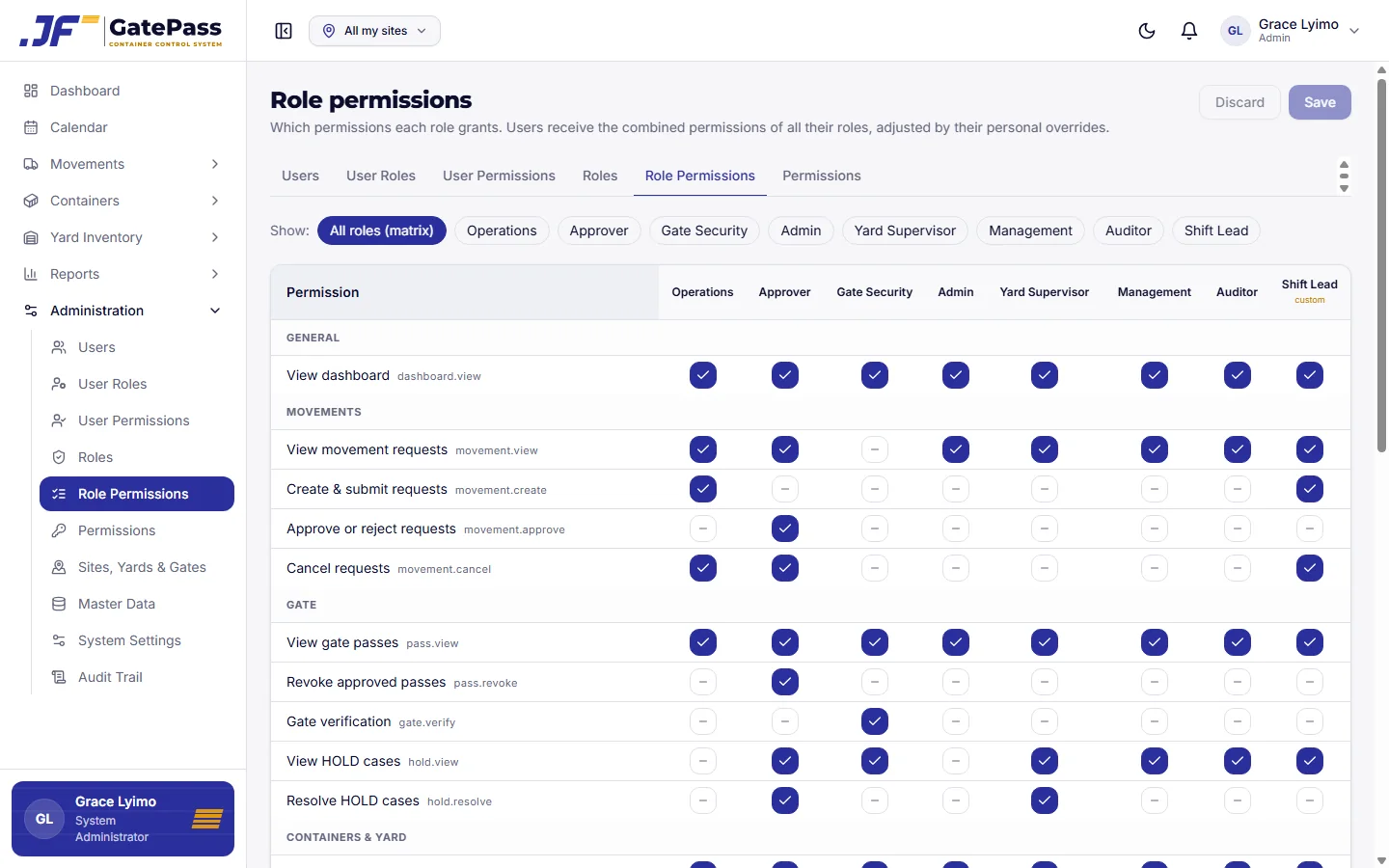
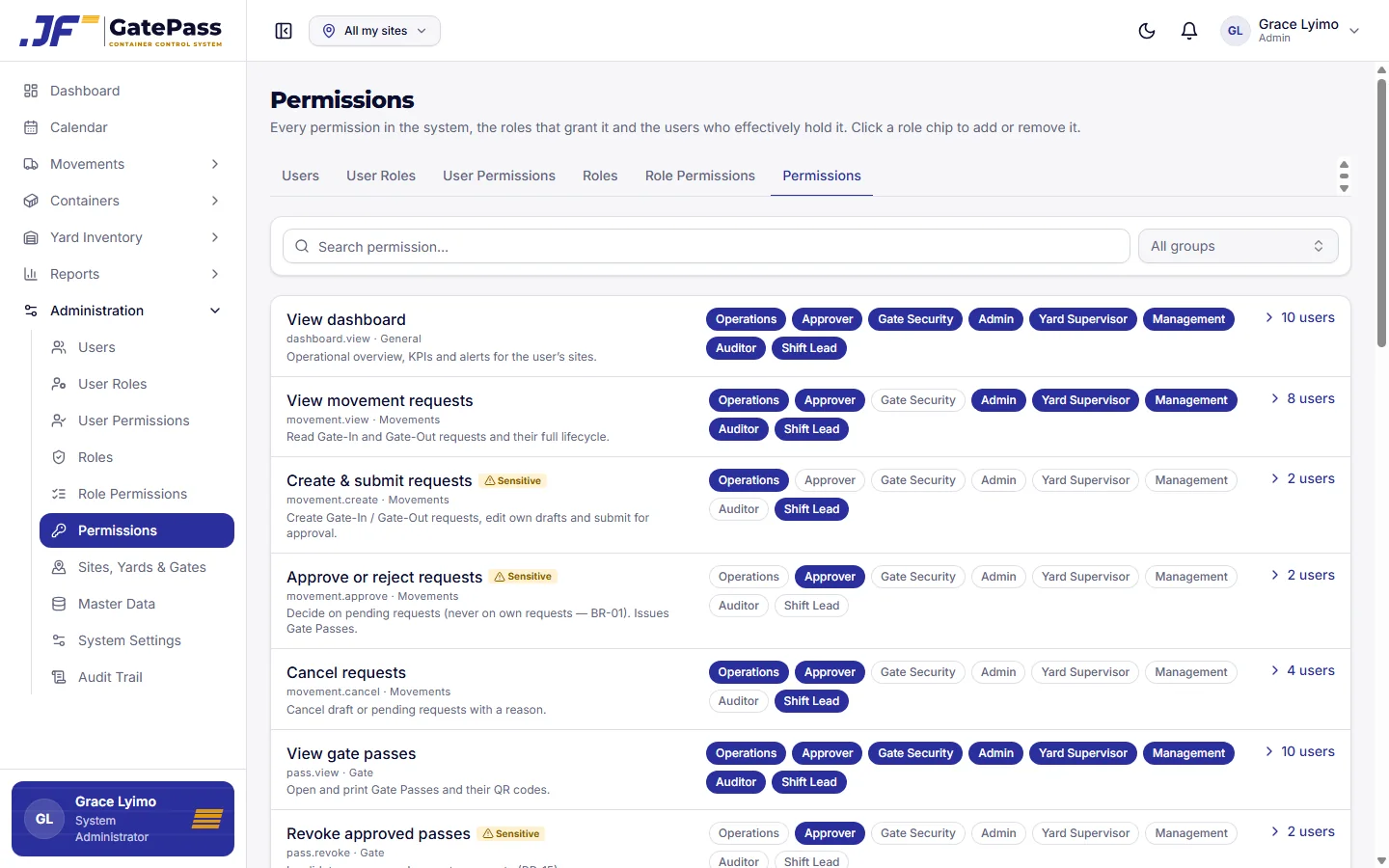
Segregation of duties is always enforced. Nobody may hold these together: create + approve, create + gate verify, approve + gate verify, gate verify + resolve HOLD. Nobody may change their own roles or permissions.
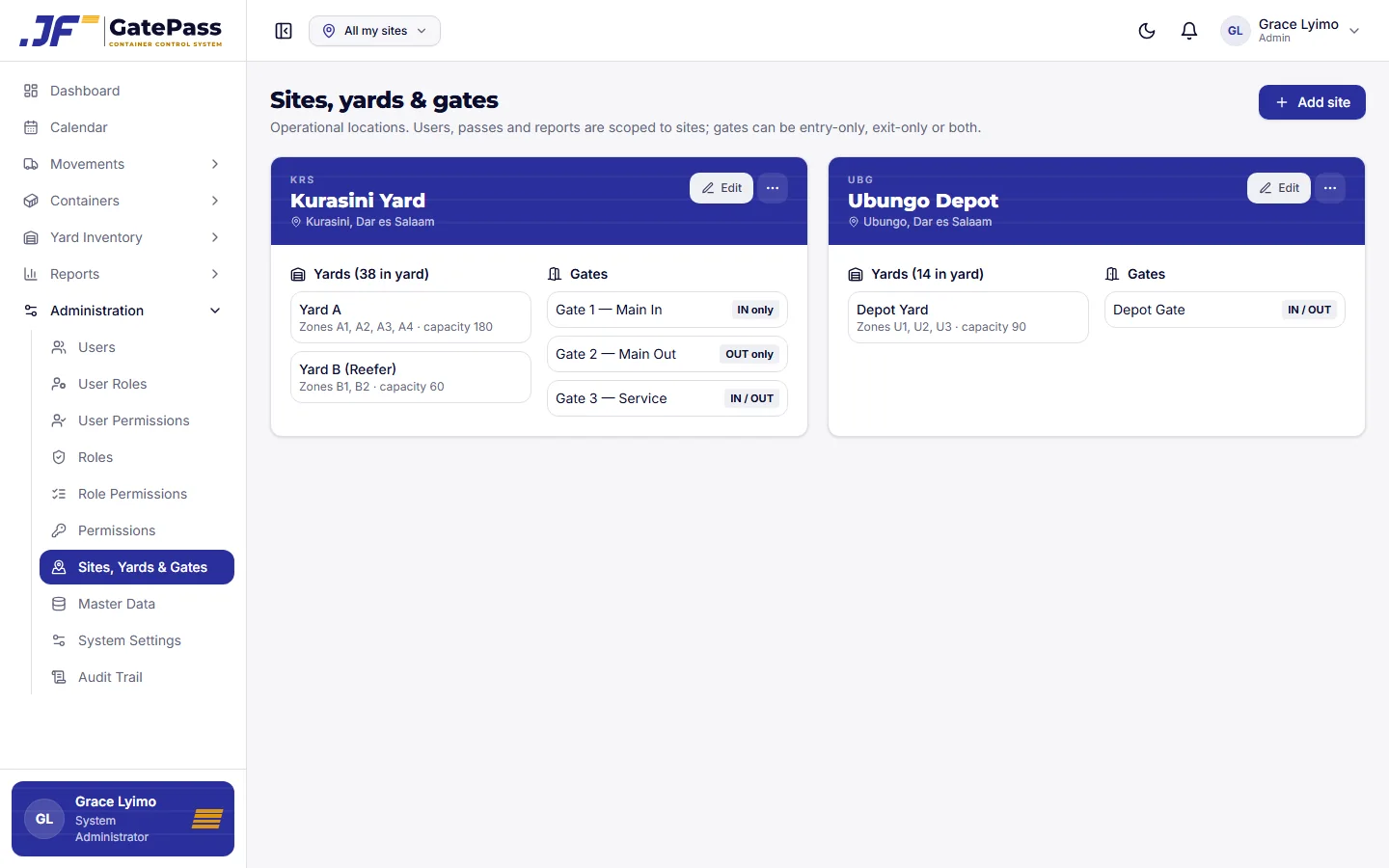
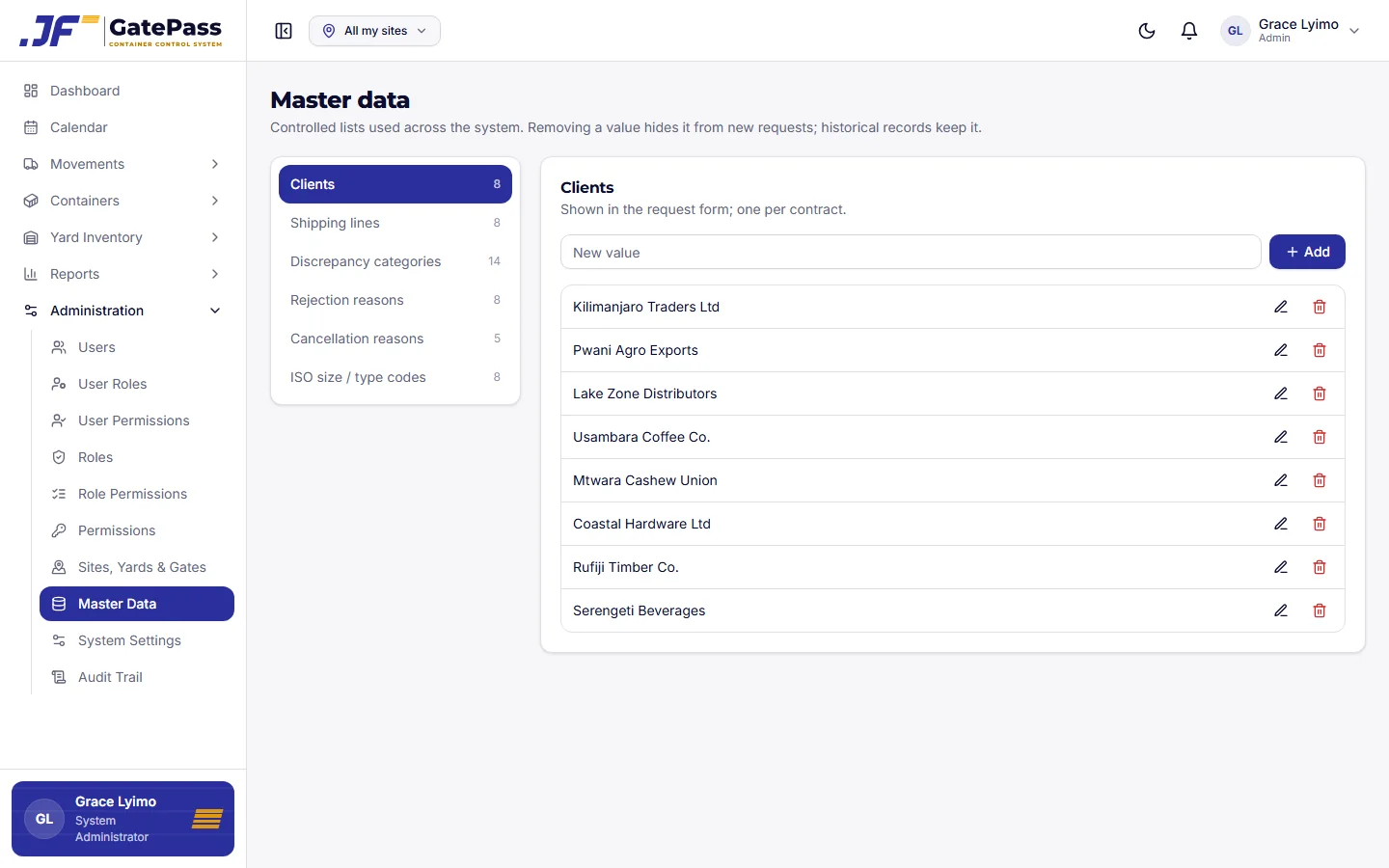
Sites, yards, gates & master data
System settings
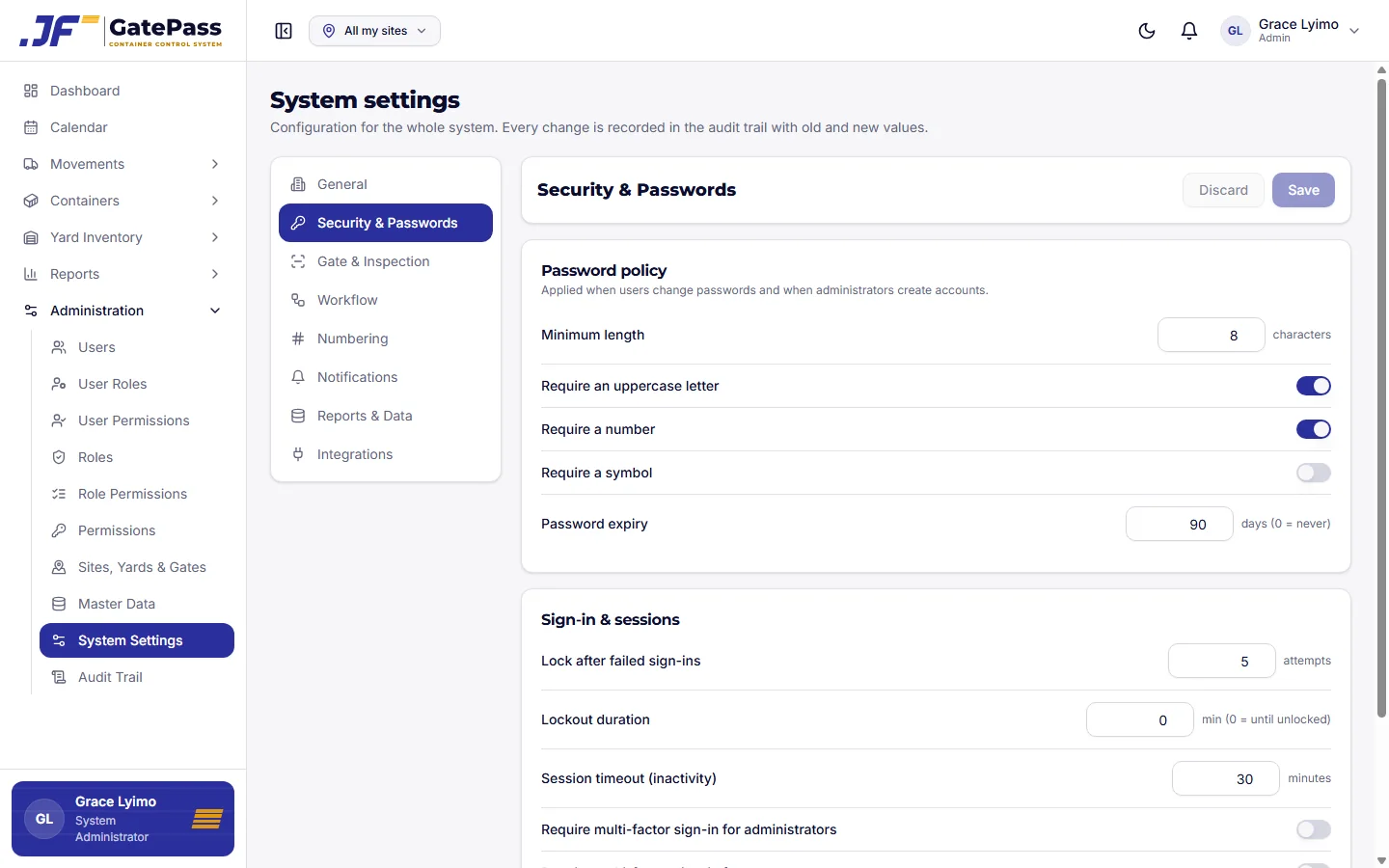
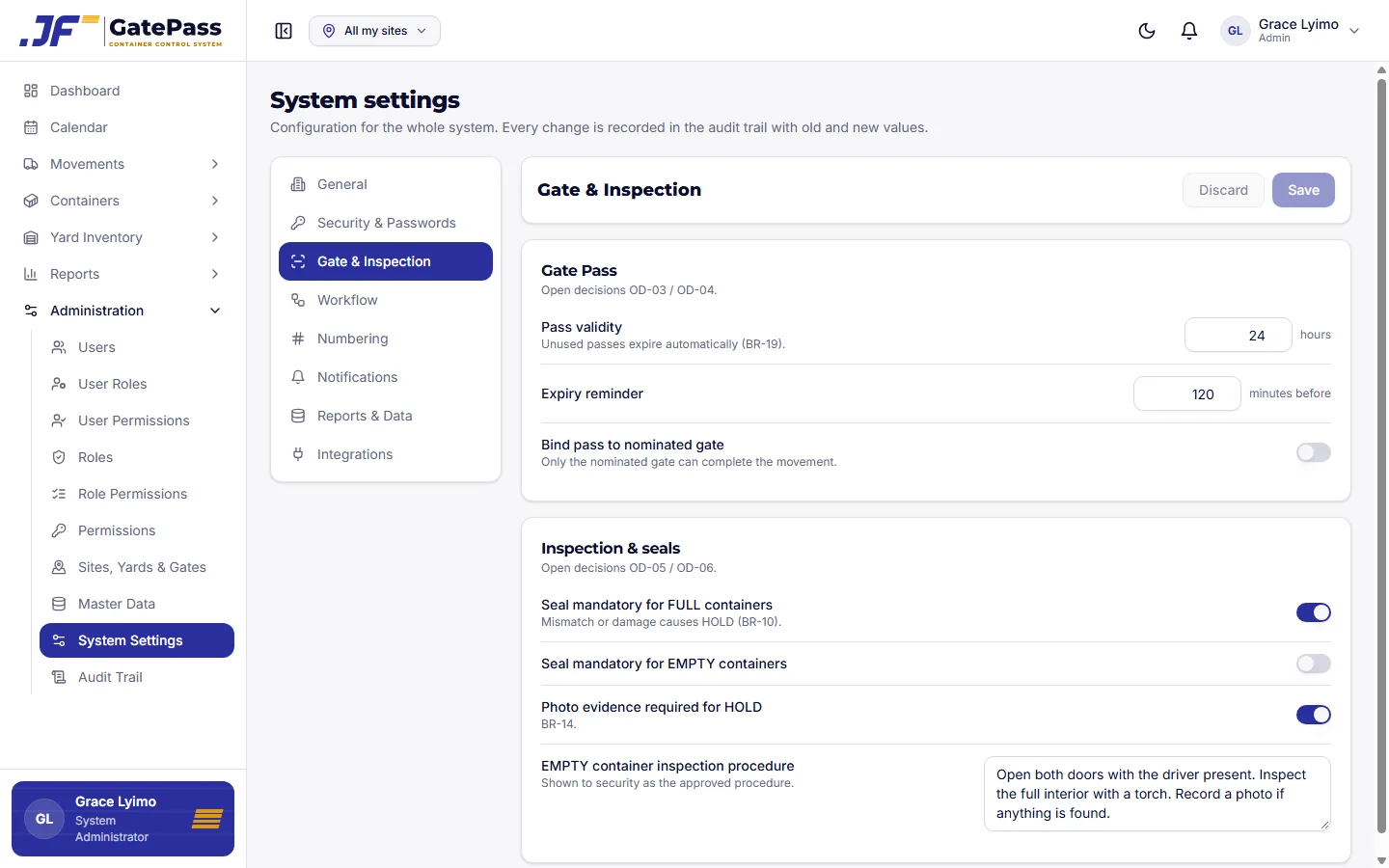
Eight tabs: General, Security & Passwords, Gate & Inspection, Workflow, Numbering, Notifications, Reports & Data and Integrations. Every change is audited with old and new values.
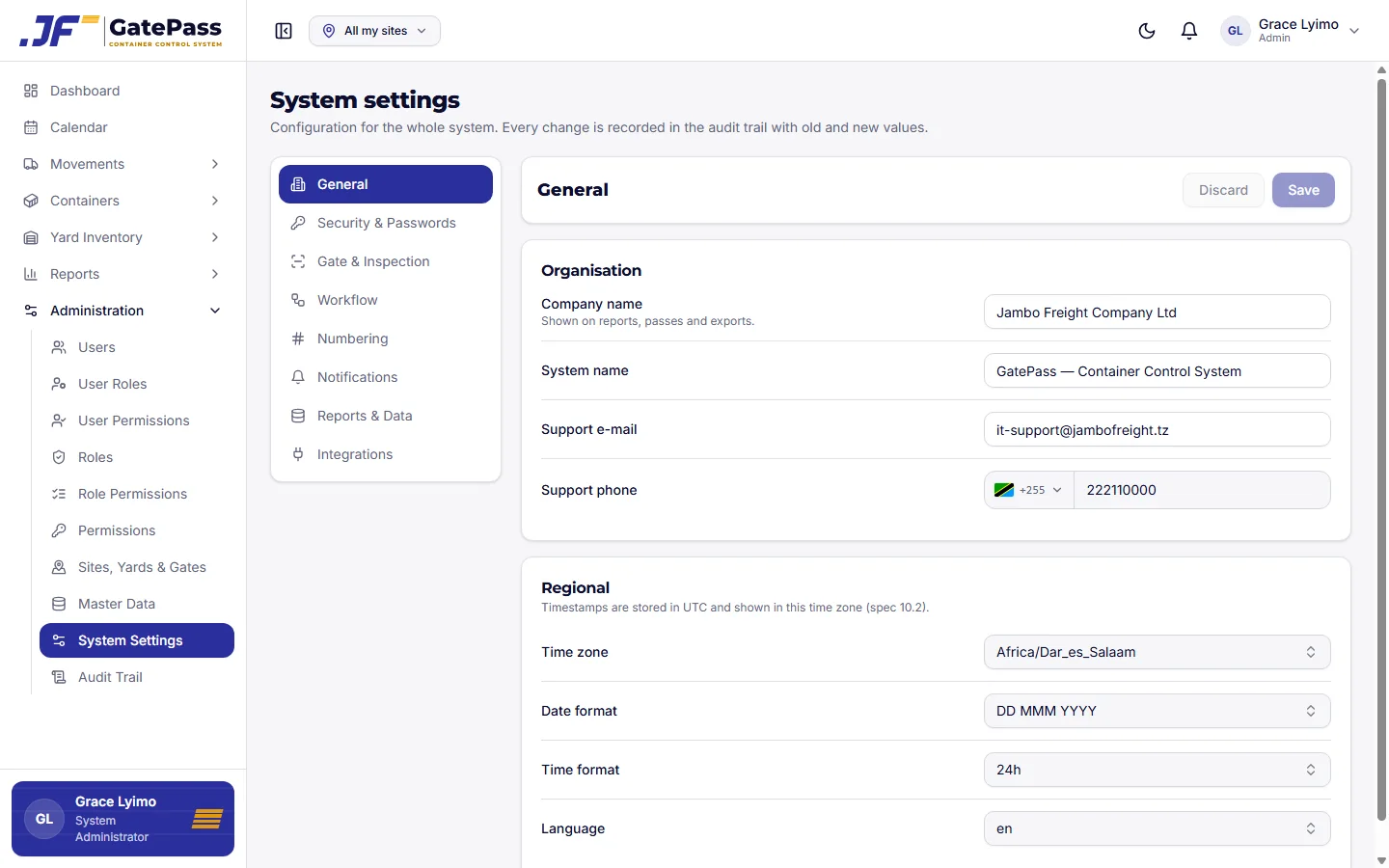
| Setting | Default | Effect |
|---|---|---|
| Pass validity | 24 hours | Unused passes expire automatically. |
| HOLD escalation SLA | 60 minutes | Open HOLDs older than this are escalated. |
| Seal mandatory for FULL | On | FULL requests need a seal; seal mismatch or damage causes HOLD. |
| Photo required for HOLD | On | The guard must attach at least one photo. |
| Lock after failed sign-ins | 5 attempts | The account is locked until unlocked (or the lockout time passes). |
| Session timeout | 30 minutes | Inactive users are signed out. |
| Numbering prefixes | GI / GO / GP | GI-2611-0001, GO-2611-0001, GP-XXXX-XXXX. |
Audit trail
Every important action — sign-ins, requests, approvals, scans, inspections, HOLDs, exports, user and setting changes, and refused attempts — is written to an append-only audit trail with the user, role, time, device, record and reason.
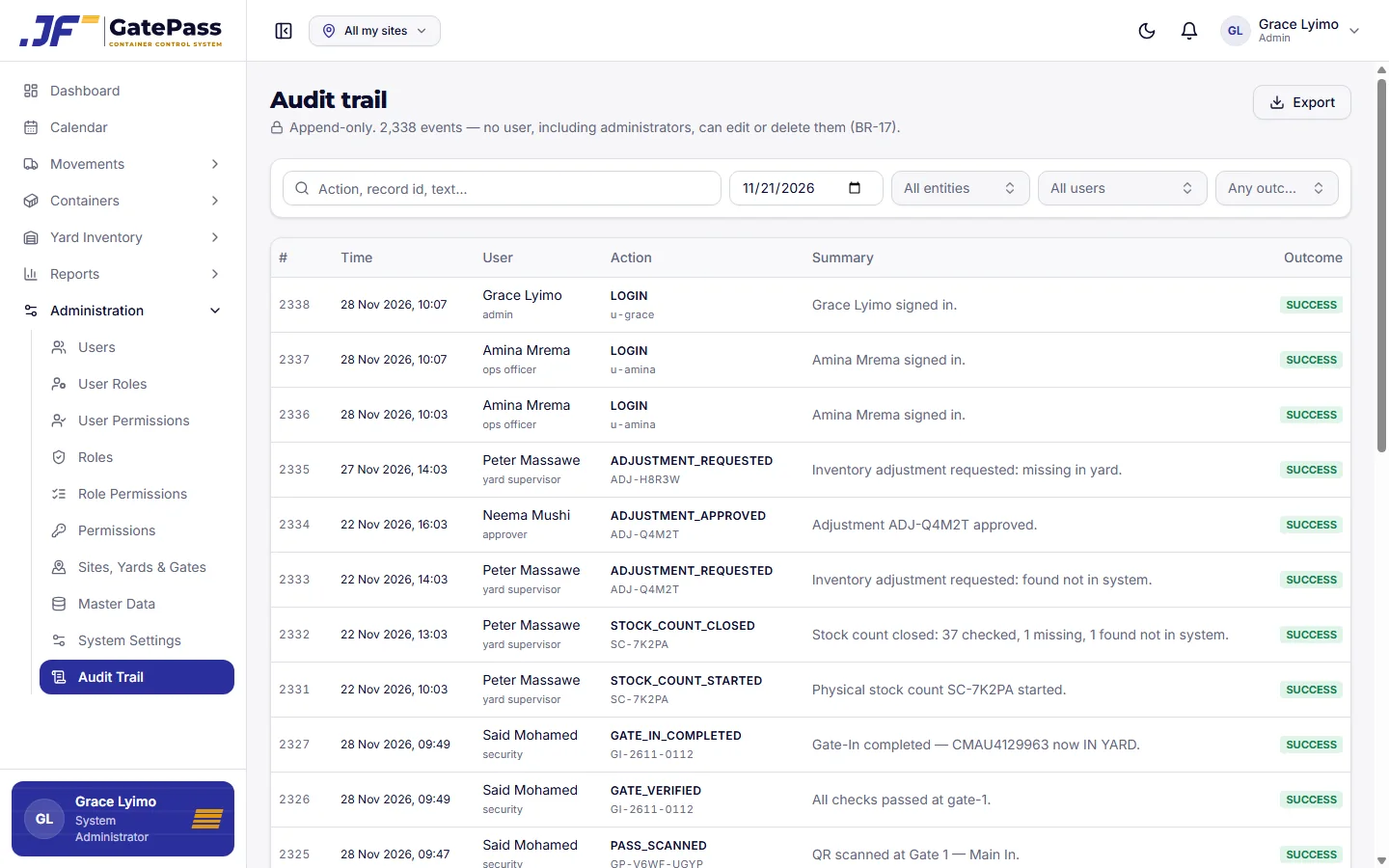
No one — including administrators — can edit or delete audit events or completed movements.
Phones, tablets & dark mode
GatePass adapts to any screen. The gate screens are built for phones and tablets: large buttons, high contrast, and the confirm / HOLD buttons always at the bottom.
Statuses
Container status
| Status | Meaning |
|---|---|
| In yard | The last verified movement was a Gate-In (or an approved adjustment added it). |
| Gated out | The last verified movement was a Gate-Out. |
| Not in yard | Registered but never gated in, or removed by an approved adjustment. |
Gate pass status
| Status | Meaning |
|---|---|
| Active | Valid at the gate until its expiry time. |
| Used | The movement was completed; the pass can never be used again. |
| Revoked | Cancelled by an approver, or replaced after a HOLD. |
| Expired | Not used before its validity ended. |
For request statuses see the workflow at a glance.
Business rules
These rules come from the system specification and are enforced by the system itself — not only hidden in the screens.
| Rule | Description |
|---|---|
| BR-01 | An Operations Officer cannot approve a request they created. |
| BR-02 | Gate Security can only act on passes that are approved and valid. |
| BR-03 | Submitted requests are locked for the issuer; changes need a revision. |
| BR-04 | Approved data cannot be edited; changes need revocation and a new approval. |
| BR-05 | A gate pass is created only after approval. |
| BR-06 | A QR code does not authorise a movement by itself; the live pass status is checked. |
| BR-07 | A pass can be completed only once. |
| BR-08 | The physical container number must match the approved number. |
| BR-09 | EMPTY/FULL must be physically verified; a mismatch causes HOLD. |
| BR-10 | Seal checks follow the configured rules; seal mismatch or damage causes HOLD. |
| BR-11 | A Gate-Out needs the container to be In Yard. |
| BR-12 | A container cannot have two open movements at once. |
| BR-13 | A rejection needs a reason category and an explanation. |
| BR-14 | A HOLD needs a discrepancy category, notes and (by policy) a photo. |
| BR-15 | Only authorised users can resolve a HOLD or revoke a pass. |
| BR-16 | All critical actions are logged with user, role, time and record. |
| BR-17 | Completed movements and audit events cannot be deleted. |
| BR-18 | System time is used for approvals and gate times. |
| BR-19 | Expired, revoked, cancelled or used passes cannot be executed. |
| BR-20 | Exports contain only records the user is allowed to see. |
Default permission matrix
What each built-in role can do out of the box. Administrators can change it in Role permissions, within the segregation-of-duties rules.
| Permission | Ops | Approver | Gate | Admin | Yard sup. | Mgmt | Auditor |
|---|---|---|---|---|---|---|---|
| View dashboard & calendar | ✓ | ✓ | ✓ | ✓ | ✓ | ✓ | ✓ |
| View movement requests | ✓ | ✓ | — | ✓ | ✓ | ✓ | ✓ |
| Create & submit requests | ✓ | — | — | — | — | — | — |
| Approve or reject requests | — | ✓ | — | — | — | — | — |
| Revoke passes | — | ✓ | — | — | — | — | — |
| Gate verification | — | — | ✓ | — | — | — | — |
| View HOLD cases | — | ✓ | ✓ | — | ✓ | ✓ | ✓ |
| Resolve HOLD cases | — | ✓ | — | — | ✓ | — | — |
| Manage containers | ✓ | — | — | ✓ | ✓ | — | — |
| Manage yard (locations, stock counts) | — | — | — | — | ✓ | — | — |
| Approve inventory adjustments | — | ✓ | — | — | — | — | — |
| Reports & exports | ✓ | ✓ | — | ✓ | ✓ | ✓ | ✓ |
| See driver ID & phone | ✓ | ✓ | ✓ | — | — | — | — |
| Audit trail | — | — | — | ✓ | — | — | ✓ |
| Users, roles, sites, settings, master data | — | — | — | ✓ | — | — | — |
FAQ & troubleshooting
I cannot see a menu item or a button is grey.
Your role does not include that permission. Hover over a grey button to see why. Ask the System Administrator if you need access.
Why can't I approve my own request?
Segregation of duties (BR-01): a second person must approve. This applies to everyone, including administrators.
The gate shows "DO NOT PROCEED".
The pass is not valid — expired, revoked, already used, on HOLD or for another site. Do not let the truck through; contact Operations for a new authorisation.
The camera does not scan the QR code.
Allow camera access in the browser, or switch to Enter Pass ID and type the code printed under the QR.
The confirm button at the gate stays disabled.
At least one check has not been done or failed. Complete every check; if something really does not match, use Place on HOLD.
I made a mistake in a submitted request.
Ask an approver to reject it with a reason, then use Revise & resubmit. Drafts can be edited or deleted freely.
The container number is refused.
Check the 4 letters and 7 digits again — the last digit is a check digit. The number on the container doors is the reference.
My account is locked.
After too many wrong passwords the account locks. The System Administrator can unlock it or issue a temporary password.
The network is down at the gate.
Do not let trucks through on an unverified pass. Follow the approved manual contingency procedure and record it later as an auditable exception.
Glossary
| Term | Meaning |
|---|---|
| Gate-In / Gate-Out | A container entering or leaving a Jambo Freight yard. |
| Gate pass | The authorisation issued after approval, with a unique ID and QR code; valid once. |
| HOLD | A movement stopped at the gate because something did not match. |
| ISO size / type | The container code, e.g. 20GP, 40HC, 20RF (reefer). |
| Seal | The numbered security seal on the container doors. |
| EIR | Equipment Interchange Receipt issued by the terminal. |
| Release order (RO) | The shipping line's document releasing a container to the client. |
| Segregation of duties (SoD) | Different people request, approve and verify a movement. |
| Dwell time | How long a container stayed in the yard. |
| E.164 | International phone number format, e.g. +255754118204. |